
How to use LinkedIn for business: a practical beginner's guide
A first week on LinkedIn, step by step
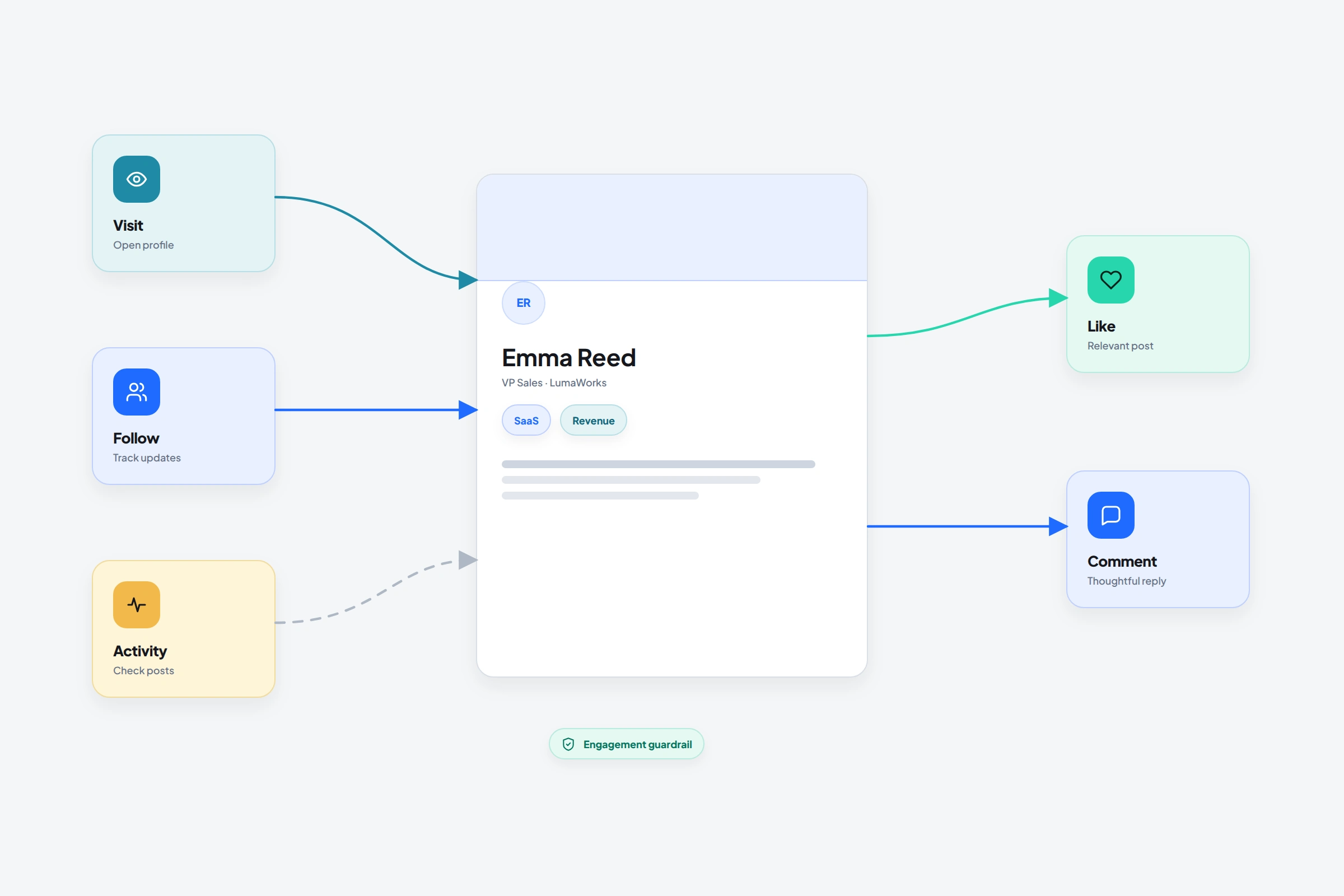
Most people who open LinkedIn for business do the same three things: upload a photo, accept whoever asks, and wait. A month later the feed is full of strangers, nobody has asked about their work, and they decide LinkedIn doesn't suit their kind of business.
The fix is mostly order. This is the sequence we'd follow from an empty account as a founder, freelancer, consultant or salesperson who needs LinkedIn to produce conversations with buyers. It takes about a week of short sessions, and each step links to a longer guide or free tool. The LinkedIn features, limits and rules below come from LinkedIn's own pages, checked on November 5, 2026.
| Day | Step | Done when |
|---|---|---|
| 1 | Decide what LinkedIn is for, for you | You can name one goal and one type of person you want to reach |
| 2 | Set up the profile | A stranger can tell who you help from your headline alone |
| 3 | Build the network | You've connected with people you know and picked 20 you'd like to meet |
| 4 | Search for people and companies | You have a search you can rerun and a short list of names |
| 5 | Post and comment | One post is live and you've commented on posts by people on your list |
| 6 | Message and follow up | Each new connection has a first message that follows from why you connected |
| 7 | Measure | You know your acceptance rate, reply rate and the conversations you started |
What LinkedIn is used for
LinkedIn is a professional network. LinkedIn says it has more than 1 billion members in more than 200 countries and territories. People use it for five jobs, and one profile can serve more than one of them:
- Job search. The Introduction section at the top of your profile has "Open to" options for finding a new job, hiring and providing services.
- Hiring. You can share that you're hiring straight from the post composer. Recruiter, LinkedIn's paid hiring product, adds candidate search and InMail.
- Selling. You can find the people who buy what you sell by company, location and title, then start a conversation. This guide leans toward this use.
- Publishing. Posts, articles, newsletters and company Pages. If the business needs its own presence, see how to create a LinkedIn company Page.
- Networking. Staying in touch with former colleagues, classmates and clients. Alumni are often the warmest place to start; see how to find alumni on LinkedIn.
Pick one of these as your main goal for the next three months before you touch the profile. A consultant looking for clients and the same consultant looking for a job need different headlines, connections and posts. You can change the goal later; a profile that tries to serve all five says nothing to anyone.
Is it free? Yes. LinkedIn offers a basic (free) account and paid Premium subscriptions such as Premium Career, Premium Business, Sales Navigator and Recruiter Lite. Everything in this guide works on the free account. The free limits you'll hit first are on people searches and personalized invitation notes, both covered below.
When should you make a LinkedIn account? LinkedIn's User Agreement says the service isn't for anyone under 16, or older where local law requires it. Past that, make it a few weeks before you need it: before the job search, the launch or the first outreach. A profile with no connections and no posts gives a stranger little reason to accept your invitation.
Set up a profile that explains what you do
Your profile is the page people open after they see your name on an invitation, a comment or a search result. It should tell the right person, in a few seconds, who you help and why to believe you. The longer version: your LinkedIn profile should explain why a buyer should care.
Photo. Use a recent, well-lit photo of your face. LinkedIn accepts PNG or JPG files up to 8 MB, between 400 x 400 and 7680 x 4320 pixels. Its Help Center says members with a profile photo get up to 2X more profile views. LinkedIn's Professional Community Policies require it to be your own likeness.
Headline. The line under your name follows you into invitations, comments and search results. LinkedIn fills it from your current position when you add one, which is why so many new profiles say "Founder at" and nothing else. LinkedIn's Talent Blog gives the limit as 220 characters. Lead with who you help and the result, then add proof:
| Before | After |
|---|---|
| Founder at Northwind Studio | Shopify development for DTC brands doing $1M to $10M a year · Founder, Northwind Studio |
| Freelance consultant | Fractional CFO for seed-stage SaaS founders · Board-ready models and a monthly close |
| Account Executive at Acme | Helping regional carriers cut failed deliveries · Account Executive, Acme Route |
The LinkedIn headline generator builds options from your own facts and checks the length before you paste anything.
About. LinkedIn describes this section as the place for your mission, motivation and skills, and its Help Center suggests one or two paragraphs. The Talent Blog puts the maximum at 2,600 characters. Write it for the buyer, not as a career summary: the problem you solve, who you solve it for, one or two examples with numbers you can stand behind, and what to do next (message you, read a case study, book a call).
Featured. Featured can hold posts you've written, articles you've published on LinkedIn, and external images, documents and links. Put the one thing you'd want a buyer to open first: a case study, a one-page guide, your best post. Two or three items are plenty, even though LinkedIn allows far more.
Custom URL. Replace the default string of letters and numbers with your name. Open your profile, click the edit icon next to Public profile & URL, and edit the last part. It must be 3 to 100 characters, with no spaces, symbols, special characters or the word "LinkedIn", and you can change it up to five times in six months.
If you're drafting any of this elsewhere, check each field against LinkedIn's character limits before pasting.
Build a network that matches your goal
First-degree connections can message each other directly and see each other's posts. That makes your network your first audience.
Start with people who already know you, in roughly this order:
- Current and former colleagues, clients and suppliers.
- Classmates and alumni from your schools.
- People you've met at events or on calls this year.
- Peers in your field whose posts you'd read anyway.
Then add the people you'd like to meet: buyers, partners, people who serve the same clients you do. This is where LinkedIn's guidance and the way people actually sell on it pull apart. LinkedIn's best-practices page for connecting says to invite only people you personally know and who know you. The same page says that too many invitations to people you don't know is the most common reason for an invitation restriction, and LinkedIn's page on invitation limits says a restriction typically lasts one week.
So when you invite someone who doesn't know you yet, make the reason something they'd recognize: a shared connection, a post of theirs you commented on, an event you both attended. Seeing your mutual connections tells you who you know in common.
Connection notes. A note can be up to 200 characters. Free accounts can only personalize a few invitations a month: one LinkedIn Help page says three, another says five, while Premium members get unlimited personalized invitations. Most of your invitations will go out without a note, which means your headline does the explaining. Save notes for people where the reason isn't obvious from your profile, and don't pitch in them. A note that works reads like this:
Hi Priya, we both spoke at the Lisbon SaaS meetup in October. I run onboarding projects for B2B SaaS teams and liked your point on activation. Happy to connect.
The connection message builder keeps a note inside 200 characters and drafts the first message for after they accept.
Follow instead of connect when you only want someone's posts. Following shows you their public posts without an invitation, though they won't automatically see yours. Some members set Follow as their main profile button; you can still send an invitation from the menu next to it.
Accepting requests. Open the sender's profile first, and accept people you know or who fit your goal. LinkedIn's best-practices page suggests Ignore even for people you know but would rather not connect with. Once you start inviting, track how many accept: calculate and improve your connection acceptance rate.
Find people and companies
Type into the search bar at the top of any page, then pick a results tab: People, Posts, Jobs, Companies, Groups, Events, Schools, Services, Courses or Products. On the People tab, the common filters sit at the top of the results and the rest are under All filters. They include degree of connection, locations, current and past company, school, industry and keywords. "Actively hiring" is the one filter LinkedIn marks as Premium.
A first search for buyers usually needs three things: a location, a company or industry, and job-title keywords. The main search bar accepts Boolean operators: type AND, OR and NOT in capitals, put exact phrases in quotation marks and group terms with parentheses. Wildcards and brackets don't work. For example:
("head of operations" OR "VP operations") AND logistics NOT recruiter
The Boolean search builder checks a string for those syntax mistakes. When the title alone doesn't tell you who signs off on a purchase, use how to find decision makers on LinkedIn.
The monthly search limit. Free accounts have a monthly people-search limit. LinkedIn says it counts activity that looks like recruiting or lead generation: viewing lots of profiles outside your first-degree connections, searching for a company's employees, and searching outside your network. Free usage resets at midnight PST on the first of each month, and LinkedIn says it can't lift the limit on request. If you hit it, read what to do about the commercial use limit.
Sales Navigator only when you need it. Sales Navigator is LinkedIn's paid prospecting product. Core lists at $119.99 a month or $1,079.88 a year per license, and LinkedIn's plan page advertises more than 50 advanced search filters. It earns its price when you search the same market every week and keep running into the free limit. It isn't a day-one purchase. If you're weighing it against Premium, read Premium Business vs Sales Navigator.
Post and comment
A post can be up to 3,000 characters. From the composer you can add a photo or video, a document, a poll or an event, celebrate an occasion, or share that you're hiring. You choose whether Anyone, Connections only or a Group can see it, and you can save a draft or schedule it for later.
No rule says how often you have to post. Our advice for a new account: one post a week you can keep up for three months, and short comment sessions on the other weekdays. Comments are where beginners should spend most of their time. A useful comment on a buyer's post shows your name and headline to that buyer and to everyone reading the thread, and it doesn't ask anyone to follow you first.
Things worth posting when you're selling a service:
- A question a client asked this month, and your answer.
- A before and after from a project, with the numbers you're allowed to share.
- A mistake you see buyers make, and what you'd do instead.
- A one-page checklist uploaded as a document post.
Keep each post to one idea. Write the first two lines so that someone deciding whether to tap "see more" knows what they'll get. The post preview tool shows where the cutoff lands on mobile and desktop, and write a LinkedIn post people have a reason to finish has openings and examples.
Message new connections and follow up
You can message your first-degree connections and LinkedIn Pages for free. To reach someone you're not connected to, you have three routes: InMail, which needs a Premium subscription and allows a 200-character subject and a 2,000-character body; a free message to a Premium member who has turned on Open Profile; or a message request to someone in the same LinkedIn Group or at your current company. LinkedIn also limits how many messages a member can send in a given period.
The first message after someone accepts should continue the reason you connected and ask one question that's easy to answer. Leave the calendar link out of it:
Thanks for connecting, Priya. You said activation was the hard part of your last launch. Is that still the main onboarding problem, or has it moved?
If there's no reply, send one follow-up about a week later that adds something new, such as a relevant example or a short resource, then stop. When someone does reply, stop everything you had planned for them and answer as a person. What to say after someone accepts covers the common cases, and how to use LinkedIn for outreach effectively covers the full system.
Once you're talking to more than a handful of people a week, the hard part is remembering who accepted, who replied and who is due a follow-up. That's the job OutreachGenie does: a LinkedIn outreach workspace that runs from your own browser through a Chrome extension. You capture prospects from profiles, LinkedIn search, Sales Navigator, post engagement or a CSV into lists, then run those lists through flows and campaigns. The Free plan includes 80 outreach actions and 500 new prospects a week, with no credit card. Campaigns automate actions on LinkedIn, so read the last section first, and how to stop LinkedIn follow-ups when someone replies before you schedule any follow-up.
Measure what's working
Check five numbers at the end of each week. Follower count and total impressions can wait.
| What to check | Where to find it | What it tells you |
|---|---|---|
| Post analytics | Me > Posts & Activity, then impressions or View analytics on a post | Which topics reach people and send them to your profile |
| Profile views | The Analytics section of your profile | Whether your posts and comments bring people to your profile |
| Acceptance rate | Accepted invitations divided by invitations sent to the same group | Whether your targeting and profile make sense to people you invite |
| Reply rate | Replies divided by first messages sent | Whether your first message is worth answering |
| Conversations started | Your own notes or CRM | The number that turns into clients, hires or a job |
LinkedIn keeps members-reached data for 400 days and demographic breakdowns for 180 days, so note anything you'll want to compare later. Detailed viewer insights on profile views are a Premium feature. See LinkedIn post analytics and how to measure reply rate without mixing the numbers.
What not to do on LinkedIn
These are the habits that get accounts limited or quietly ignored:
- Mass invitations to strangers. According to LinkedIn's best-practices page, repeated invitation restrictions can leave an account permanently required to enter each recipient's email address.
- Pitching in the invitation. LinkedIn's Professional Community Policies say not to use the invitation feature to send promotional messages to people you don't know, and they treat repetitive messages as spam.
- Buying followers, likes or comments, or joining engagement pods. The same policies say not to do things to artificially increase engagement, or to agree with others ahead of time to like or reshare each other's posts. The User Agreement separately prohibits driving inauthentic engagement.
- Fake or shared profiles. Section 8.2 of the User Agreement prohibits a false identity, a profile for anyone other than yourself, and using someone else's account, including by sharing log-in details.
- Automation without knowing the rule. The same section prohibits bots and other unauthorized automated methods to access LinkedIn, add contacts, send messages or engage with posts. LinkedIn's Help Center says it doesn't permit third-party software or browser extensions that scrape, modify the appearance of or automate activity on its website, and that members who use them risk having their accounts restricted or shut down. That includes OutreachGenie's campaigns: no tool can make automation approved by LinkedIn. If you ever get a restriction notice, identify which one it is before you do anything else.
After the first week
The week sets things up. Conversations come from a routine that fits around client work:
- Monday, 15 minutes: look at who accepted, who replied and who is due a follow-up, and answer replies first.
- Three weekdays, 15 minutes each: comment on posts by people on your list.
- Once a week: publish one post.
- Friday: check the five numbers above and change one thing, such as the headline, the invitation targeting or the first message. Then give it a week before you judge it.
Questions that come up in practice
Common questions
What is LinkedIn used for?
LinkedIn is a professional network with more than 1 billion members in more than 200 countries and territories, according to LinkedIn. People use it to look for jobs, hire, sell to other businesses, publish posts, articles and newsletters, and keep in touch with colleagues, classmates and clients. You'll get further by picking one of those as your main goal and building the profile around it.
Is LinkedIn free to use?
Yes. LinkedIn has a basic (free) account: you can build a profile, connect, search for and view profiles, post, and message your first-degree connections. Premium subscriptions such as Premium Career, Premium Business, Sales Navigator and Recruiter Lite are paid. The free account has a monthly people-search limit and allows only a few personalized invitation notes a month: one LinkedIn Help page says three, another says five.
When should I make a LinkedIn account?
LinkedIn's User Agreement says the service isn't for anyone under 16, or older where local law requires it. After that, create the account a few weeks before you need it: before a job search, a launch or your first outreach. A finished profile with some connections and a post or two gives people a reason to accept your invitations.
How often should I post on LinkedIn?
There's no required number. For a new account, start with one post a week you can keep up for three months, then spend a few minutes on the other weekdays commenting on posts by people you'd like to meet. A useful comment shows your name and headline to the author and to everyone reading the thread.
What are the benefits of LinkedIn for business?
You can find the people who buy what you sell by company, location and job title, see who you know in common, and message them for free once they accept your invitation. Your posts reach your connections, and your comments reach the people reading the threads you join. A company Page gives the business its own presence, and you can hire from the same account.
Do I need LinkedIn Premium or Sales Navigator to start?
No. Everything in a first week on LinkedIn works on the free account. Sales Navigator Core, listed at $119.99 a month, makes sense when you run the same prospect searches every week and keep hitting the free monthly search limit. Premium adds InMail, which lets you message people you aren't connected to.
Should I accept every LinkedIn connection request?
No. Open the sender's profile and accept people you know or who fit your goal, because first-degree connections can message you directly and see your posts. LinkedIn's best-practices page for connecting suggests using Ignore even for people you know but would rather not connect with.
Can I automate LinkedIn?
Section 8.2 of LinkedIn's User Agreement prohibits bots and other unauthorized automated methods for adding contacts, sending messages or engaging with posts. LinkedIn's Help Center says members who use third-party software or browser extensions that automate activity risk having their accounts restricted or shut down. That applies to every automation tool, OutreachGenie included.
Research used for this guide
- Member numbers and mission (checked November 5, 2026) | LinkedIn
- Edit the Introduction section on your profile, including "Open to" (checked November 5, 2026) | LinkedIn Help
- Alternatives to inviting someone to connect (checked November 5, 2026) | LinkedIn Help
- Difference between free LinkedIn and Premium accounts (checked November 5, 2026) | LinkedIn Help
- User Agreement, sections 2.1 and 8.2 (effective November 3, 2025) | LinkedIn
- Professional Community Policies (checked November 5, 2026) | LinkedIn
- Create a good LinkedIn profile (checked November 5, 2026) | LinkedIn Help
- Profile photo file type, size and dimensions (checked November 5, 2026) | LinkedIn Help
- Headline length: 220 characters (published February 27, 2025) | LinkedIn Talent Blog
- Edit the About section on your profile (checked November 5, 2026) | LinkedIn Help
- About section length: 2,600 characters (published April 30, 2024) | LinkedIn Talent Blog
- Featured section on your profile: FAQs (checked November 5, 2026) | LinkedIn Help
- Customize your public profile URL (checked November 5, 2026) | LinkedIn Help
- Follow and connect on LinkedIn (checked November 5, 2026) | LinkedIn Help
- Connecting with other members: best practices (checked November 5, 2026) | LinkedIn Help
- Invitation limit reached (checked November 5, 2026) | LinkedIn Help
- Personalize invitations to connect (checked November 5, 2026) | LinkedIn Help
- Search on LinkedIn (checked November 5, 2026) | LinkedIn Help
- Search for people on LinkedIn (checked November 5, 2026) | LinkedIn Help
- Use Boolean search on LinkedIn (checked November 5, 2026) | LinkedIn Help
- Monthly people search usage (checked November 5, 2026) | LinkedIn Help
- Sales Navigator plans and starting prices (checked November 5, 2026) | LinkedIn
- Post and share updates (checked November 5, 2026) | LinkedIn Help
- Send messages on LinkedIn (checked November 5, 2026) | LinkedIn Help
- Send an InMail message (checked November 5, 2026) | LinkedIn Help
- View post analytics for your content (checked November 5, 2026) | LinkedIn Help
- Access Who's viewed your profile (checked November 5, 2026) | LinkedIn Help
- Prohibited software and extensions (checked November 5, 2026) | LinkedIn Help
- Free, Pro and Agency plans (checked November 5, 2026) | OutreachGenie
Organize LinkedIn prospects and follow-ups
Next step