
The short answer
Withdraw one invitation manually, or review a batch.
To withdraw one LinkedIn connection request, open My Network, choose Show all (or Manage if you have no pending received invitations), switch to Sent, and select Withdraw beside the person. LinkedIn asks you to confirm every removal.
On the LinkedIn mobile app, tap My Network, Invitations, then Sent. Tap Withdraw beside the person and confirm. This is the manual mobile route; the Chrome companion workflow below requires desktop Chrome. LinkedIn documents both routes in its invitation withdrawal instructions.
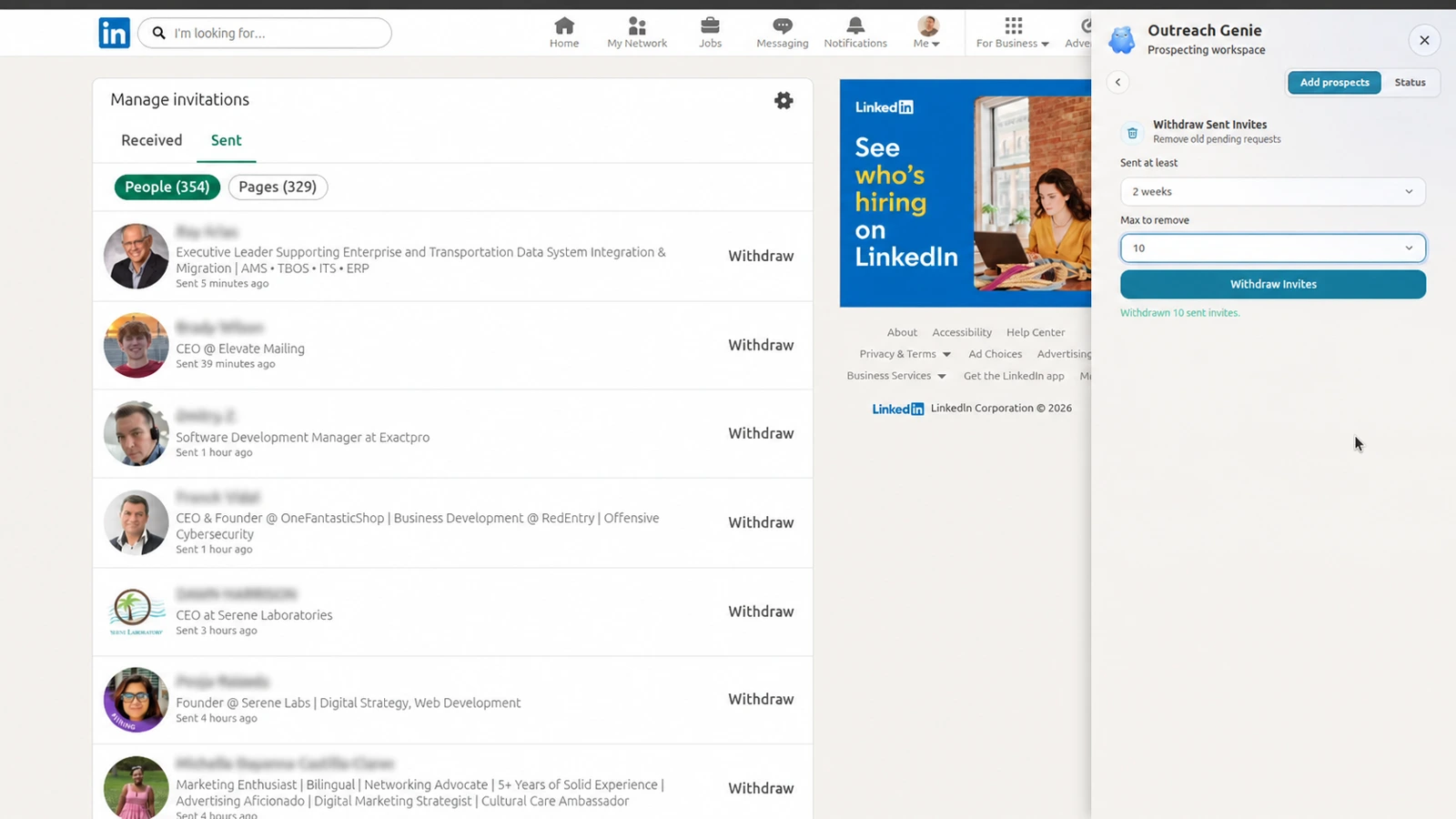
There is no native bulk button. OutreachGenie uses the same Sent page and separates eligibility from execution: Sent at least defines which requests are old enough to match, while Max to remove limits how many may be processed.
A pending list mixes recent requests, introductions worth preserving, old targeting mistakes, and accidental sends. For one or two records, LinkedIn keeps the person beside the confirmation. For a backlog, a bounded batch saves repeated clicks without pretending every pending request has the same value.
LinkedIn alone
Keeps selection and confirmation together. That is useful when each relationship deserves individual review.
With OutreachGenie
Separates the review rule from repeated execution. Filter by age, set a maximum, and reconcile the remaining list.
OutreachGenie walkthrough
Withdraw LinkedIn invitations in bulk, step by step.
Keep this page open beside LinkedIn and follow the highlighted control in each screenshot. The first four steps establish which LinkedIn records the extension can see. They do not withdraw anything.
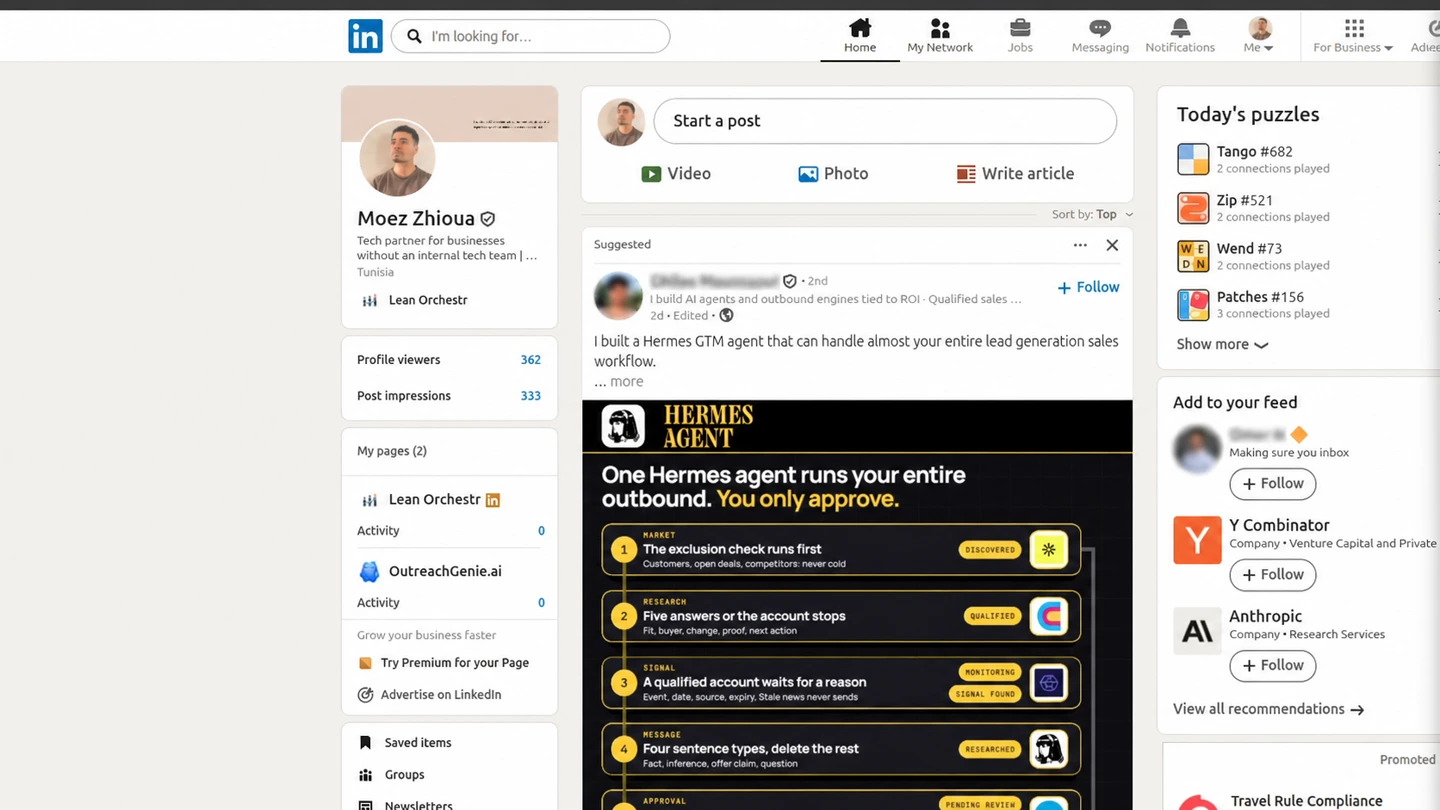
Open My Network
From the LinkedIn homepage, select My Network in the top navigation.
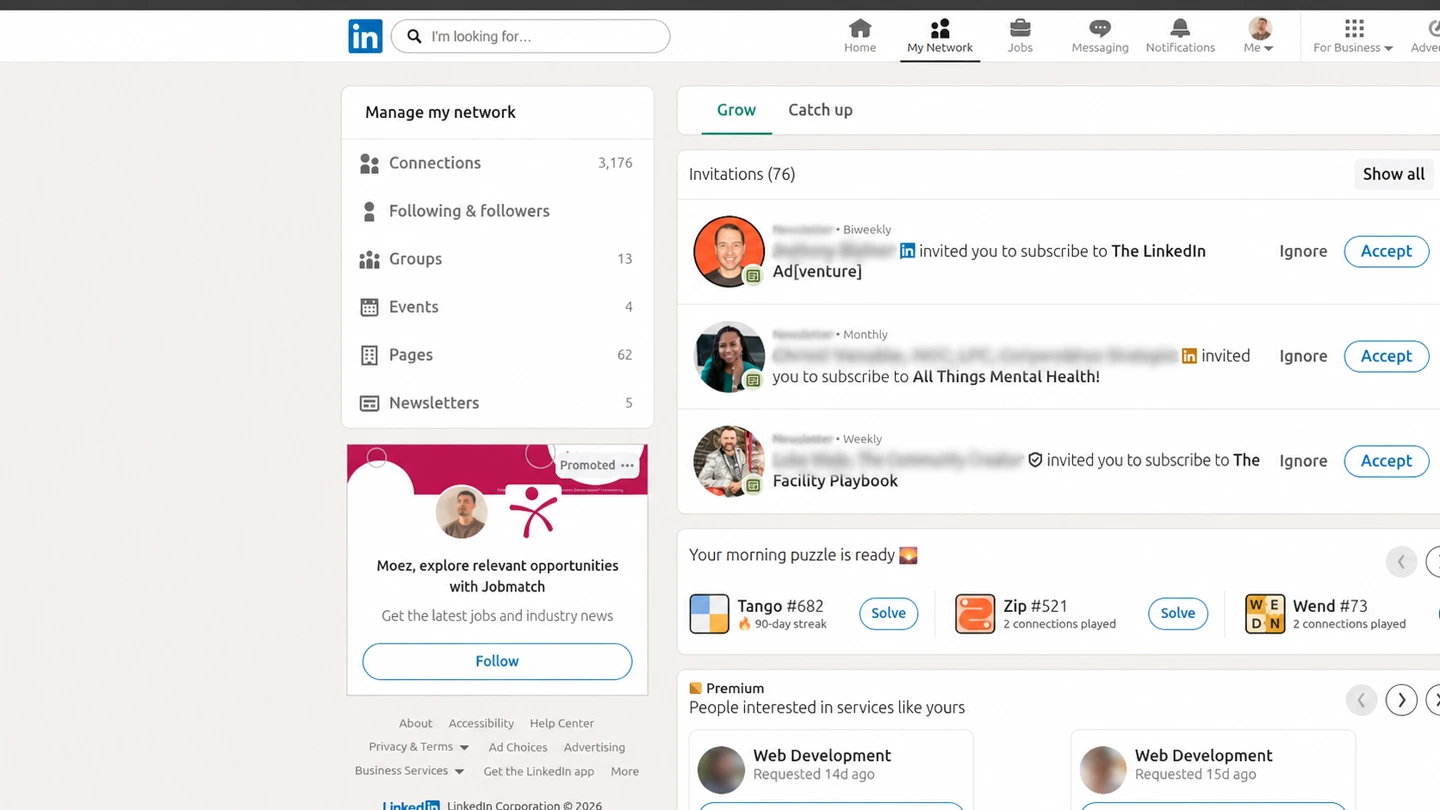
Open Manage invitations
In the Invitations panel, select Show all. If there are no pending received invitations, select Manage instead. Both routes open Manage invitations.
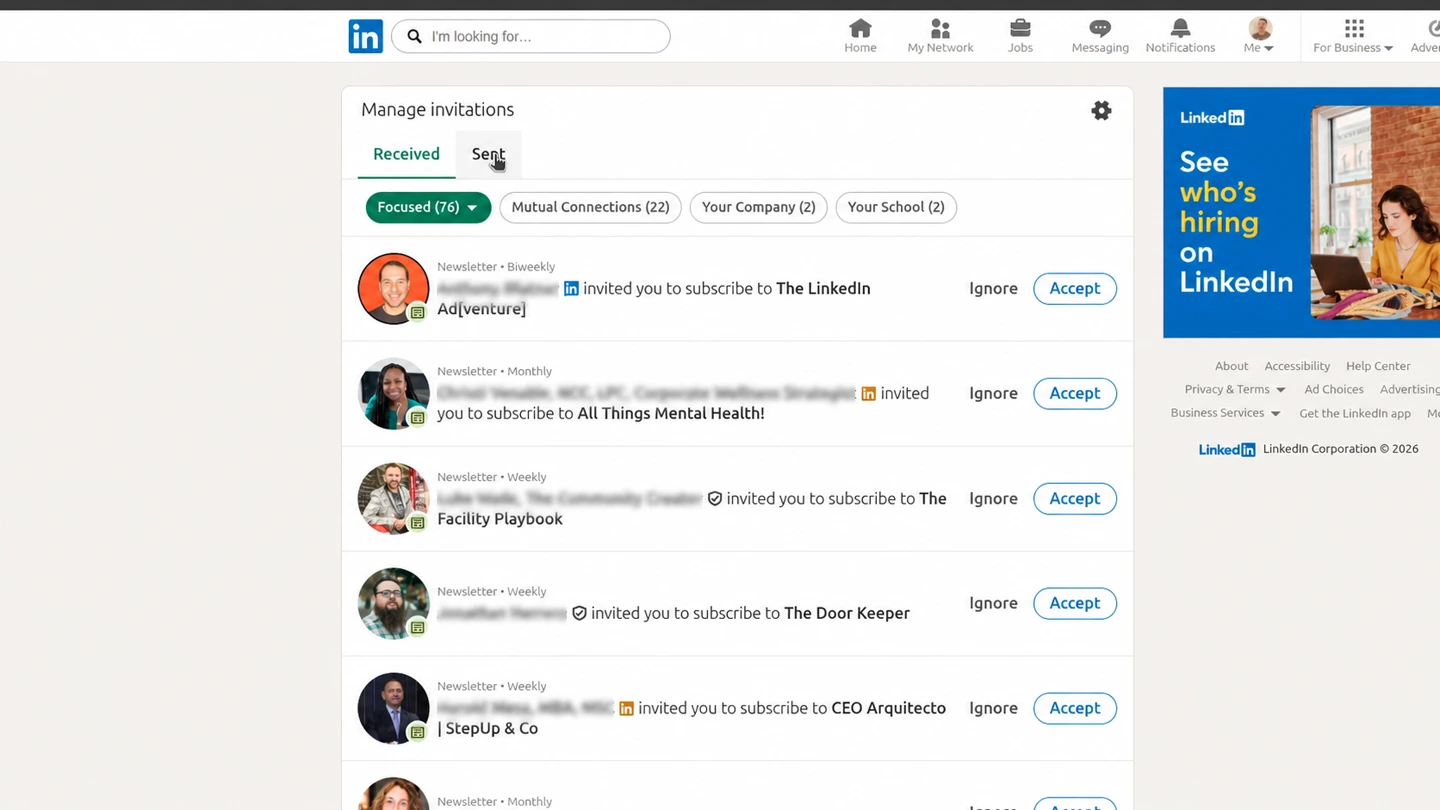
Switch from Received to Sent
The page opens on received invitations. Select Sent to see the requests that are waiting for a response.
Check that People is selected
Page invitations are listed separately. The withdrawal workflow is for pending connection requests in People.
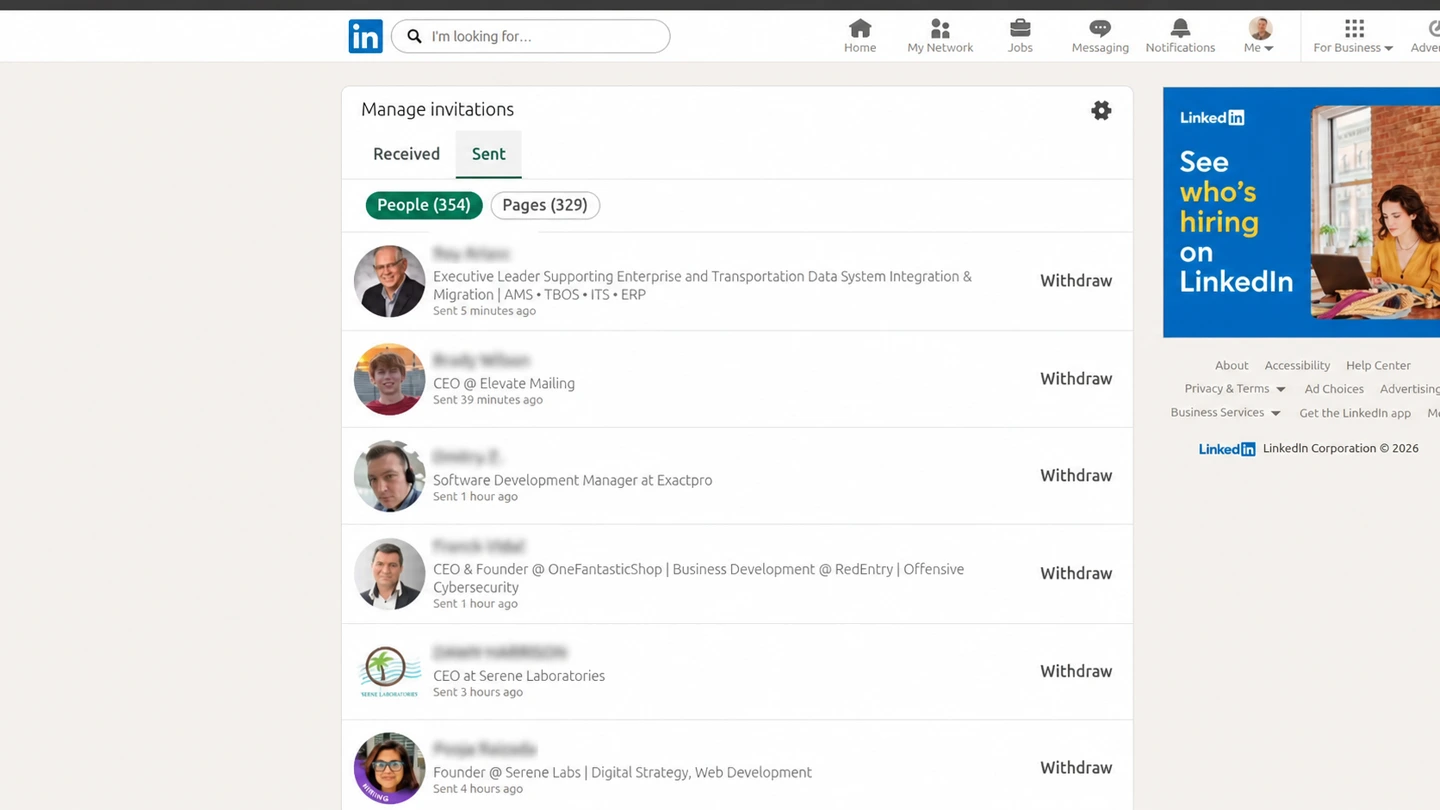
Open the OutreachGenie sidebar
Use the OutreachGenie button on the right edge of LinkedIn. The Sent list should remain open behind the sidebar.
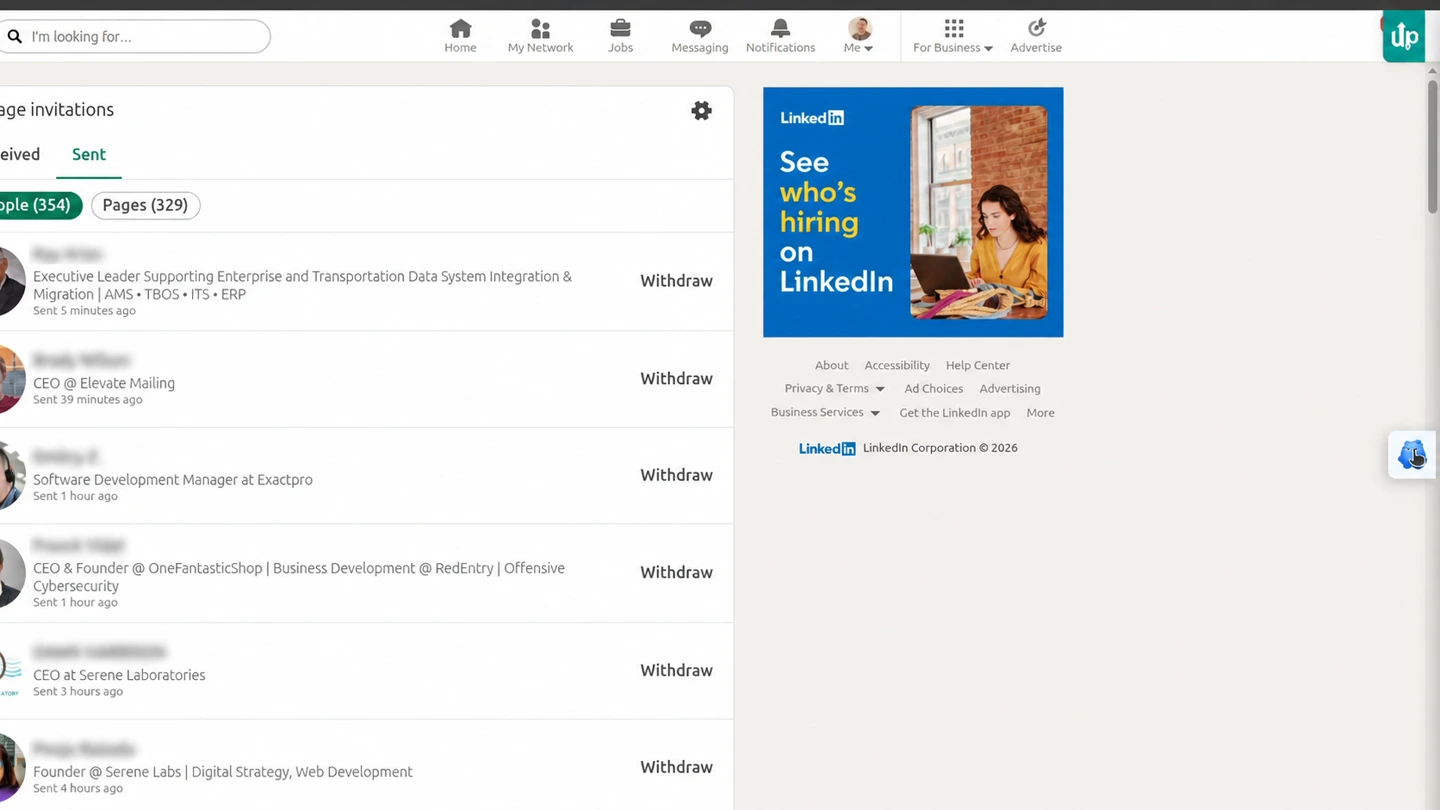
Set the boundary
Choose the age first. Then choose the batch.
The sidebar opens with Withdraw Sent Invites. The age threshold separates stale inventory from current outreach; the maximum limits the consequence if that rule was wrong. A two-week filter and a batch of ten make the first result easy to inspect.
Review the withdrawal panel
Sent at least controls which invitations can match. Max to remove controls how many can be processed.
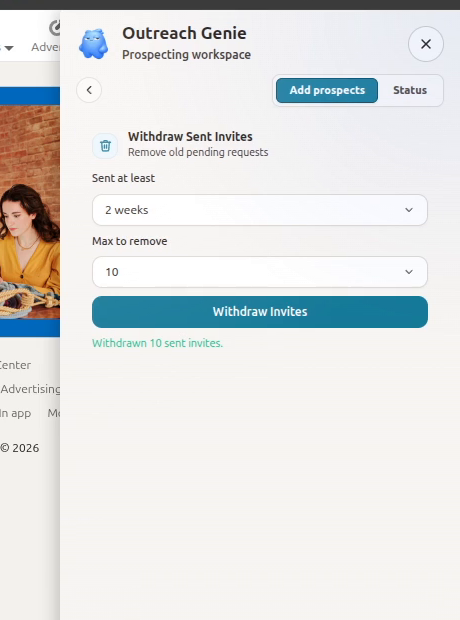
Set Sent at least
Choose how old a request must be to qualify. Recent invitations stay untouched.
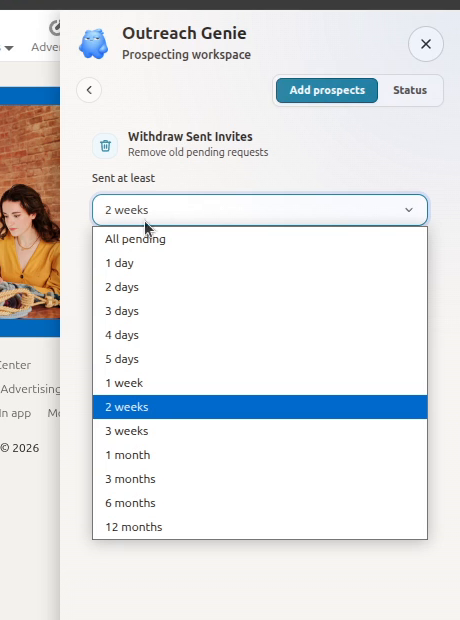
Set Max to remove
Pick a hard ceiling for this run. Ten is easier to verify than All.
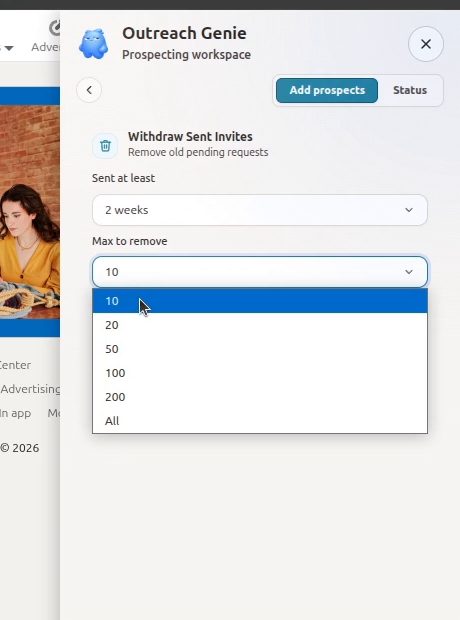
Read the summary, then start
The summary describes the selected scope. In this example, the run can withdraw up to ten invitations that are at least two weeks old; fewer may match.
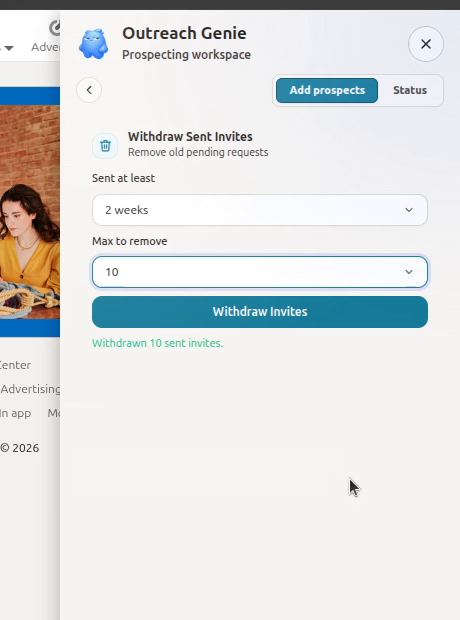
Keep the LinkedIn tab open
The button changes to Removing and the progress box reports each completed withdrawal. Wait for the run to finish before leaving the page.
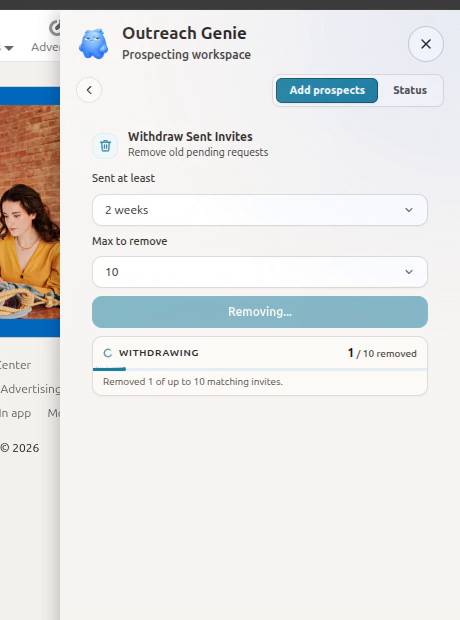
The one-click question
A start button can launch the batch. It cannot make the decision reversible.
The phrase “remove all with one click” combines an interface action with an audience decision. One click describes how the run begins. All determines who loses a pending invitation. Recent requests may still be waiting for a response, and a withdrawal can block a new invitation to the same person for up to three weeks.
The age filter answers a better question than “How fast can I empty this list?” It identifies the requests old enough that you are prepared to give up both the pending invitation and the option to resend it immediately. Use All only when that entire eligible group has already been reviewed.
- Protect recent requests with Sent at least.
- Use Max to remove as a hard ceiling for the first run.
- Check the remaining Sent list before starting another batch.
After the run
Check the list before starting another batch.
Reconcile the run with LinkedIn's Sent list. Recent requests you intended to protect should remain, and the completed total should match the change in the list. If either condition fails, stop before another batch turns a local mistake into a general one.
Read the completed count as a result, not a target
Max to remove is the ceiling. For example, a Completed state with 2 / 10 removed reports two withdrawals against a maximum of ten; it does not mean eight more must be removed. A completed zero can mean the loaded requests did not match Sent at least. Check the age filter and the remaining Sent list before deciding whether another run is needed.
Read the status message as well as the count. An Error state, login problem, or LinkedIn warning is not evidence of a completed batch. Stop and investigate rather than raising the limit or repeatedly starting the same run.
If a large number of requests went unanswered, review the source list, role match, and reason for connecting before sending more. The smaller Sent page is evidence that execution finished, not that targeting improved. LinkedIn also says withdrawing pending invitations does not remove an active invitation restriction.
- Withdrawn invitations cannot be restored.
- The recipient is not notified, and reminder emails stop.
- You may have to wait up to three weeks before inviting the same person again.
- Cleanup does not promise to remove an existing invitation restriction.
Common questions
A few details worth knowing.
Can you withdraw LinkedIn invitations in bulk?+
LinkedIn's interface withdraws sent invitations individually. OutreachGenie can process an age-filtered group with a maximum batch size from the Sent invitations page.
Why did the batch remove fewer invitations than Max to remove?+
Max to remove is a ceiling, not a promised total. A completed run can remove fewer requests, or zero, when the loaded invitations do not meet the Sent at least filter. Read the status and review LinkedIn's remaining Sent list before changing the filter or running again. An error or account warning needs investigation, not a larger batch.
Can I remove all LinkedIn sent invitations in one click?+
LinkedIn has no native Select all control. OutreachGenie can start a configured batch from one button, including an All option. Because withdrawal cannot be reversed, an age threshold and limited first batch preserve a useful review point.
What is the fastest way to remove sent LinkedIn invites?+
Use LinkedIn directly for one or two invitations. For a backlog, open the Sent page and run a bounded OutreachGenie batch. The time-saving step is avoiding repeated confirmation dialogs, not skipping the scope review.
Will someone know that I withdrew the invitation?+
LinkedIn says the recipient is not notified. Withdrawing also stops reminder emails for that invitation.
Can I send the same person another invitation?+
Not straight away. LinkedIn says you may be unable to invite the same member again for up to three weeks.
Can a withdrawn LinkedIn invitation be restored?+
No. LinkedIn says a withdrawn invitation cannot be restored. Check the Sent at least filter and the maximum removal count before starting.
Does withdrawing old invitations remove a LinkedIn restriction?+
Do not count on it. Removing old requests cleans up the pending list, but it does not override an active restriction or guarantee that LinkedIn will restore invitation access.
Does the tool remove existing connections?+
No. This workflow only processes invitations that are still pending in the People section of LinkedIn's Sent invitations page.
Try it with a small batch
Open OutreachGenie beside your Sent invitations.
Use an age filter, set the maximum to ten, and review the summary before you start.