
The short answer
Keep the post as context. Let the profile decide the fit.
To turn LinkedIn post engagement into leads, open the individual post, copy its link, and import the commenters, reactors, or both into a prospect list. Then review that list before it reaches a campaign.
The post explains why the person appeared. Their profile tells you whether contacting them makes sense. Keep both pieces of context, because a large reaction count is not a qualification rule.
A comment
Often gives you a sentence of context to read before deciding whether to connect.
A reaction
Shows interest in the post, but usually needs more profile review than a specific comment.
A reviewed list
Turns a noisy engagement count into an audience you can explain and inspect.
Build the list
Capture the signal without skipping qualification.
Start with a post whose subject overlaps your real audience. Your own post works, but so does a public post where the discussion is relevant. Write the audience rule before you import anyone; it is much easier to remove mismatches when the rule is already clear.
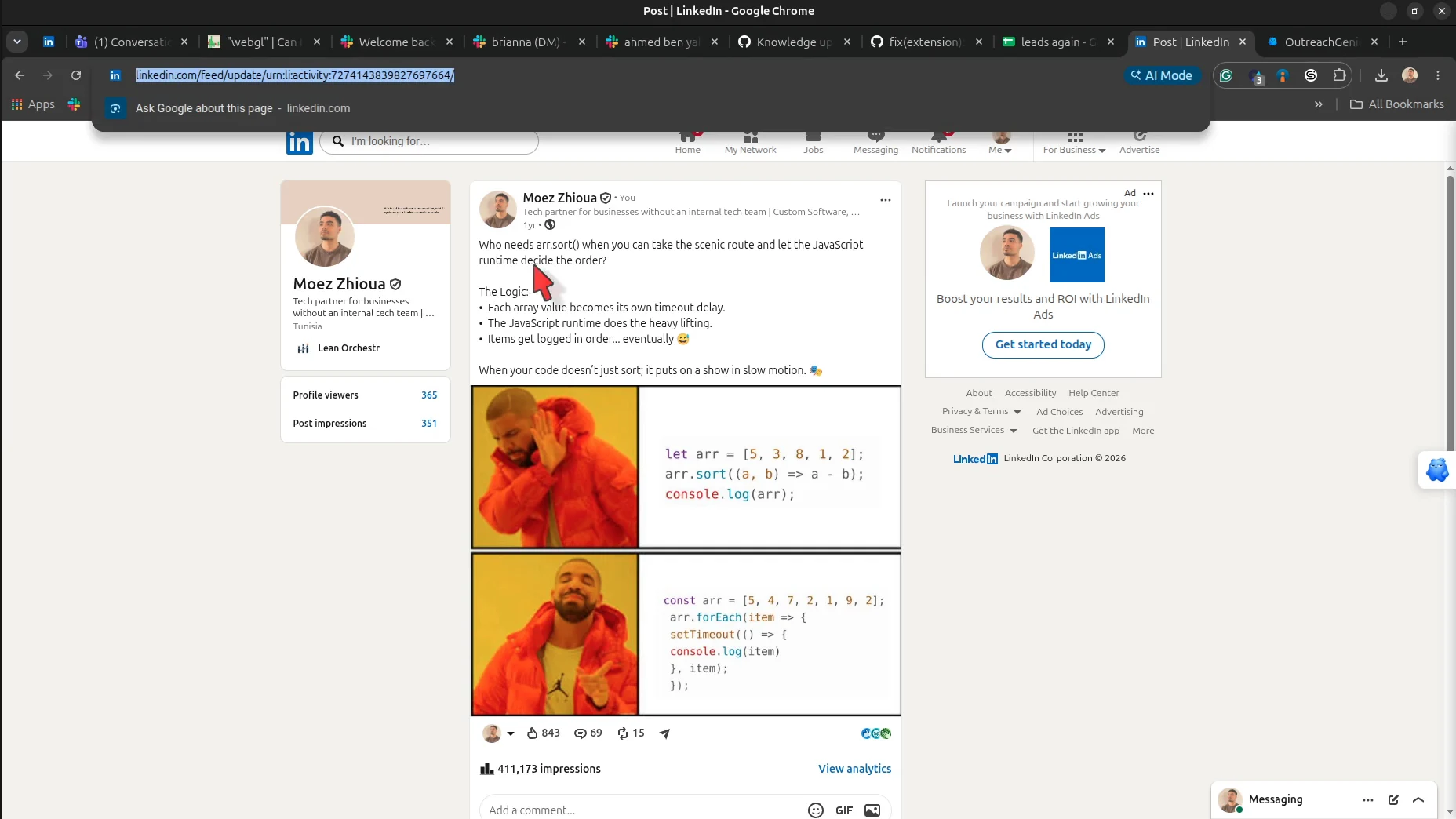
Copy the individual post URL
Open the post itself and copy the complete URL. LinkedIn also exposes Copy link to post from the post menu.
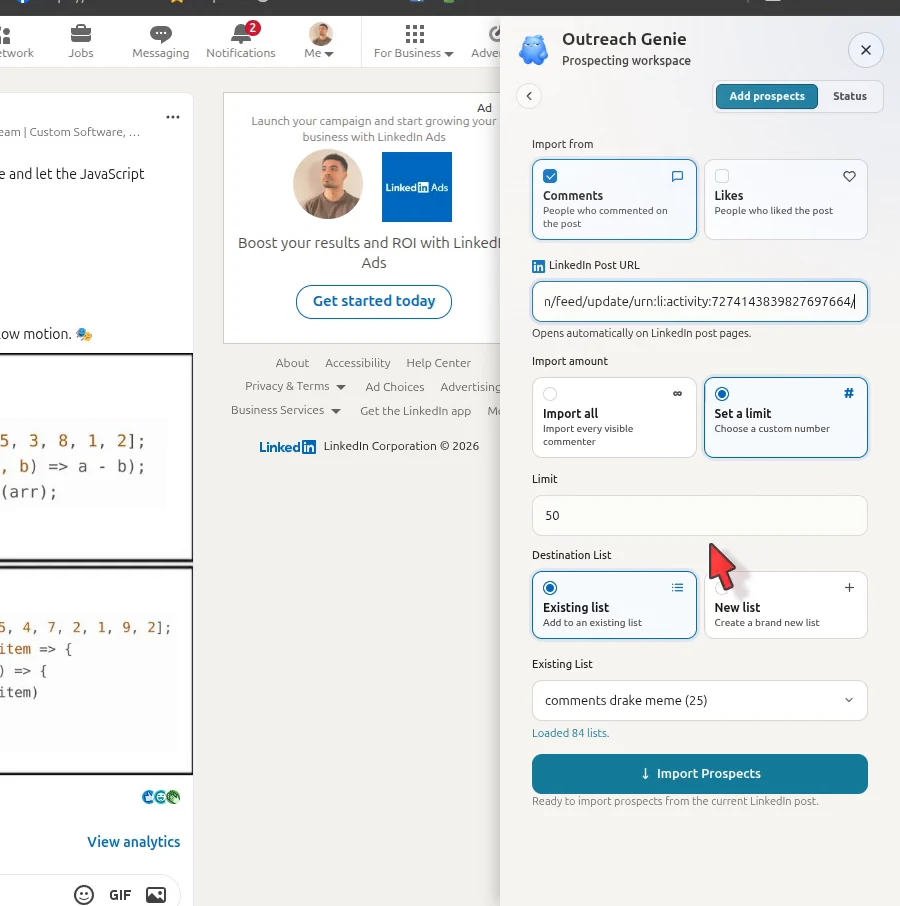
Choose Comments, Likes, or both
Open Add prospects in the extension. Select the interaction types that match your research question.
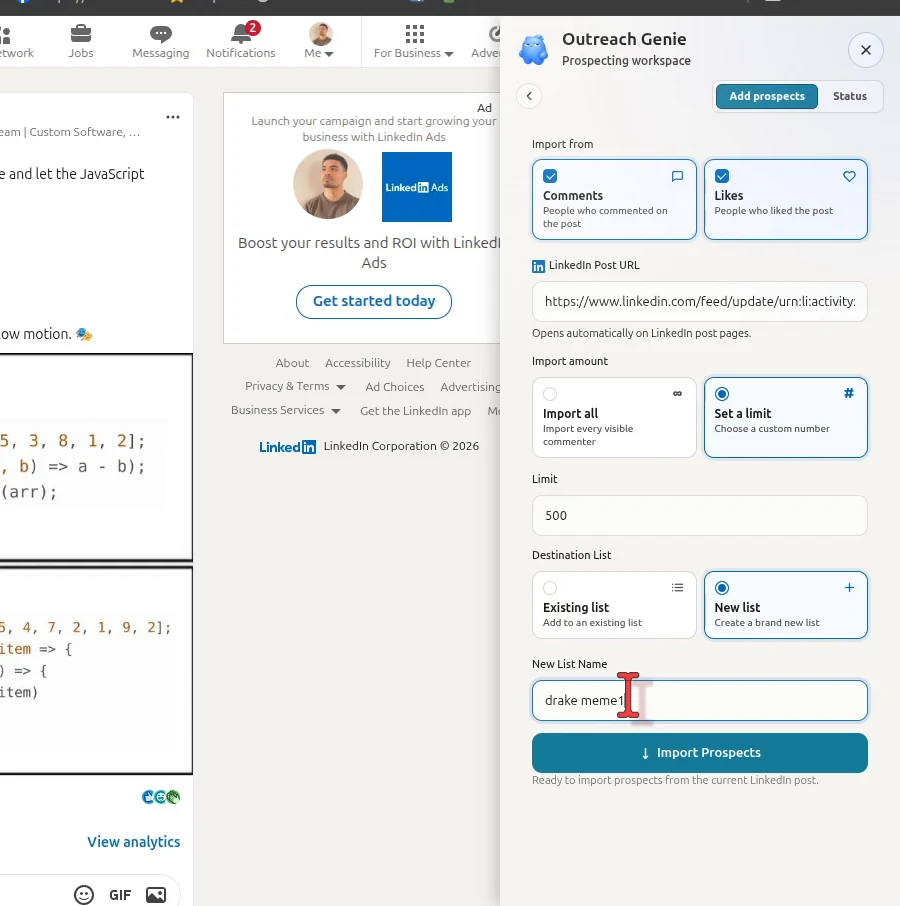
Set a maximum and name the list
A hard limit makes the first review manageable. Use a list name that records the topic and source.
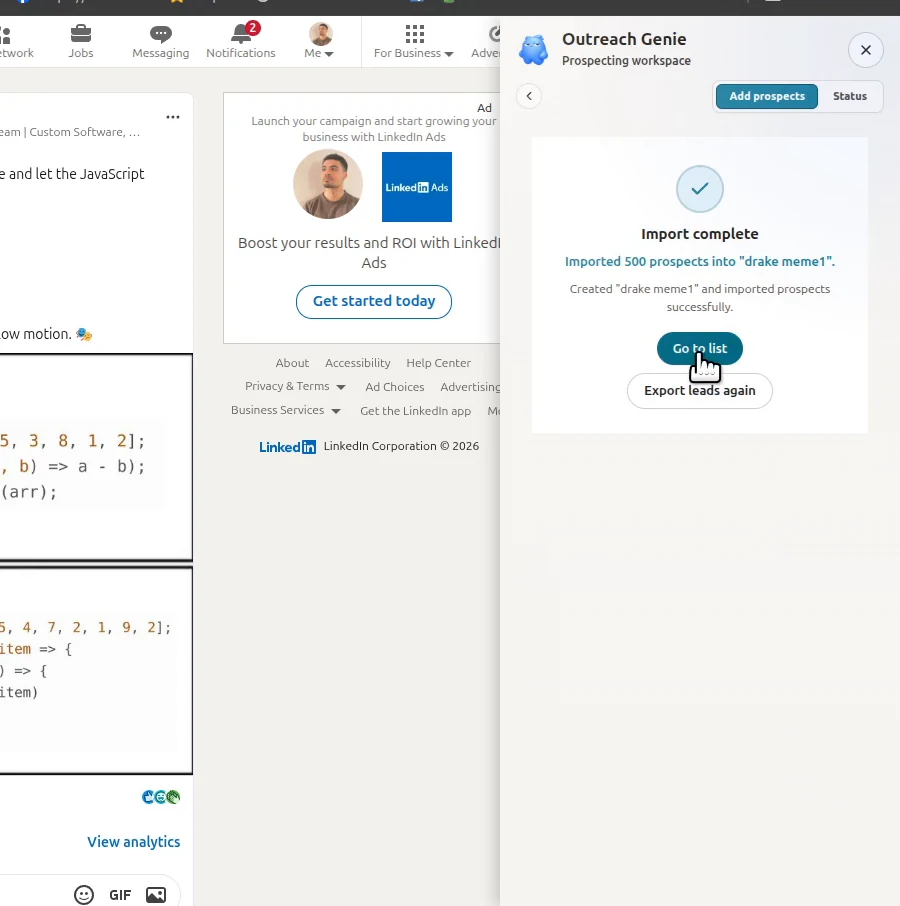
Let the import finish
Keep the sidebar open until the completion screen reports the imported count, then choose Go to list.
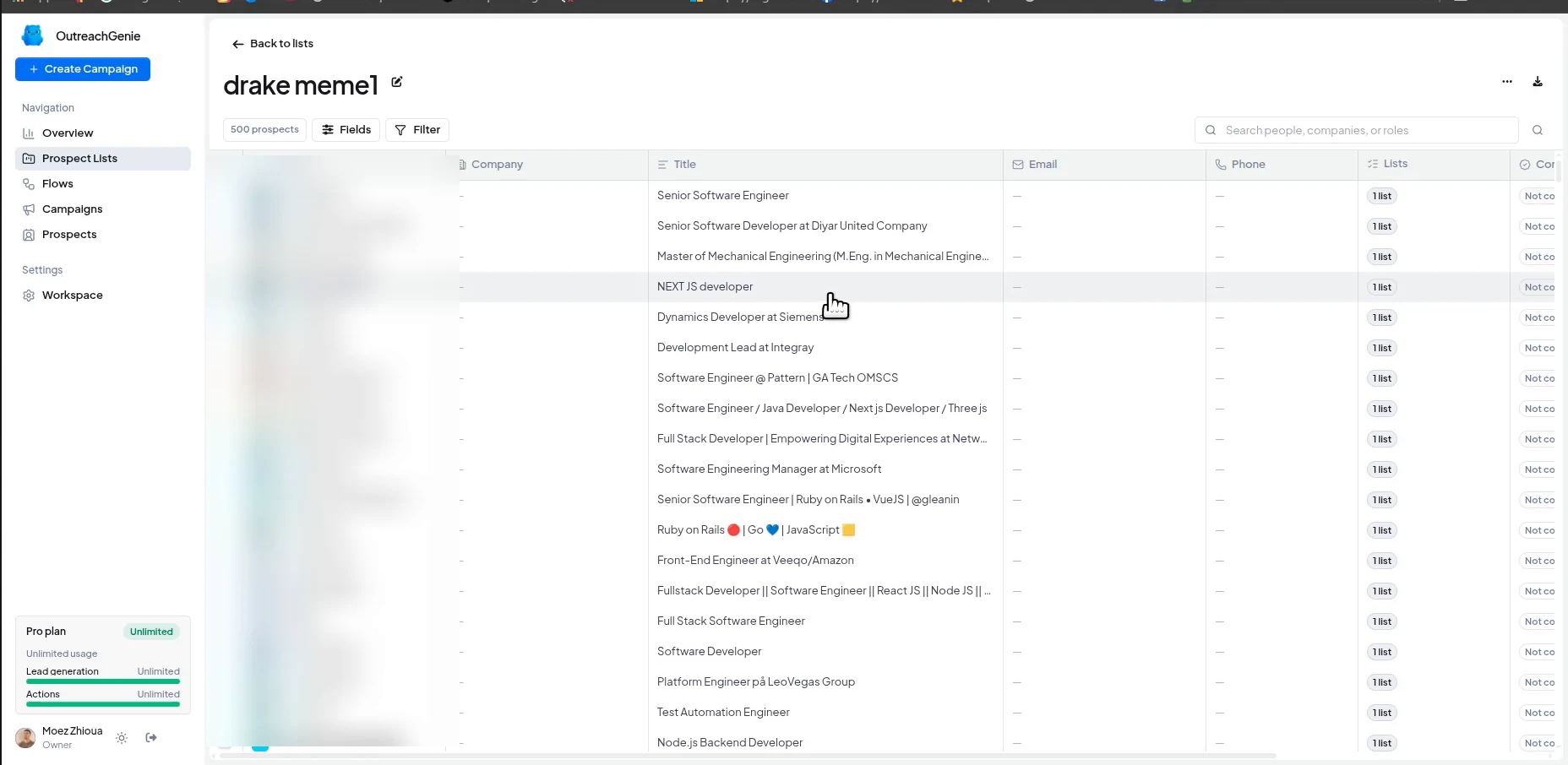
Review who actually arrived
Check roles, companies, and obvious mismatches. Imported records are prospects; the review is what decides whether they belong in this campaign.
Build the flow
Make the sequence visible before anyone enters it.
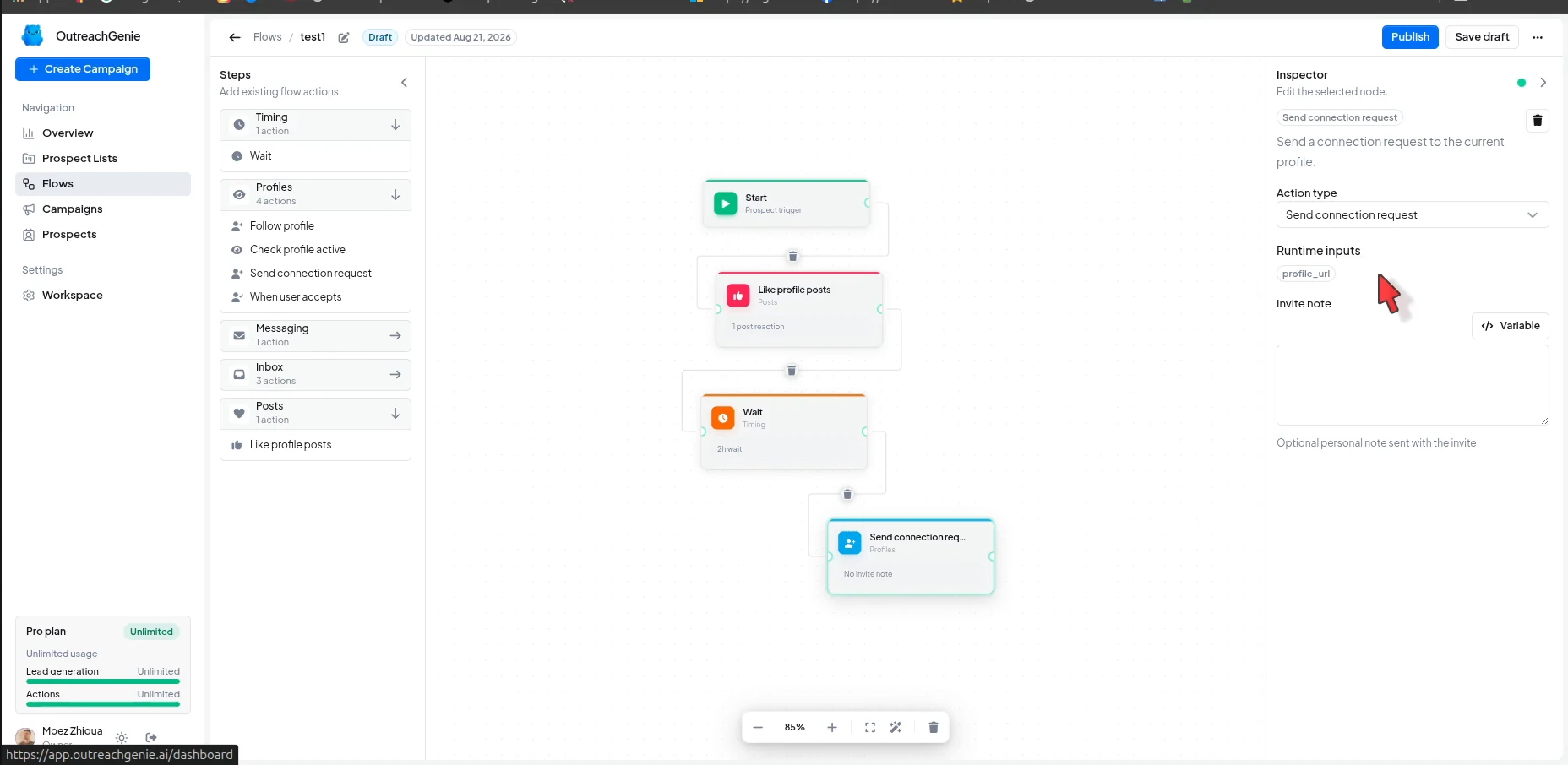
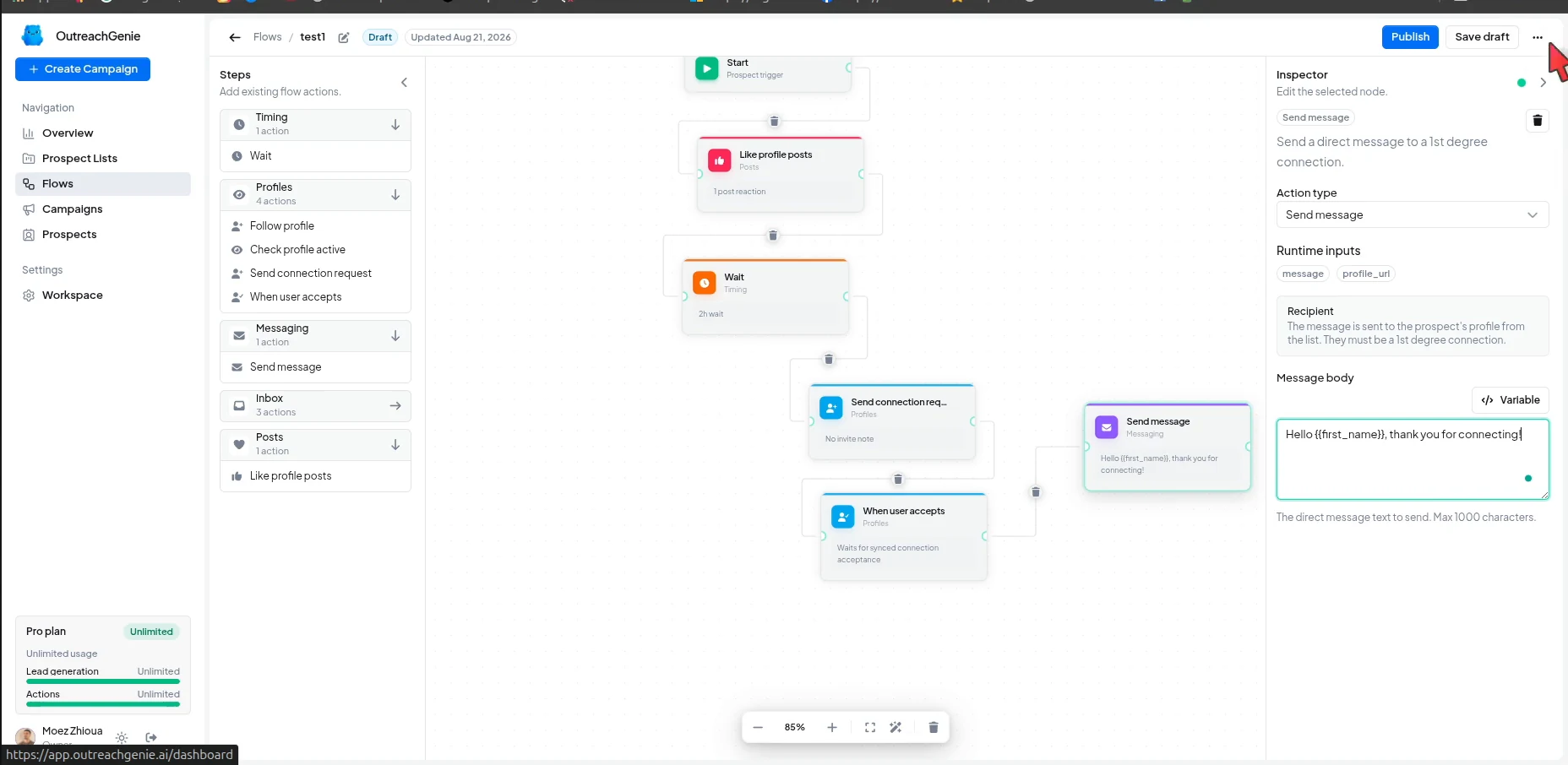
The example below reacts to one recent post, waits two hours, sends a connection request, waits for acceptance, and then sends a message. Treat it as a wiring example, not a universal campaign. Remove any step that does not have a clear reason.
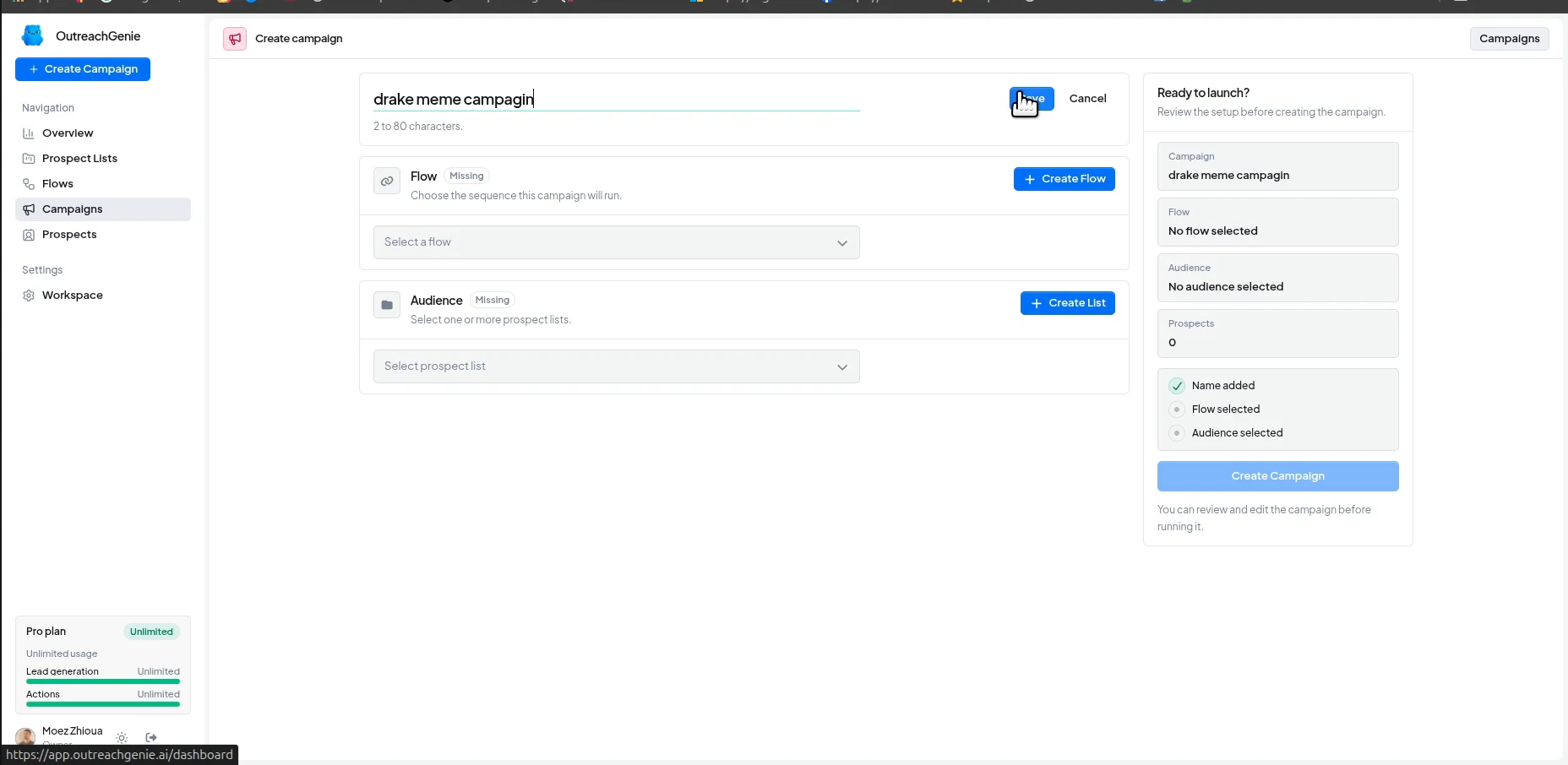
Give the campaign a recognizable name
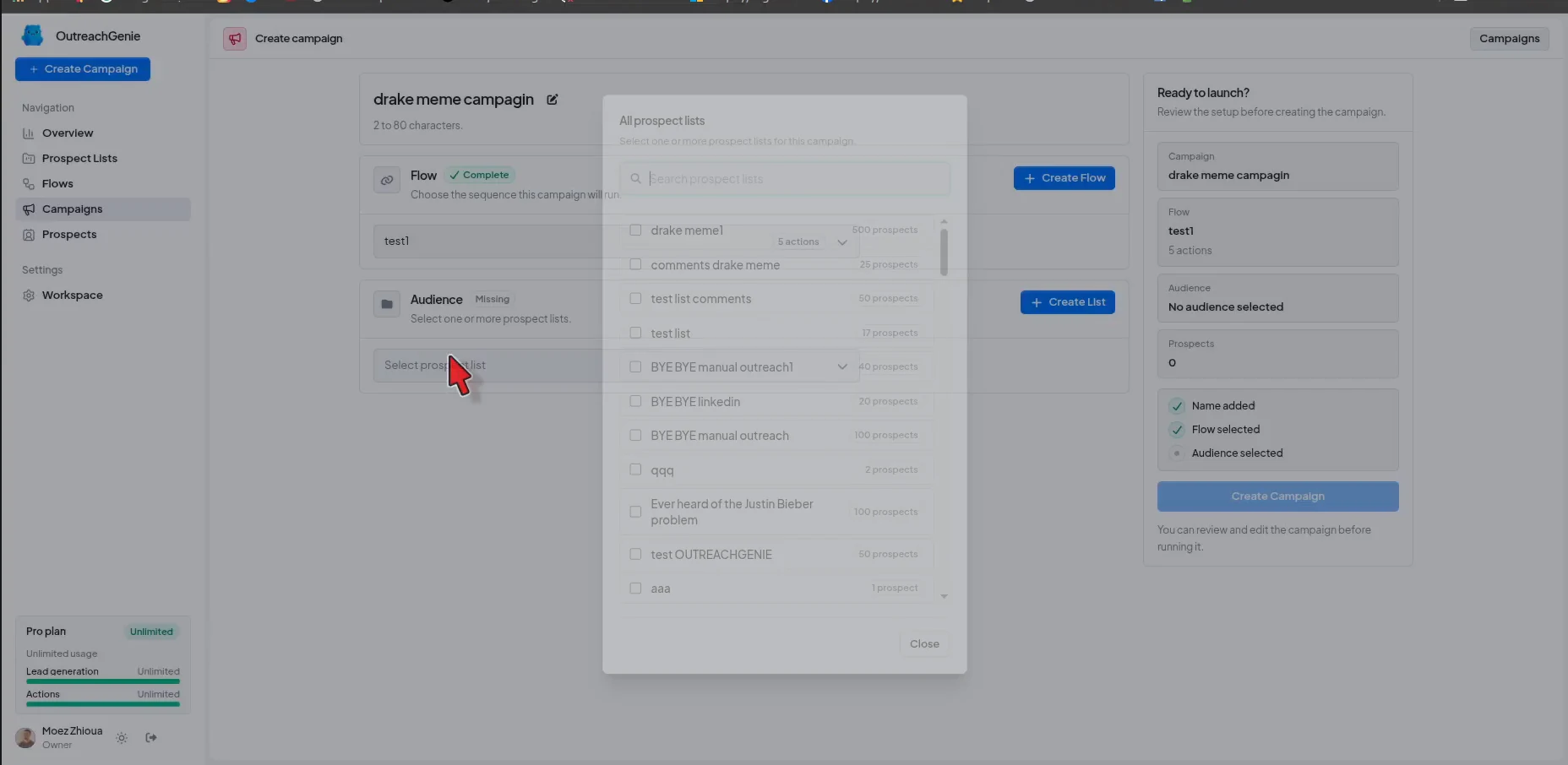
Use a name that tells you which post and audience the campaign belongs to. The setup panel keeps the name, flow, audience, and prospect count in one review area.
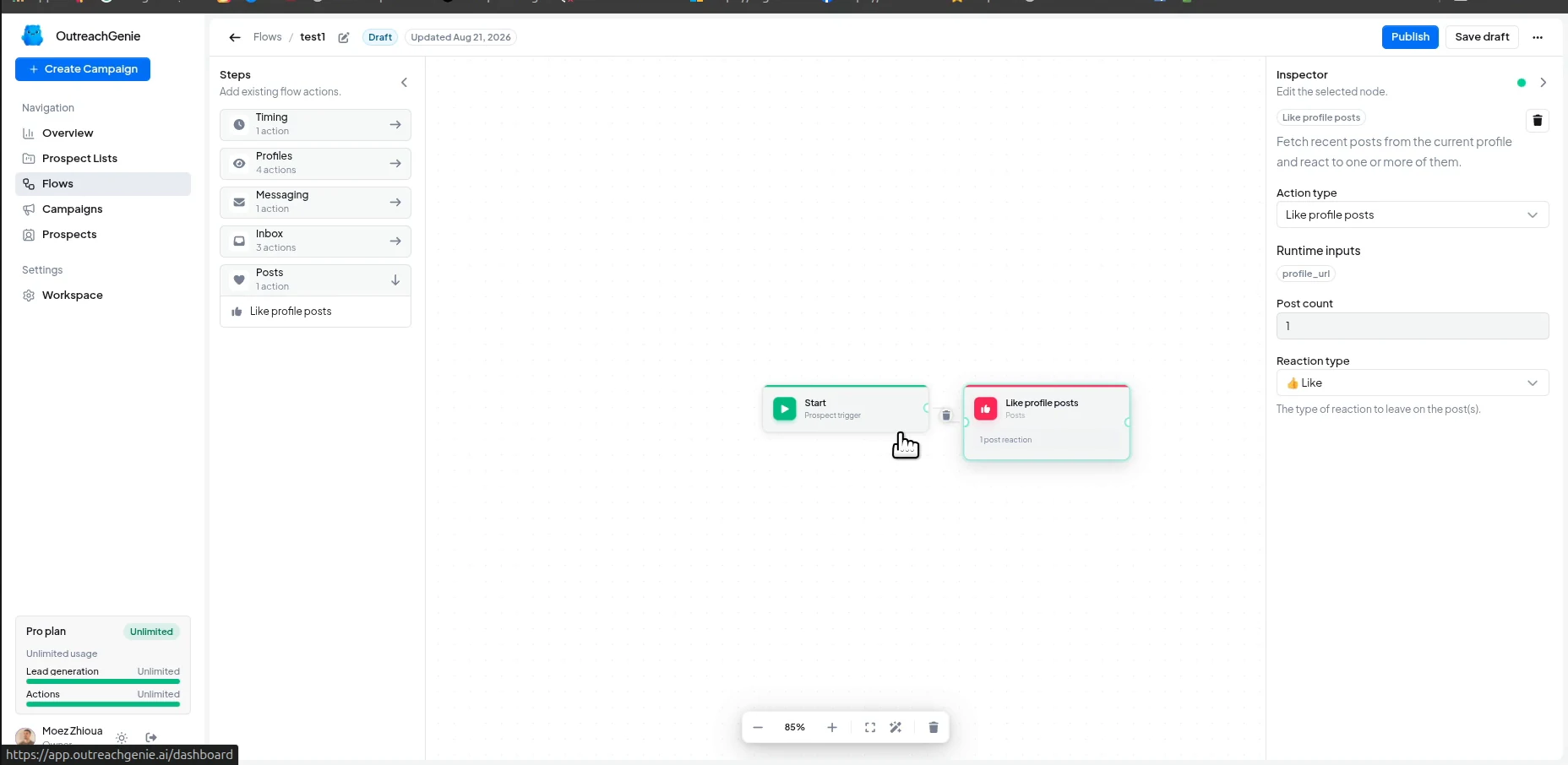
Add Like profile posts
Choose the post count and reaction type in the inspector. One post is enough for this example.
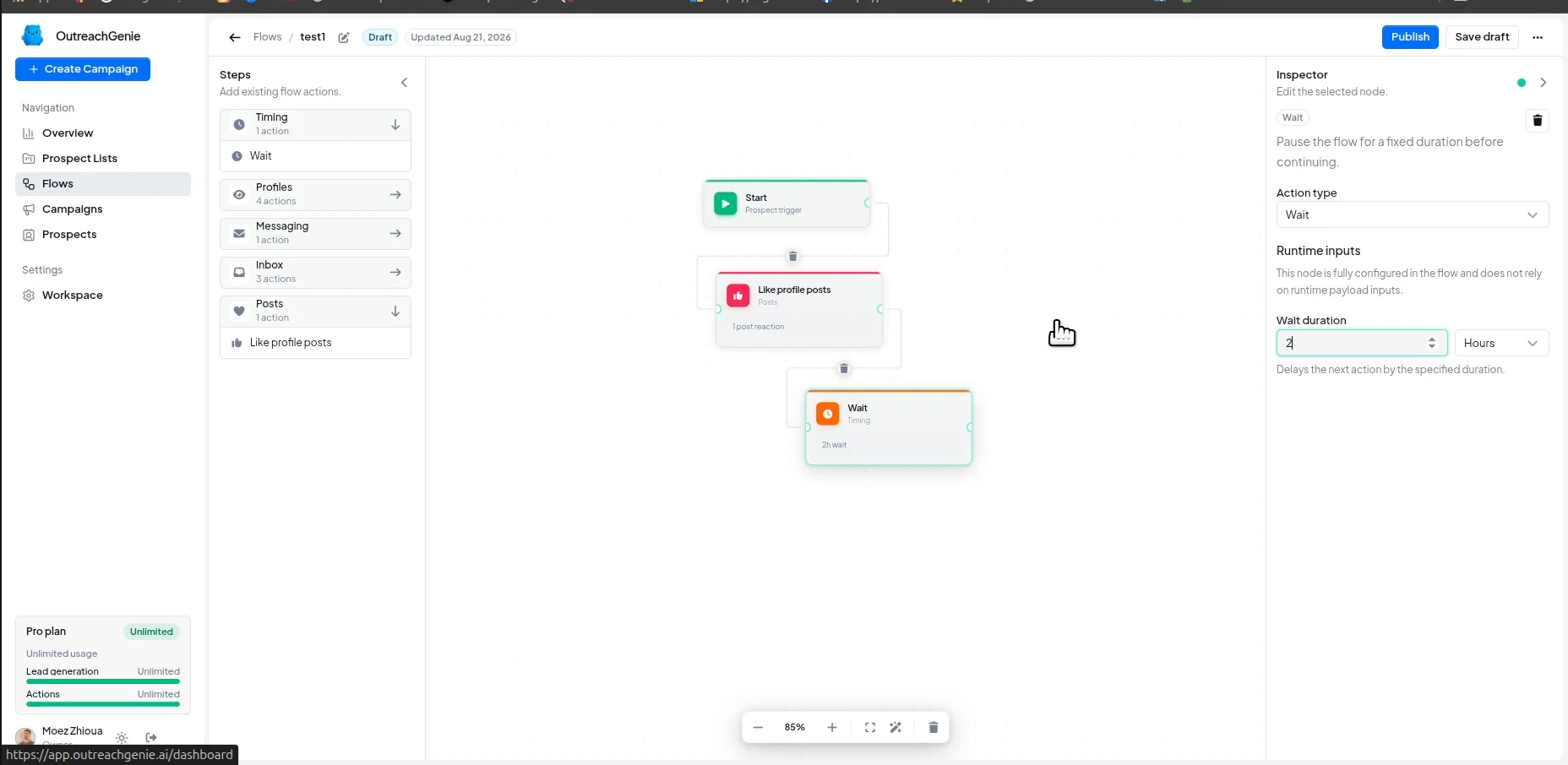
Insert a real pause
The walkthrough uses a two-hour Wait step so the next action does not follow immediately.
Add the connection request
The note is optional. If you use one, state a truthful reason to connect rather than forcing a pitch into the invitation.
Wait for acceptance before messaging
Connect When user accepts to Send message. The text in the screenshot proves the variable wiring; rewrite it with context before publishing the flow.
Attach and launch
Put the reviewed list, not the raw import, into the campaign.
Select the audience
Choose the imported list only after the review pass. Check the prospect count in the campaign summary.
Activate when the setup is complete
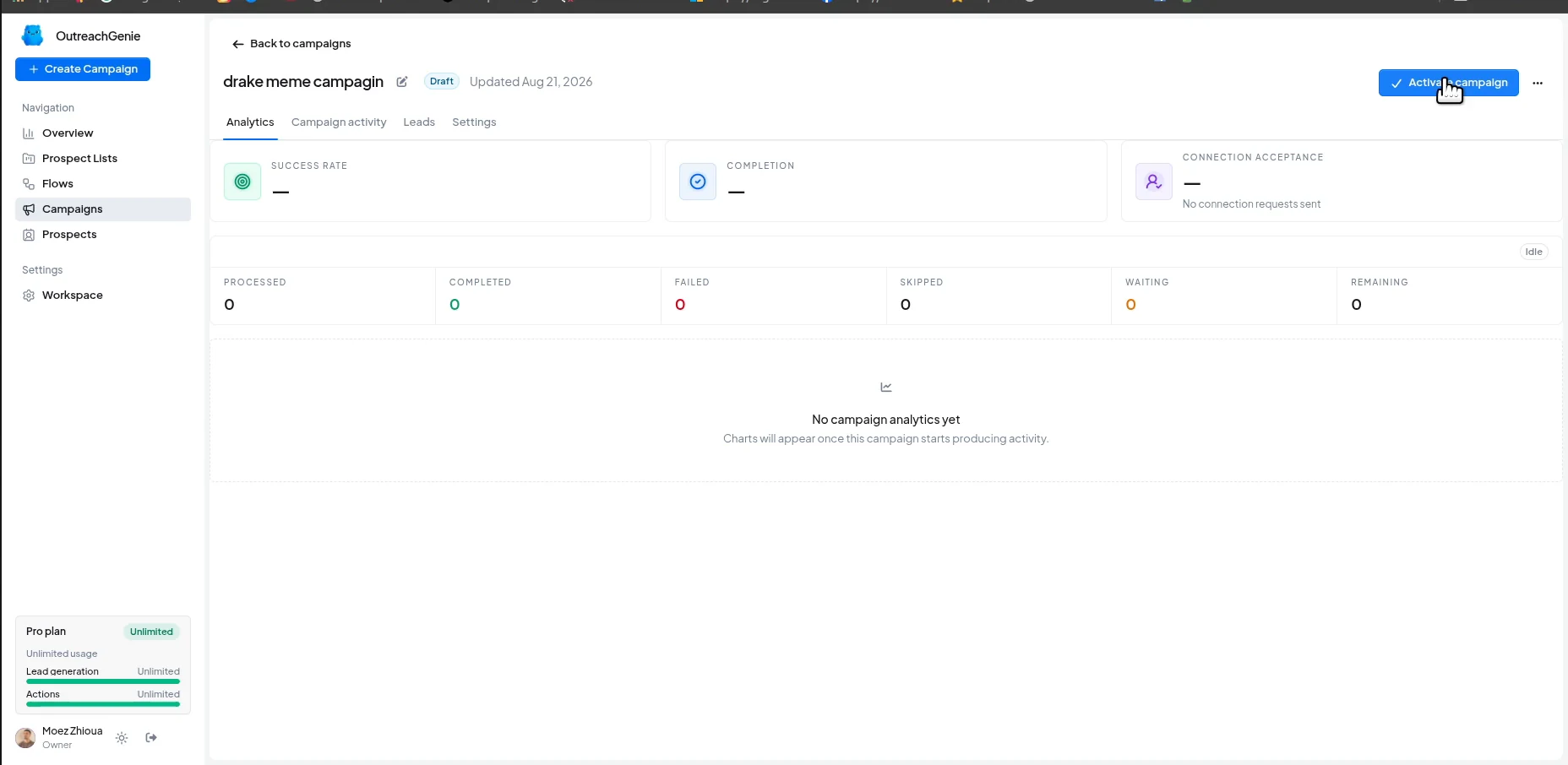
A new campaign begins as a draft. Read the flow, audience, and empty analytics state before choosing Activate campaign.
Read the results
A percentage tells you what changed. The activity table tells you why.
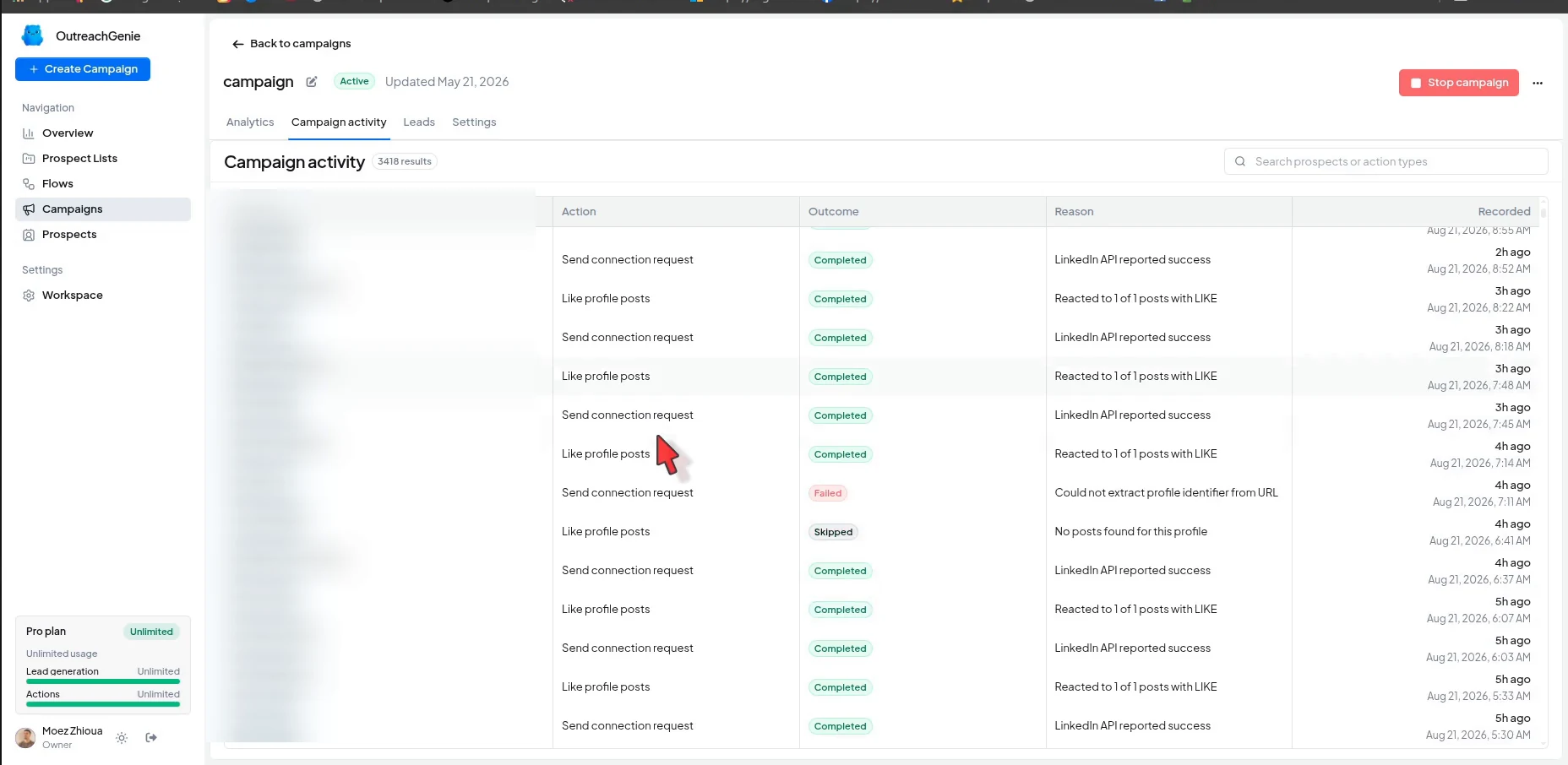
Start with the campaign status and broad counts, then move to the action rows. A skipped action because no post was found is different from a failed connection request, even if both lower the summary rate.
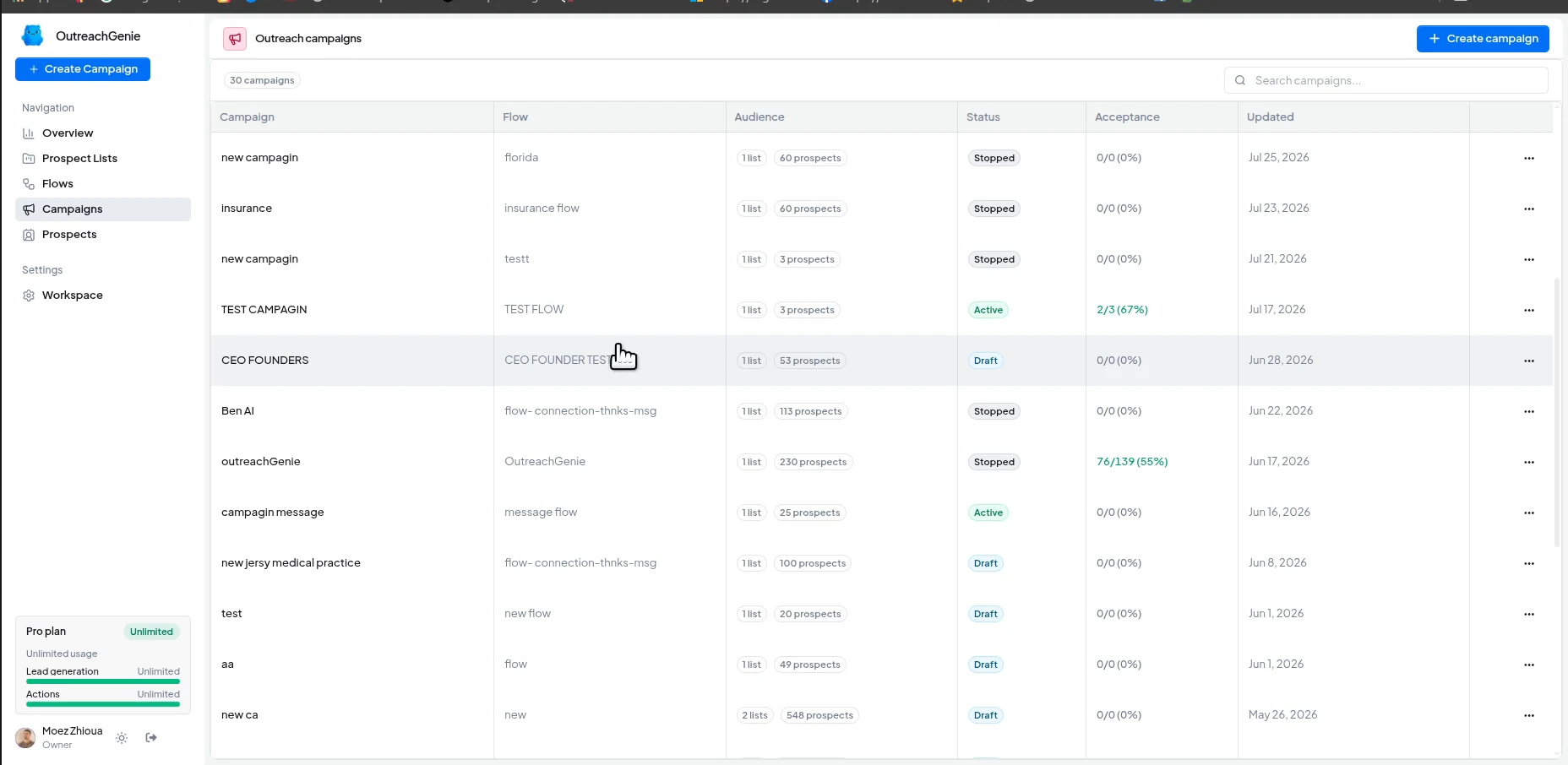
Find the campaign
The Campaigns list shows the attached flow, audience size, status, acceptance, and latest update.
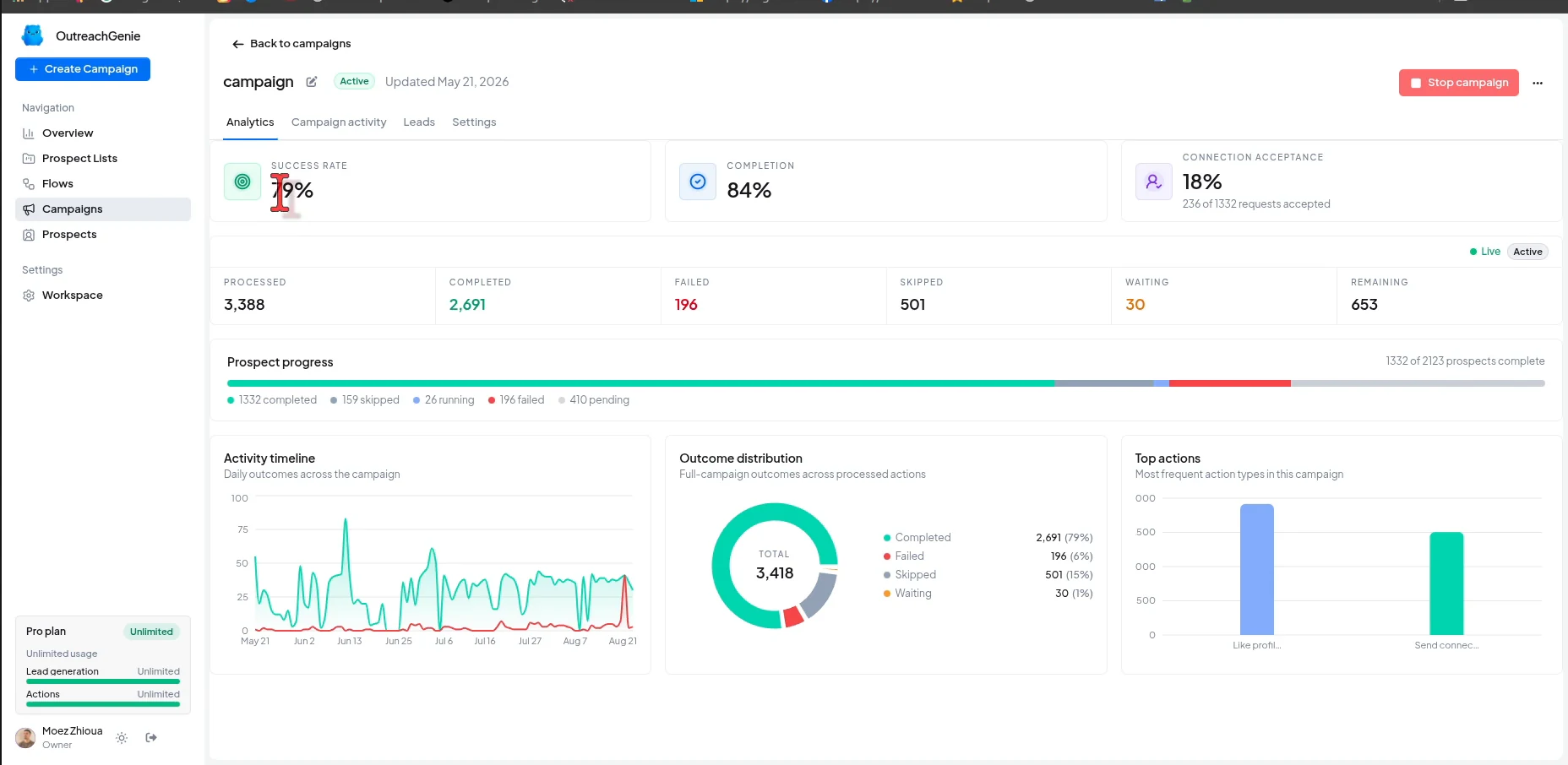
Read the overview
Use success, completion, acceptance, and remaining counts to see whether the campaign is moving.
Inspect individual actions
Campaign activity records the action, outcome, reason, and time. This is the first place to investigate a failure or skip.
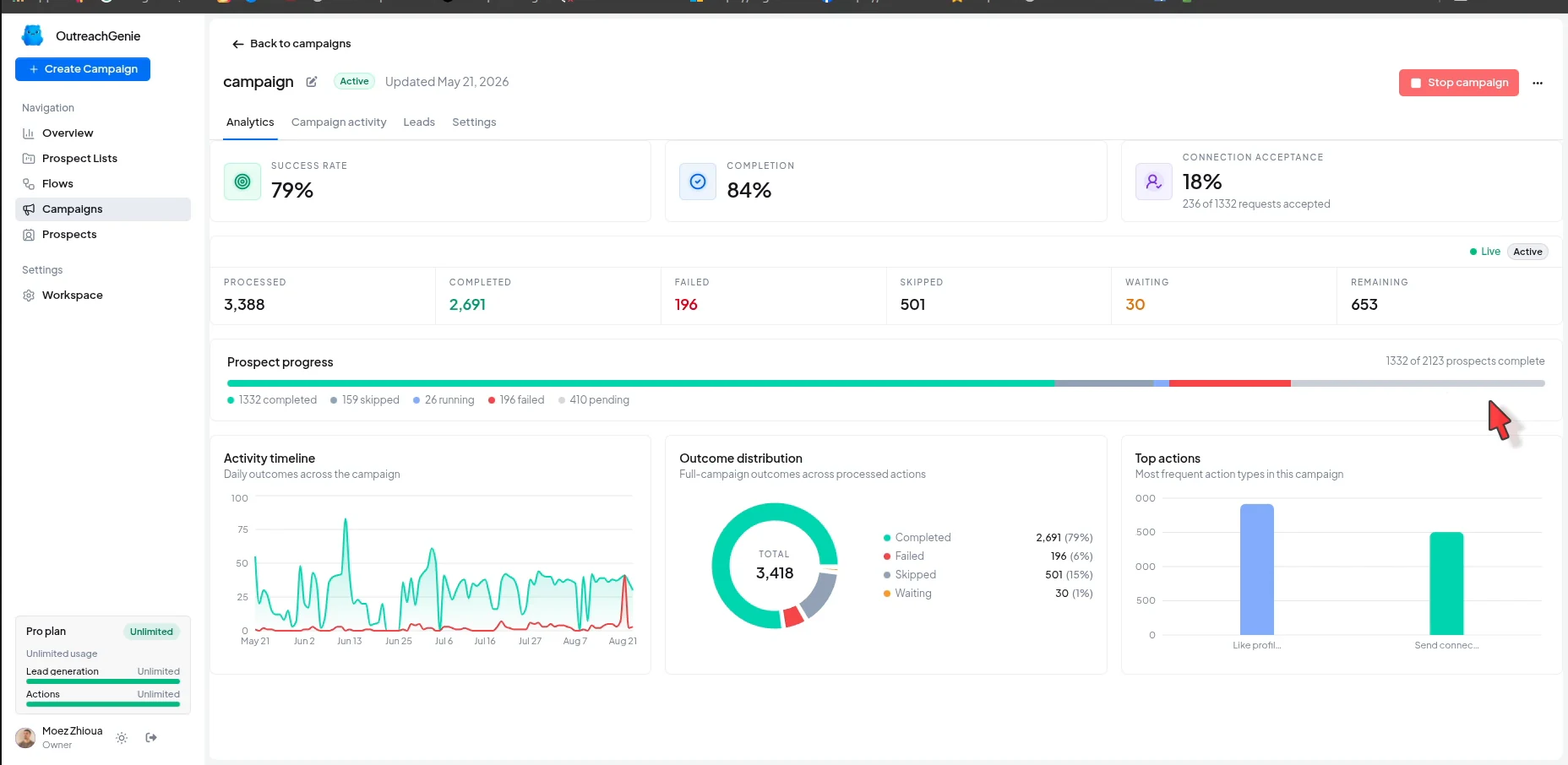
Look for a repeated pattern
The timeline and outcome distribution make clusters of failures or skipped steps easier to spot.
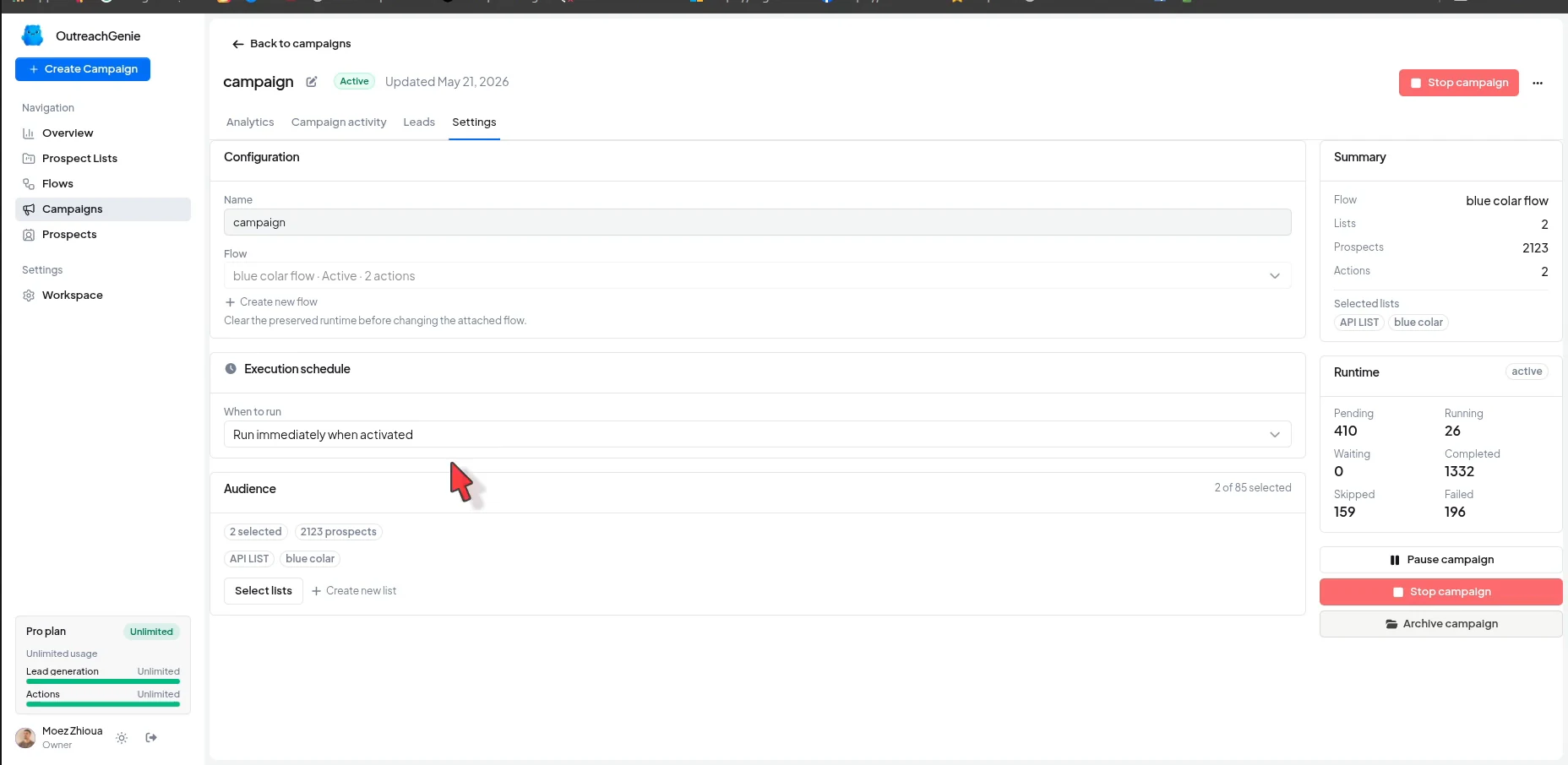
Recheck the campaign settings
The Settings tab shows the flow, execution schedule, audience, runtime counts, and pause or stop controls.
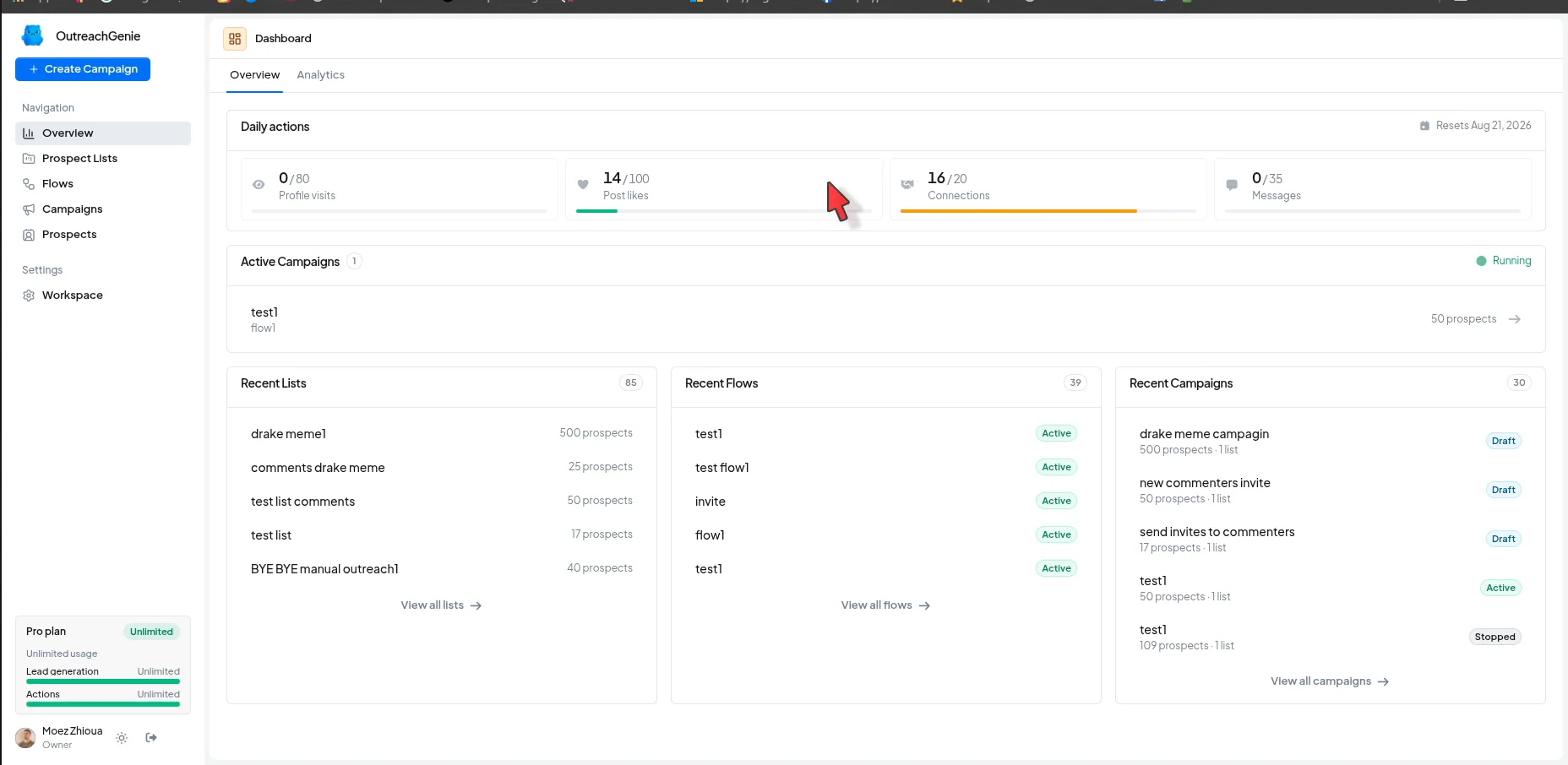
Watch the daily action budget
The dashboard separates profile visits, post likes, connections, and messages so you can see the day's usage at a glance.
What to change after the first run
If the list contains poor matches, fix the post source or qualification rule. If one action repeatedly fails, fix the flow. If people accept but do not reply, rewrite the message. These are different problems, and the activity table keeps them separate.
Common questions
Details that matter before you launch.
Does a LinkedIn like or comment make someone a qualified lead?+
No. It shows that the person interacted with a topic. Check their role, company, location, and the substance of the interaction before deciding that the profile belongs in your audience.
Can OutreachGenie import both commenters and people who reacted?+
Yes. The Add prospects panel lets you select Comments, Likes, or both, then place the matching profiles in an existing or new prospect list.
Which LinkedIn post URL should I use?+
Use the individual post URL. LinkedIn's desktop instructions say to open the post menu and choose Copy link to post. OutreachGenie can also detect the URL when the individual post is open.
Should the connection request mention the post?+
Only when that context is truthful and useful to the recipient. A specific comment can give you a reason to connect. A reaction alone may not give you enough context for a personal note.
How many prospects should I import first?+
There is no universal number. Start with a list small enough to inspect profile by profile. Increase the limit only after the source post and qualification rule produce consistent matches.
Does LinkedIn allow browser automation?+
LinkedIn says it does not allow third-party software or browser extensions that scrape, change the appearance of, or automate activity on its website. Review that policy before using this workflow.
Start with one post
Build the list. Review it. Then decide whether to run the campaign.
The source, list, flow, and action history stay visible in one OutreachGenie workspace.