
CSV prospect import
How to import LinkedIn prospects from a CSV without creating a data mess
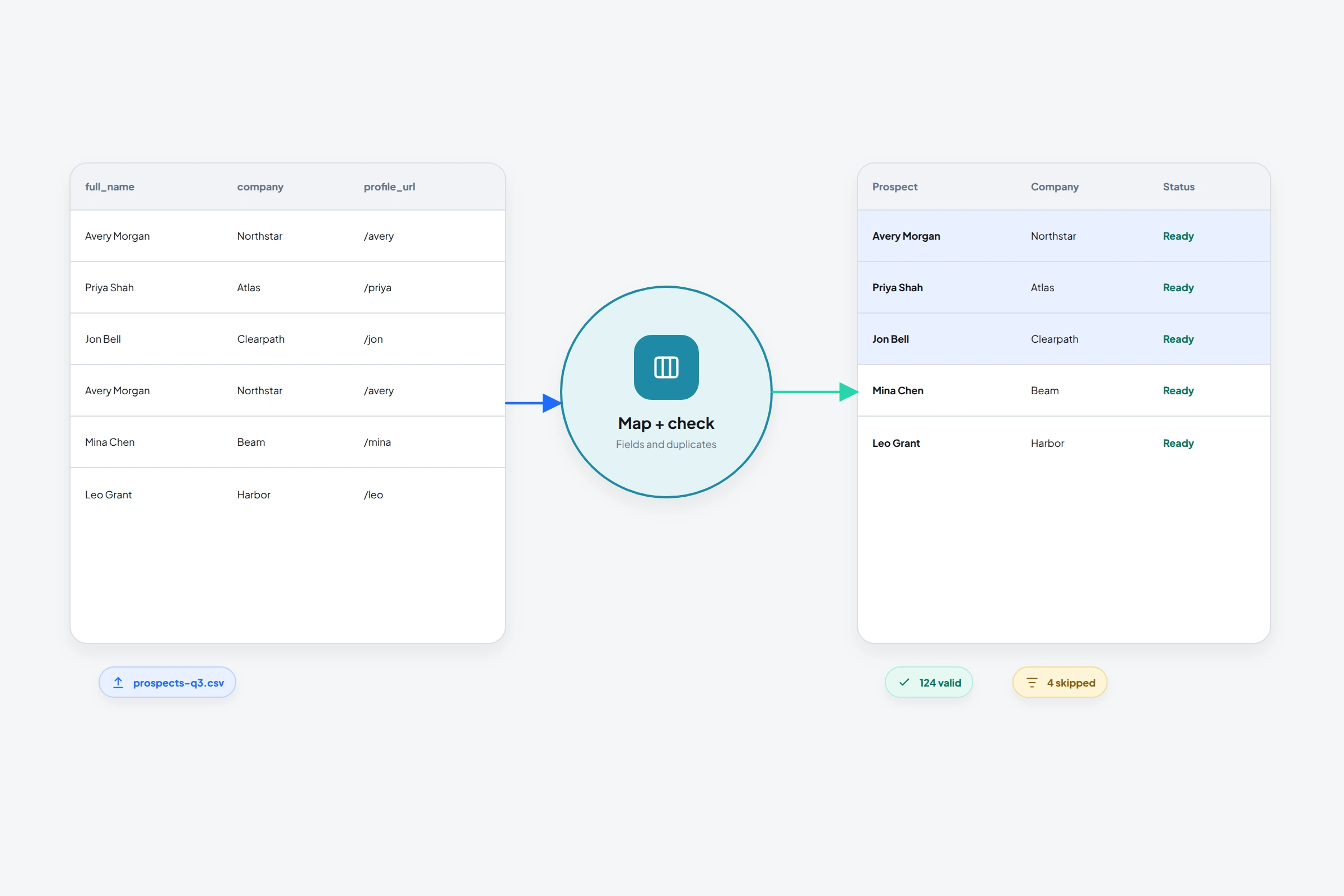
A CSV import is fast only when the file is boring. One header row, one person per row, stable profile URLs, and fields that mean the same thing all the way down.
OutreachGenie's import flow shows you a preview and lets you map source columns to prospect fields before writing records. That review step is where most preventable mistakes should be caught.
01
Prepare the file before upload
Don't invent missing values to make the spreadsheet look complete. Import what you know, then add context later. A reliable sparse record is easier to work with than a polished record built from guesses.
- Use clear headers such as First name, Last name, Company, Title, Email, and LinkedIn URL
- Remove blank rows, merged cells, subtotals, and explanatory notes above the header
- Store dates and phone numbers consistently
- Keep custom qualification fields only when you know how they will be used
02
Map the CSV into OutreachGenie
- 01
Open the destination prospect list
Create the list first if this file represents a new audience. The list gives the import a clear home and makes rollback easier to reason about.
- 02
Upload the CSV
OutreachGenie reads the header and shows a preview instead of importing immediately.
- 03
Map source columns
Match each source header to a standard or custom prospect field. Ignore columns you don't need.
- 04
Review and confirm
Check a few rows from top to bottom, read validation messages, and confirm only when names, companies, and LinkedIn URLs align correctly.
03
Treat LinkedIn URL as an identity field
Names and company titles change. A normalized profile URL is often the best source link for returning to the right person. Remove tracking parameters and avoid putting a company page URL in the person-profile column.
If the same profile URL appears twice, decide whether the rows should merge, whether one is stale, or whether the file combined two separate sources. Don't let the import make that decision invisibly.
04
After the import
- Filter the list for blank or suspicious fields
- Spot-check profile URLs against LinkedIn
- Add the source name and import date as list context
- Review the audience before attaching an outreach flow
Common questions
Questions that come up in practice
Which CSV columns are required?
The exact requirements depend on the destination mapping, but a name plus a reliable LinkedIn profile URL is the most useful foundation for LinkedIn outreach records.
Can I create custom prospect fields during import?
OutreachGenie supports custom prospect fields. Create fields with clear, stable meanings before mapping many rows into them.
Will CSV import start a campaign?
Importing does not create a new campaign, but importing into a list linked to an active campaign can add prospects to that campaign. Use a new list that is not assigned to any campaign for review, and check matched prospects' existing campaign memberships before confirming.
Research used for this guide
Try the workflow