
To export your LinkedIn connections, use the account’s data-download settings on a computer, request the archive containing connections, then extract Connections.csv. You can open that file in a spreadsheet or prepare it for a CRM import. The native export covers your first-degree network; it does not collect everyone in a search or everyone who follows you.
The part that needs care comes after the download. A connection date, a company name and a blank email cell mean different things. Importing them into the wrong fields can make an old network snapshot look like current sales data.
Request the archive from LinkedIn
LinkedIn’s connection-export instructions currently describe this desktop path:
- Open Me, then Settings & Privacy.
- Choose Data privacy and find the account-data download under How LinkedIn uses your data. The help pages use both Get a copy of your data and Download your data for this area.
- Select the larger data archive that includes connections, then Request archive.
- Follow the email sent to your primary address, download the archive and extract
Connections.csv.
Some accounts or guides may show a separate Connections selection. If yours does not, the larger archive is the route LinkedIn currently documents. There is no need to install an extension to request this native download.
Do not plan around a ten-minute promise. LinkedIn’s general download help mentions 24 hours for a larger download, while its category table lists Connections under 48 hours. Check the status shown for your request and the download email. That page also says the download remains available for 72 hours and the feature is unavailable on mobile.
Find the correct file before uploading anything
A larger archive can contain much more than your network. Extract it locally and select the file needed for the task. Uploading the entire archive to a CRM is unnecessary.
Connections.csv describes first-degree connections. Contacts.csv, when present, describes contacts imported into LinkedIn. Those are separate categories in LinkedIn’s data-download documentation. A person in an imported address book is not necessarily a LinkedIn connection.
If Connections.csv is missing, check whether you requested the larger archive, whether the request has finished and whether you opened the intended download. Search the extracted folder rather than assuming a similarly named contacts file is equivalent. If the completed archive still lacks the expected category, use LinkedIn’s support or data-access options; changing a filename will not create the missing records.
Keep the original file intact. Make a working copy for cleanup, with the export date in its filename. That gives you a reference if a spreadsheet changes the encoding or an import produces an unexpected count.
Read the fields as evidence, not assumptions
LinkedIn documents connection fields such as first and last name, public profile URL, company, position and connection date. Its published field description includes these column names; inspect your own file before mapping them:
First Name,Last Name,URL,Email Address,Company,Position,Connected On
The useful distinction is between an identity link and a historical observation. The profile URL lets you return to the person. Connected On records a connection date. It does not establish that you are still connected when you use an older file, that the person still works at the listed company, or that a conversation is welcome.
Email gaps are expected. LinkedIn says an address appears in the export only when the connection permits it through their privacy settings. Its email-visibility help distinguishes email visibility from the option that lets connections download it. A missing address is not evidence that your CSV is damaged. Leave it blank unless you have another appropriate, verified source.
An exported address also does not tell you why the person would want a sales email. Decide whether there is a relevant relationship or reason to make contact separately from whether a cell contains an address.
Prepare a small review file
Start with the part of the network you have a reason to review. For example, a founder preparing a partnership shortlist may need relevant agency operators, not every former classmate and colleague. Keep uncertain matches outside the first import until you can explain their inclusion.
Before uploading the working copy:
- Make the actual column names the first row. If the export contains notices or explanatory lines above them, remove those lines from the working copy. OutreachGenie’s CSV reader treats the first row as headers.
- Keep one person per row and inspect repeated profile URLs. Do not merge two people merely because their names match.
- Save the CSV as UTF-8 and inspect a few accented or non-Latin names. Changing the encoding cannot restore characters already missing from the source.
- Keep the LinkedIn profile URL column. OutreachGenie requires it for this import; an email address is optional. Set aside rows without a usable profile URL rather than inventing one.
- Retain the export date and source as factual context. Keep Connected On as historical data, separate from any current connection-status field.
The free LinkedIn CSV checker can review profile URL formats, repeated profiles and conflicting rows in your browser. Inspect its proposed file before importing; it cannot see existing records in your workspace.
If the names, URLs or columns are misaligned in the preview, stop there and repair the file. A successful upload only proves that the application accepted a file.
Import into a list you can review
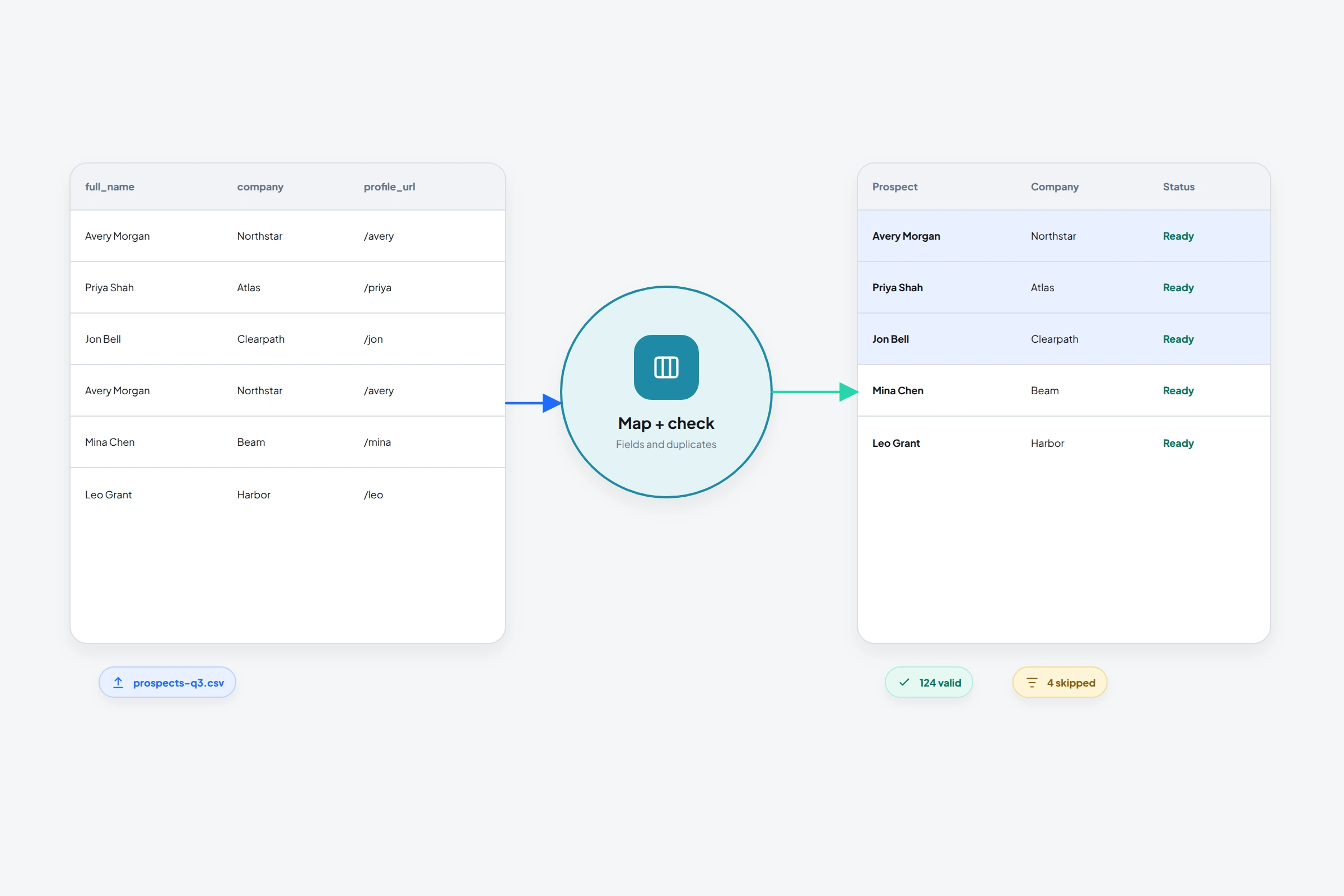
In OutreachGenie, create a new list that is not assigned to a campaign. Open Upload prospects, choose the prepared file and select Preview import. Review the mapping before using Confirm import.
Map URL to LinkedIn URL, the name columns to their matching name fields, Position to Title, and Company to Company. Map Email Address only if you want to retain the addresses actually present. A custom field such as connection_date_from_archive can preserve Connected On without claiming a live connection check. The CSV import guide covers the broader mapping and validation workflow.
Read the preview’s existing-match and duplicate information. An existing profile can be attached to the destination list, and the import can fill blank fields on its workspace record. Do not assume every row will become a new person or that an older archive will replace the existing record exactly. Spot-check a matched profile as well as a new one.
The unassigned list prevents new members entering a campaign through that destination. It does not isolate matched records from every other workflow: check whether those people already belong to active campaigns elsewhere. Adding prospects to a list that is already attached to an active campaign can make them available to that campaign.
After import, compare the reported new, existing, duplicate and invalid counts with your working file. Review the people and their context before deciding on outreach. You can keep the list and source notes in the prospecting workspace without treating the archive itself as a campaign audience.
Questions that often come up
Can I export second-degree connections or Sales Navigator search results this way?
No. LinkedIn’s native connections export covers your first-degree network. Search results, followers and people who reacted to a post are different audiences. If your task starts with a people search, use the separate search-to-list workflow and review its limitations.
Will importing the file mark everyone as a current connection?
Do not use this workflow as a live relationship check. The import’s standard mapping fields do not include a current connection-status target. Preserve the date as context, and verify the current relationship before relying on it for a LinkedIn action.
Should I import the same archive again to fix an unexpected result?
Inspect the first import report and a sample of affected records first. Repeating a file does not explain a wrong mapping, a missing URL or an already matched record. Correct the specific problem in a working copy, preview the result, and confirm only when the expected changes are clear.
Research used for this guide
Open the workspace and try it with a small, reviewed list.
Try the workflow