
Save profile to workspace
How to save LinkedIn profiles to a CRM without breaking your browsing flow
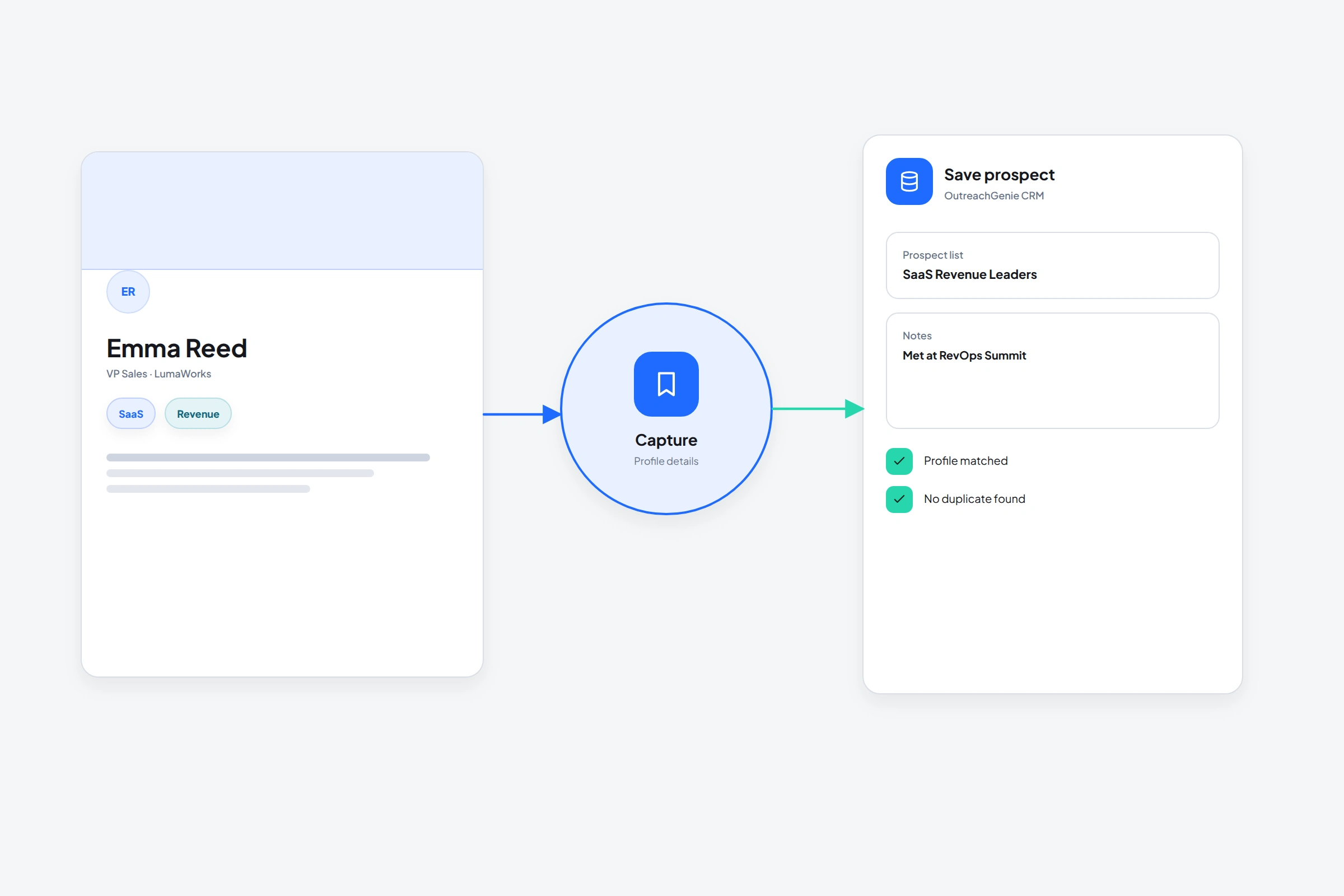
The worst time to copy a prospect into a CRM is later. By then, you've forgotten which sentence on the profile mattered and why you opened it. The OutreachGenie sidebar saves the profile, destination list, and your note while the page is still in front of you.
01
What a useful saved prospect contains
You don't need to fill every possible CRM field during capture. Save the minimum reliable record, then enrich it when there is a reason. A hurried guess is worse than a blank field.
- The person's current name, title, and company
- A normalized LinkedIn profile URL
- The list or audience they belong to
- A short note explaining the relevance or next step
02
Save the profile from the OutreachGenie sidebar
- 01
Open the LinkedIn profile
Wait until the profile page has loaded and check that it's the person you intend to save.
- 02
Choose Add prospects
The sidebar detects the current profile and shows whether it has already been imported.
- 03
Pick the destination
Add the person to an existing list or create a new list without leaving LinkedIn.
- 04
Write the useful note
Record the trigger, shared context, or next action. Avoid copying the entire profile into the note field.
03
A note should make the next action obvious
“Good prospect” isn't a useful note. “Hiring first RevOps lead; mentioned attribution gaps in About section” gives you a factual reason to return and a better starting point for research.
If another teammate will use the record, write for them. Separate what the profile states from your interpretation, and don't store sensitive personal assumptions.
The person is available in the OutreachGenie prospect directory and chosen list. From there you can update fields, add notes, filter the list, export data, or include the prospect in a reviewed campaign.
Saving a profile doesn't need to start outreach. Capture and outreach are separate decisions, which is useful when you're researching an account or building a list over several days.
Common questions
Questions that come up in practice
Can I add notes while saving a LinkedIn profile?
Yes. The OutreachGenie sidebar includes a note field during import and lets you update the note later for an existing prospect.
What if the profile is already in OutreachGenie?
The sidebar can show the existing prospect state so you can save a new note or place the person into another relevant list instead of creating a blind duplicate.
Does saving a profile automatically message the person?
No. Saving a prospect and launching a campaign are separate actions.
Research used for this guide
Try the workflow