
Automated prospecting
How to use a LinkedIn prospecting tool when you're not technical
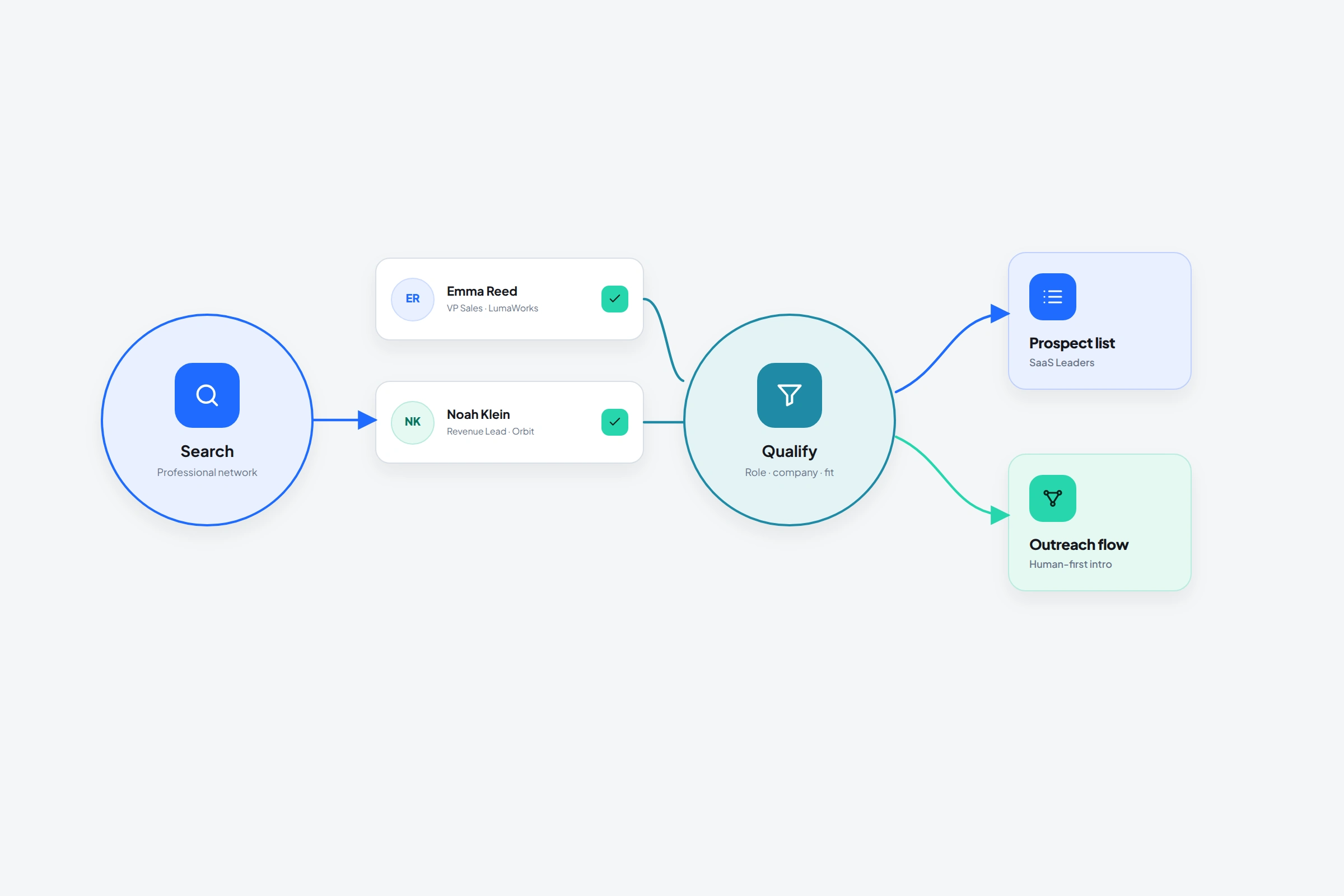
LinkedIn prospecting gets exhausting when the work is scattered: search, profile tabs, copied names, a spreadsheet, and no record of why someone looked relevant yesterday. OutreachGenie keeps the source beside the saved person and the eventual outreach flow. You can see the handoffs without giving up the judgment calls.
01
The four-part prospecting loop
- 01
Find
Search for a specific role, company type, geography, or visible intent signal. OutreachGenie can also start from people who commented on or reacted to a relevant post.
- 02
Save
Import profiles into a named list while the reason is still fresh. Add a note when one detail will matter later.
- 03
Review
Remove people who don't match the rule. Check titles, companies, profile URLs, and duplicates before creating outreach work.
- 04
Reach
Connect the clean list to a flow and campaign. Let conditions such as acceptance and replies decide whether later steps should run.
02
Choose a source that already contains context
A generic search can still work, but a search tied to a real trigger is easier to qualify. A founder who recently discussed a hiring problem gives you more context than a founder selected only because their title contains “CEO.”
Post comments and reactions can be useful warm signals, but they are not qualification by themselves. Read what the post was about, check the person's role, and exclude colleagues, competitors, students, or unrelated commenters before outreach.
03
Set it up in OutreachGenie
Nothing in that process requires code. The important decisions remain visible: who is in the audience, what the flow does, and whether the campaign is running.
- Open a LinkedIn profile, people search, or post and open the OutreachGenie sidebar.
- Choose an existing list or create a new list named for the audience and source.
- Set an import limit you can review instead of defaulting to every result.
- Open the web app, review the list, then choose or build the flow.
- Create the campaign only after the list and flow make sense together.
04
What a prospecting tool should make visible
A tool earns its place when you can answer five questions without reconstructing the work from browser history: where the person came from, why they were saved, which list contains them, what happens next, and what stopped the sequence.
That is the useful difference between a list collector and a working prospecting system. Faster capture helps, but the source, qualification rule, and campaign result matter after the capture job ends.
- The original LinkedIn profile or source post
- The audience rule and destination list
- Notes that separate facts from assumptions
- The flow attached to the qualified list
- Replies, warnings, failures, and remaining work
05
The automation boundary
Automate collection, organization, timing, and repeatable actions. Keep targeting decisions, unusual profiles, replies, and relationship-building under human review. The moment a real person responds, the work is no longer a sequence problem.
LinkedIn's own policy says third-party software and extensions that scrape or automate activity are not allowed. Use that fact when deciding whether and how to use any automation product, including OutreachGenie.
Common questions
Questions that come up in practice
Do I need Sales Navigator?
No. You can start from regular LinkedIn people search, profiles, post comments, or reactions. Sales Navigator may offer additional search and list features, but it isn't required by OutreachGenie.
Should every imported prospect enter outreach automatically?
No. Review and qualify the list first. A source is evidence worth checking, not proof that every profile is a fit.
What should I compare in a LinkedIn prospecting tool?
Compare source capture, duplicate handling, list review, notes, export, flow visibility, stop conditions, campaign reporting, and how clearly the tool explains LinkedIn policy risk. Ignore feature counts that do not improve one of those jobs.
Research used for this guide
Next step