
Use CSV custom fields in LinkedIn messages without blank variables
CSV message variables
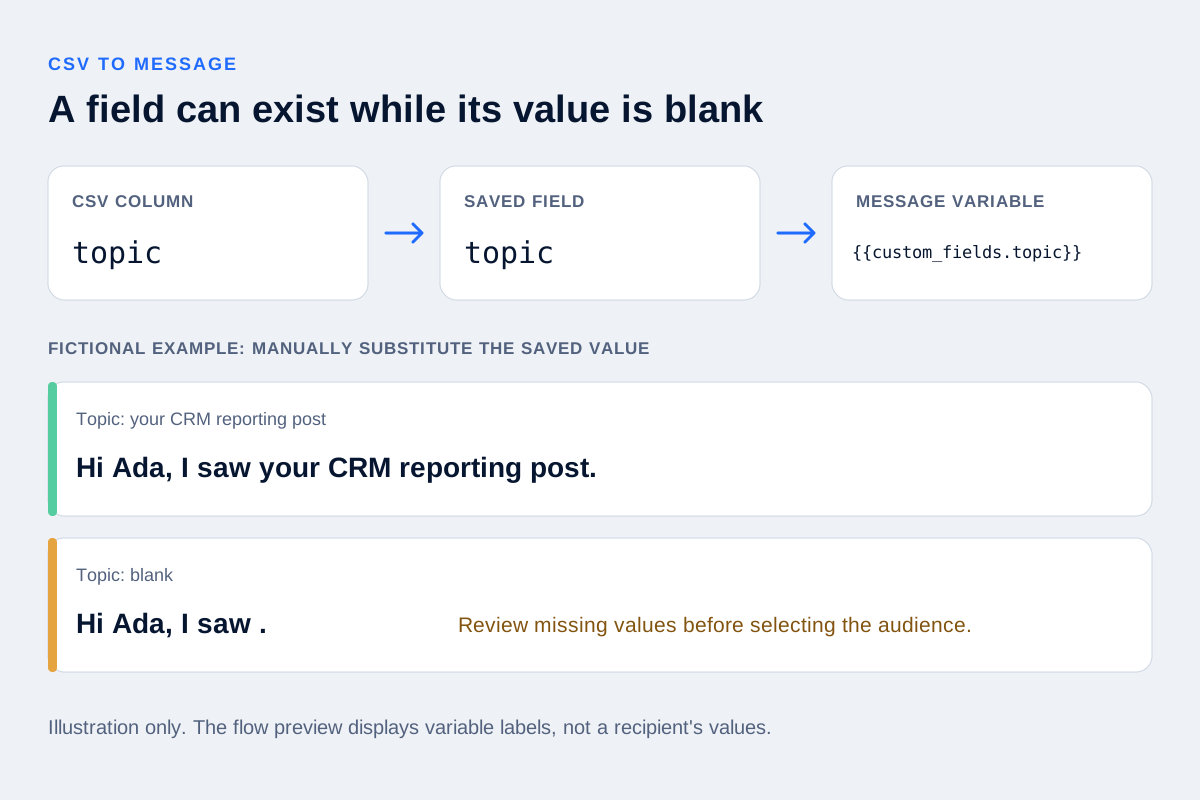
Your CSV has a topic column. The import accepts it. The message still reads: “Hi Ada, I saw .” The field exists, but Ada's saved record has no value for it.
To use CSV custom fields in LinkedIn messages, map the column to a prospect field, inspect the saved values, then insert that field through your outreach tool's variable picker. Check every field the message depends on before selecting the audience. An accepted column mapping alone cannot tell you whether the completed message makes sense.
Follow one column into the message
In OutreachGenie, a CSV column such as topic can become a custom prospect field. The flow editor's Variable picker separates standard prospect fields from custom fields. It inserts {{first_name}} for the first name and {{custom_fields.topic}} for this custom field.
That gives you three things to check:
- CSV column:
topic, containing the text you intend to use for each person. - Saved prospect field: the imported
topicvalue on that person's record. - Message token:
{{custom_fields.topic}}, inserted from the picker.
Use a clear, stable column name and inspect the field created during mapping. A displayed column label is not a reason to guess the token syntax. The CSV import walkthrough covers uploading, mapping and reviewing rejected rows.
Consider this fictional template, written only to demonstrate substitution:
Hi {{first_name}}, I saw {{custom_fields.topic}}.
If Ada's saved topic is your CRM reporting post, the result is “Hi Ada, I saw your CRM reporting post.” If the topic is blank, OutreachGenie substitutes empty text and the sentence becomes “Hi Ada, I saw .” These are paper examples, not messages tested on prospects.
The complete version still needs a truthful reason for contact. A field can contain fluent text about the wrong person, an old employer or a post they never wrote. Use the personalized-message guide when the problem is what to say rather than how to insert it.
Inspect what the recipient's record actually holds
Before confirming an import, use a review list that is not connected to an active campaign. Check existing matches and their other campaign memberships too: adding an existing prospect to a new list does not isolate their shared record or stop another campaign. Importing into a list linked to an active campaign can add prospects to that campaign.
After import, read the saved fields. OutreachGenie's import can fill supported blank fields on an existing match, but it preserves already populated custom values. A corrected CSV therefore does not prove an older topic was replaced. If the saved text is stale, correct the actual record and recheck it before use.
There are also two different completeness checks. When you activate a campaign, OutreachGenie checks that the custom fields its flow references exist in each selected list's field definitions. That can catch a list missing topic. It does not establish that every prospect in the list has a topic value.
Use the prospect filters' Is empty condition for each field required by your wording, or inspect those fields across the full audience in a working sheet. Resolve incomplete records or keep them outside the intended audience. Applying a display filter is not itself a command to remove people from an active campaign.
Read completed messages before launch
The standard flow editor's preview shows variable labels inside the template. It does not substitute a selected prospect's values. For CSV custom fields such as topic, manually reconstruct the completed message in a local scratch document or sheet using the values on the saved record.
Guided first-campaign setup has a separate preview for first name, last name and job title. Missing values remain visible as field labels there; sending would leave those values blank. That setup does not support custom-field tokens, so its preview cannot verify your CSV's topic values.
- Copy the draft template and substitute the saved values for one complete record. Read the whole message, including punctuation around each variable.
- Try a record with a missing value. Decide whether to research the missing fact, use different honest wording or leave that person out. Do not fill the gap with invented context.
- Check the longest values you intend to use. A short template can expand substantially when a custom field contains a paragraph.
- Compare the message with the recipient's current identity, evidence and contact history. Keep internal research, source notes and status labels out of fields selected for sending.
- After any correction, recheck the saved value and the actual audience before launch. Sampling catches mapping and wording mistakes; it does not replace checking required fields across all recipients.
A template that depends on a specific post should only use a topic you have verified. If the evidence is missing, changing the sentence is often more useful than finding a generic word to put in the gap.
When a variable still does not produce the intended text
The field is missing from a selected list. Check the import mapping and the selected lists. A field available in the editor does not mean every audience list has it. Keep unresolved records out of the launch while you repair the mapping.
The field exists, but the result is blank. Inspect the person's saved value. Current rendering replaces missing values with empty text. An entirely empty required message fails, but a sentence with one blank variable can remain nonempty. Do not rely on that failure check to review your wording.
An older value appears after reimport. Check the existing prospect match. Populated custom values can survive the import; edit the stored field rather than repeatedly uploading the same corrected file.
Copied template syntax is rejected. Use OutreachGenie's picker. Prospect notes are not available as template variables, and expressions copied from another tool are not necessarily supported. A token stored inside a custom field's value is not expanded a second time.
The completed text is too long. Shorten the saved value or rewrite the message, then reconstruct it again. OutreachGenie checks rendered length and can skip oversized text. Its product limits are not evidence of a universal LinkedIn account allowance.
Other tools document their own rules. Aimfox connects uploaded CSV columns to message variables, while Linked Helper documents separate CRM, campaign and action scopes. Those differences are a reason to verify the destination's behavior when moving a file or template. Keep the final check tied to the saved recipient record and the words that person would receive.
Research used for this guide
Open the workspace and try it with a small, reviewed list.
Try the workflow