
How to export LinkedIn event registration data for follow-up
LinkedIn event registration export
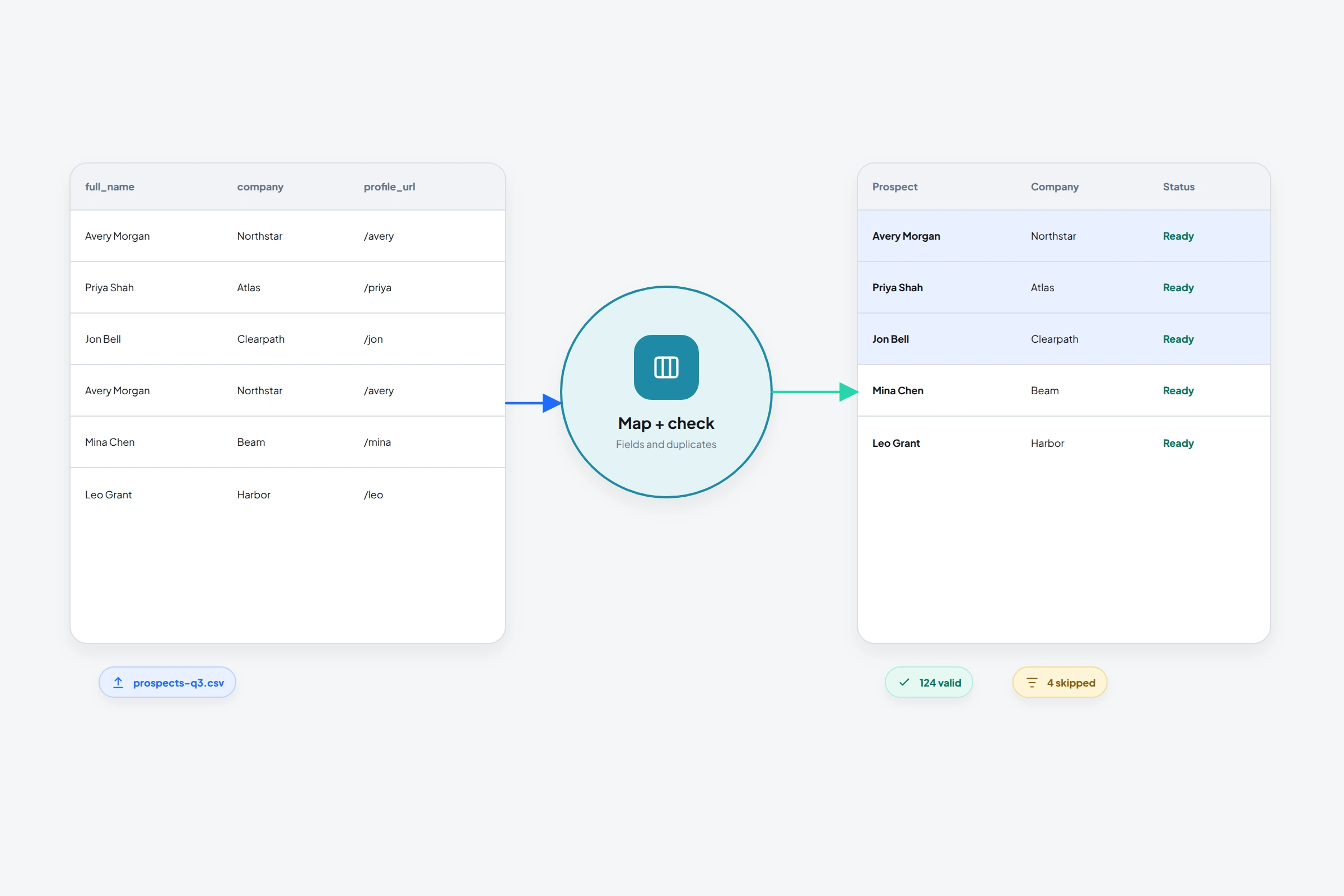
Your LinkedIn event can show more attendees than the registration file contains. Before exporting it again or buying a scraper, check which records you are comparing. The people visible on an event page and the people who submitted its registration form can be different groups.
For an organizer preparing follow-up, the useful outcome is a file whose coverage you understand, with enough context to choose the next action for each person. Downloading the rows is the first part of that work.
Check what your event role lets you access
LinkedIn's attendee-list instructions describe two desktop paths: organizers use Manage event, then Manage attendees; attendees use Networking. These controls let you view participants. Access to that list does not itself establish access to their registration information.
Use your situation to choose the next step:
- You manage the Page and its event used a registration form. Check the collected registration data in the organizer view. This is the native export route covered below.
- You attended someone else's event. Networking may help you find people to speak with, but it is not the organizer's registration download. Do not expect it to provide everyone's contact details.
- You manage an event that collected no registration information. A visible attendee count does not create a registration dataset. Review how the event was configured before treating an empty download as a technical fault.
An agency working for the organizer should establish the relevant Page access and agreed use of the file. An invitation to attend the event is a different permission.
Download the registration file from the event
LinkedIn's registration-form guidance places collected information in the Registration section of the event's Analytics tab for Page super and content admins.
- Open the event managed by the correct LinkedIn Page.
- Go to Analytics, then Registration.
- Use the available registration download control. LinkedIn's marketing-integration guidance confirms a manual CSV handoff.
- Save the original file separately from your working copy.
- Record the event URL, download date and number of data rows before filtering or editing.
Check the actual headers and a few records before uploading the file elsewhere. A readable spreadsheet can still be the wrong event, an earlier export or a file with columns your destination cannot use.
The instructions here follow LinkedIn's current Help pages. If the controls differ in your account, confirm your Page role and the event's registration setup rather than applying a tutorial for a different event type or an older interface.
Investigate missing registrants before changing the form
Start with timing. LinkedIn documents a possible four-to-five-day delay before a new registration appears in a download, and a one-year availability window measured from registration. A recent submission and an old one can therefore be absent for different reasons.
Then check whether everyone went through the same form. LinkedIn's current form-management instructions allow organizers to add, replace or remove a form after creating an event. Existing attendees are not prompted to complete a newly added or replacement form. Earlier collected data remains unchanged.
Adding a form after the event will not reconstruct missing submissions. It also deserves care if you are running paid promotion: LinkedIn says these form changes pause active Event Ad campaigns using the event URL and send them back for review.
Keep a short reconciliation note with the file: when the form was introduced or changed, when the export was taken, and which records remain unexplained. If a later download resolves a delay, compare the files before appending rows so the same registrants do not become duplicate contacts.
Read the columns before planning the follow-up
The documented registration fields are first name, last name, email address, job title, company name and country/region. LinkedIn does not promise a public profile URL in that field list. Inspect what your export actually contains; do not design an import around a column you hope will be there.
Those details describe the registration record. They do not demonstrate that the person watched the session, needs your service or has agreed to a sales call. Keep any separate evidence of engagement or a requested next step attached to its source.
For example, a registrant who asked for a particular worksheet has a clear follow-up reason. A person who only appears in the export needs a more careful decision about relevance. LinkedIn's registration guidance permits communicating relevant information to attendees; it should not be stretched into blanket approval for unrelated campaigns.
This is also where to check your team's existing conversations and contact preferences. If a colleague already owns the relationship, hand over the event context instead of starting another approach.
Prepare a LinkedIn list only where you can identify the person
OutreachGenie's importer requires the person's public LinkedIn profile URL. It does not turn an email address, event URL or company page into a verified person profile.
If that field is missing, retain the original registration record while researching a match. Compare the person's name with the company, role and other available context. A matching name alone is weak evidence. If you find two plausible profiles or conflicting employment details, leave the match unresolved.
The Boolean search builder can help group title or company terms for a manual LinkedIn search. It does not verify who submitted the form, and a search result still needs inspection. For a small known audience, a direct profile review may be quicker.
A fictional five-row review illustrates the decisions worth keeping:
- Confirmed profile: the reviewer checks a public profile against the registration context and records the URL and review date. The row can proceed to the next check.
- Ambiguous match: two people share the name and plausible roles. Hold the row until the identity is resolved.
- No profile found: keep the registration record in the event file. Do not invent a URL to satisfy an importer.
- Existing conversation: pass the event note to the current owner and avoid creating parallel outreach.
- Request for no further contact: exclude the person from the proposed outreach and retain the contact-control information in the appropriate system.
These are manual review outcomes, not automatic classifications supplied by OutreachGenie. The lead-qualification guide covers the separate question of whether an identified person belongs in your target audience.
Check the prepared CSV, then inspect the workspace import
Once your working file has a reviewed profile column, use the free LinkedIn CSV checker to inspect missing or unsupported profile URLs, repeated profiles and conflicting rows. The file stays in your browser, and the tool requires no signup.
Its result has a limited meaning. It cannot confirm that a profile exists, that it belongs to the registrant, that an email is deliverable or that a person wants to hear from you. It also cannot see existing records in your OutreachGenie workspace.
Download the reviewed rows and retain the separate review report for anything held back. If you edited the data in Excel or Google Sheets, export a UTF-8 CSV before using the checker. Keep the source file so you can revisit excluded records without reconstructing them.
To move the prepared subset into OutreachGenie, use a new list that is not assigned to a campaign, upload the file and review the mapping and existing matches. Check matched prospects' existing campaign memberships before confirming. Importing into a list linked to an active campaign can add prospects to that campaign. The CSV import walkthrough explains that stage. Opening the app from the free checker does not transfer the file automatically.
Preserve the event URL, source date and review decisions deliberately. Map extra columns to suitable custom fields or add the needed record notes; a column named “Notes” should not be assumed to populate the workspace's Notes tab. Inspect a few resulting records before importing a larger batch.
OutreachGenie currently has no native event-registration or Lead Sync integration. This workflow starts with a file you already obtained and can use for the intended purpose. LinkedIn documents other marketing integration options if automatic registration transfer is your actual requirement.
Give the next owner a specific follow-up decision
A useful handoff says which event the person registered for, what they requested, what identity checks were completed and who should act next. Keep unresolved rows separate from the proposed outreach list. A list label such as “Event registrants” is too little context for someone who did not run the event.
Choose the channel and message from that context. Registration does not make someone a first-degree LinkedIn connection; OutreachGenie's direct-message workflow requires that relationship. Review the connection and messaging rules before attaching a flow.
Third-party tools also remain subject to LinkedIn's automated-activity restrictions. A native download does not exempt later scraping or automated actions from those rules.
Before the first follow-up, the owner should be able to open the right record and explain why this person is being contacted about this event. If the file cannot support that decision yet, finish the review before turning it into a campaign.
Research used for this guide
- Registration forms used for Events organized by Pages | LinkedIn Help
- View the attendee list for LinkedIn Events | LinkedIn Help
- Add, remove or replace an event registration form | LinkedIn Help
- Marketing integrations for LinkedIn Events registration | LinkedIn Help
- Automated activity on LinkedIn | LinkedIn Help
Check your prepared LinkedIn CSV
Next step