
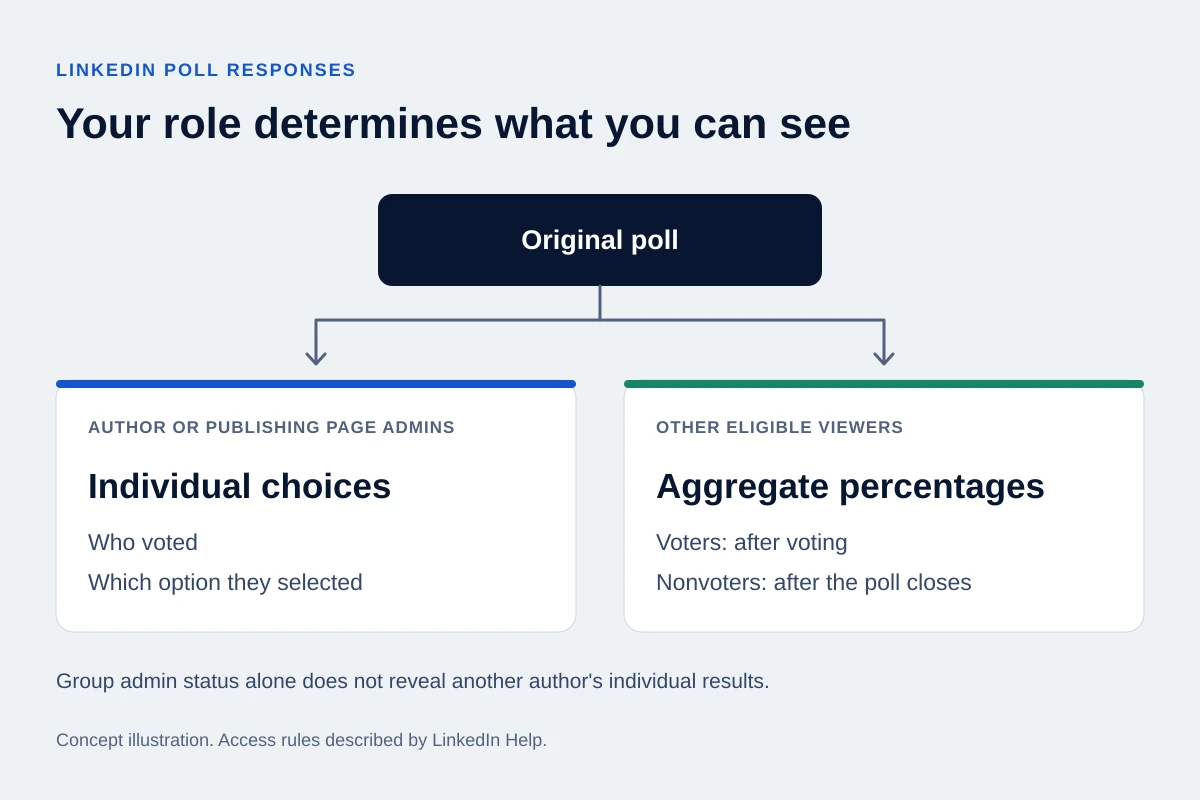
Yes, if you published the poll. You can see who voted and which option each person chose. For a poll published by a LinkedIn Page, that information is available to the Page's admins. Other viewers have a different view: seeing the result percentages does not give them the named voter list. LinkedIn's poll overview confirms the author and Page rules.
That distinction matters when you want to save a few relevant contacts from a poll. First establish whose poll it is and which results you can access. A list of people who liked or commented on the post answers a different question.
Check which view you should have
Start with the original poll post and the account or Page that published it. Use the role below to understand the result you should expect.
LinkedIn's Polls FAQ distinguishes each role. If you expected names but see only percentages, check the original publisher and your access before assuming the poll is broken. Access to a company Page and membership of a LinkedIn Group are different roles.
For voters, the practical answer is that a poll is not anonymous to its author. Voting also does not place that poll in the Activity section of your own profile. Keep that difference in mind before selecting an answer you would not want the author to associate with you.
| Your relationship to the poll | What LinkedIn documents |
|---|---|
| You published it from your personal profile | Individual voters and their selected options |
| You administer the Page that published it | Individual voters and their selected options |
| You administer a Group where someone else published it | Group admin status alone does not provide the individual results; those belong to the poll author |
| You voted in someone else's poll | Aggregate percentages after you vote |
| You can see the post but did not vote | Aggregate percentages after the poll closes |
Voters, commenters and reactions are separate lists
Someone can vote without commenting. A person can also comment on a poll without choosing an option. A reaction to the post does not identify an answer either.
If your goal is to find people who asked a question in the discussion, use the LinkedIn commenters guide. If you want people who reacted to the post, use the reactions guide. Neither list should be relabeled as poll voters.
This is also a product boundary: OutreachGenie's post import supports comments and reactions. It does not import the people who voted or the options they selected.
Can you export LinkedIn poll voters to CSV?
The native LinkedIn help pages reviewed for this guide describe who can see votes; they do not document a voter-list CSV download. Being able to view a result does not establish a native export route.
Third-party exporters are separate products. Check whether a vendor supports your own personal poll or a Page poll, what account access it requires, and which fields it returns. Do not assume a promise to export a poll means you can retrieve individual choices from someone else's post. LinkedIn's automated-activity policy prohibits tools that scrape or automate its website and warns of account restrictions.
For a small set you are permitted to retain, a manually reviewed shortlist may be enough. If the poll was research for your next article, aggregate results may be all you need; there is no reason to build a prospect list just because names are visible.
Keep the question attached to a saved response
Suppose your poll asks, “Where does a customer handoff most often lose context?” A person selecting “Between sales and onboarding” has answered that question. You still do not know whether they own the process, are describing their employer, or want help buying software.
If you decide a contact merits further review, retain the original post link, the full question, the selected wording and the date you observed it. Add a separate note explaining what remains to be verified. A field containing only “Sales and onboarding” will be difficult for a teammate to interpret later.
Treat the record as a snapshot. LinkedIn's FAQ says voters can change or remove their vote before the poll closes and remove it after closure. Recheck the context before referring to an old response in a conversation.
Keep your interpretation separate from the observation. A relevant job title and a selected answer can justify more research; they do not establish budget, purchase timing or a request for a sales message. The lead qualification guide covers that next decision.
Move only the reviewed contacts into your workspace
For a few profiles, OutreachGenie's profile-saving workflow lets you choose a list and add your own note. Enter the poll context yourself; saving the profile does not fetch its vote history.
If you have prepared a permitted spreadsheet, use the CSV import guide to map public profile URLs and any context fields you created. The free LinkedIn CSV Checker can help review supplied profile-link formats and repeated rows before import. It cannot recover poll votes or decide whom you should contact.
Keep the shortlist separate from a campaign until someone has reviewed the source, current role and any existing relationship. A useful next step may be answering the person's public question, sharing the poll's aggregate findings, or leaving the record for further research.
Research used for this guide
Review a prepared contact CSV
Next step