
Export LinkedIn Recruiter candidates to CSV or Excel
Recruiter candidate export
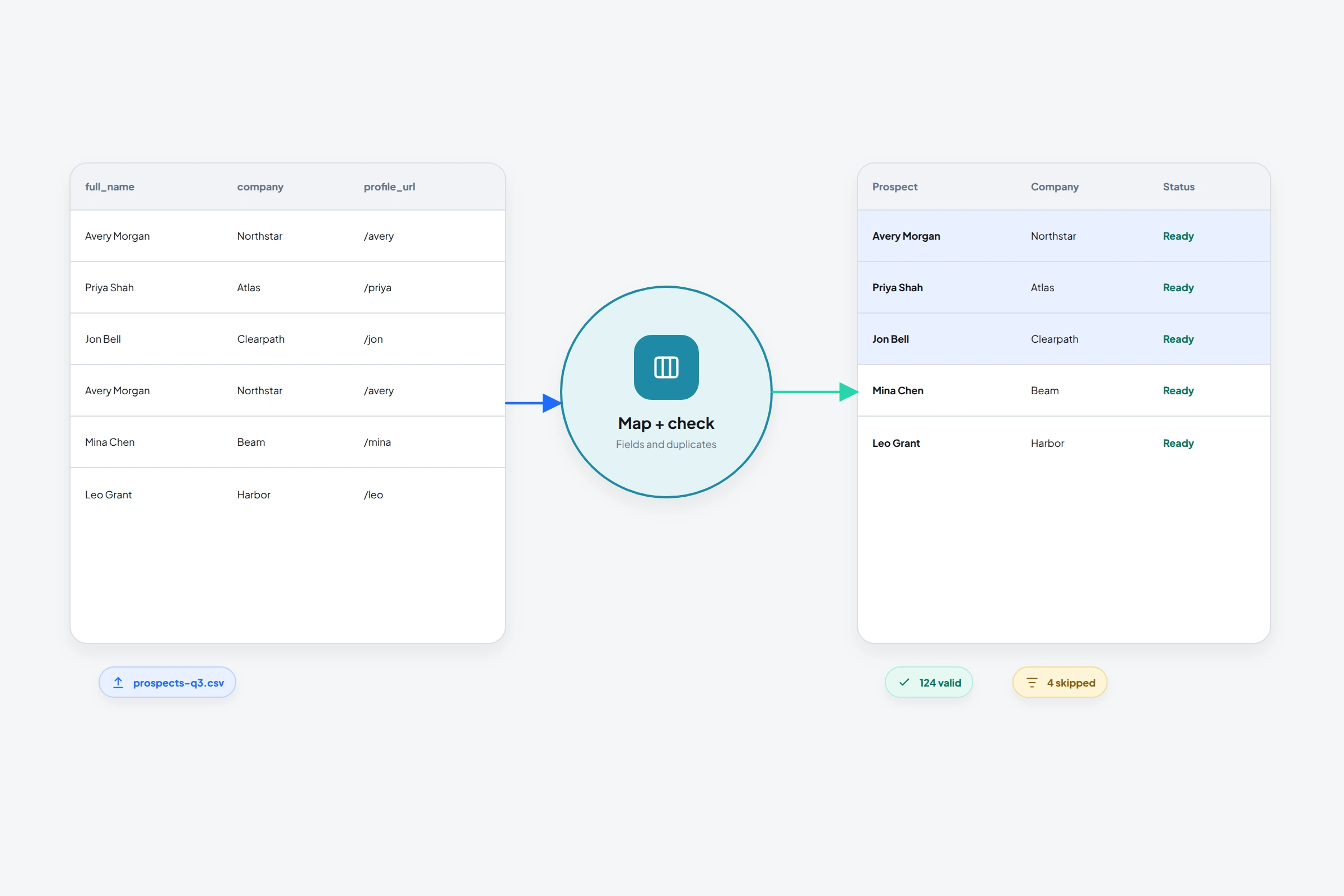
A sourced candidate and a job applicant can appear in the same recruiting project, but they have different export paths. Choose the right tab before looking for a download button.
This guide follows LinkedIn's export documentation, checked on October 16, 2026. It then shows how to review the file for a spreadsheet handoff or an optional OutreachGenie import. The native steps have not been tested in a licensed Recruiter account.
Choose the export that matches your records
Use the table to choose a starting point. If the recipient needs a working Excel file, both CSV and XLSX can be opened in Excel. That does not make their contents interchangeable.
| Records you need | Where to start | Output and boundary |
|---|---|---|
| Sourced candidates saved in a project | Project → Pipeline → select candidates → Save to CSV | CSV, up to 25 candidates per export. Recruiter Lite is excluded by LinkedIn's explicit CSV note. |
| People who applied to a job | Project → Applicants → select a subset or Export all to XLSX | XLSX with applicant fields. This is a separate workflow from Pipeline CSV. |
| Profiles viewed in search results or individually | Use the profile-export controls documented for that view | PDF. A PDF download does not provide a spreadsheet of candidate rows. |
| Applicants needed in an existing ATS | Check the ATS's supported LinkedIn integration | LinkedIn points to Apply Connect. Availability depends on the ATS; it is separate from file export. |
Download sourced candidates from the project Pipeline
For the native CSV route, LinkedIn's instructions start inside a project. If you are still on a search-results page, the documented export there is PDF.
- 01
Open the project containing the candidates
Go to its Pipeline tab. Confirm that this is the project whose candidate context you need, especially when people appear in more than one project.
- 02
Select up to 25 candidates
Choose the people for this handoff. Keep track of the selection if you will make several exports, so you can identify overlapping rows later.
- 03
Choose Save to CSV
Save the original download before editing it. Open a copy in Excel or another spreadsheet app and check the headers, row count and characters in names.
For job applicants, use the XLSX export
Open the project's Applicants tab. LinkedIn documents exporting a selected subset or using Export all to XLSX. It also offers applicant PDFs in a ZIP file. Choose XLSX when the next task is reviewing rows, filtering candidates or preparing a spreadsheet handoff.
The applicant workbook can include a LinkedIn profile URL, names, current role and company, contact details, application date, stage, screening questions and responses, and job or project identifiers. Hiring Assistant evaluation fields are included when that feature is enabled.
Apply Starters have a specific gap: LinkedIn says their email, phone and ZIP fields are blank because of data-sharing limits. Changing the file format will not recover those fields.
Check the plan, view and limit when an export is unavailable
Start with your plan. LinkedIn's profile-export Help explicitly says Recruiter Lite does not support CSV export. The same page has a conflicting Lite reference later in its CSV-limit text; do not use that sentence as a reason to buy Lite for CSV downloads. Confirm availability with LinkedIn before changing a subscription for this task.
Next, check the view: Pipeline CSV, applicant XLSX and profile PDF are separate choices. A missing CSV button in search results does not establish that a project export is unavailable.
For project-profile CSV exports, LinkedIn lists monthly limits of 5,000 unique profiles and 200 CSV files per seat, alongside the 25-candidate selection limit. Profile PDF downloads have a separate allowance of 200 profiles per month per seat; repeat downloads count. These monthly limits reset on a calendar-month basis using UTC.
LinkedIn's applicant-export Help says its applicant XLSX and PDF downloads have no download limit. Do not apply the project-profile caps to that applicant workflow.
Explain missing notes and contact details before repairing the file
For project-profile CSV, LinkedIn describes fields including name, location, current title and company, projects and pipeline stages, and feedback. Project context matters: notes added in a different project do not appear in the export for the current one.
Only contact information entered by a recruiter is included in that CSV. LinkedIn says contact data entered by the member is excluded, regardless of the member's contact settings. An empty email cell therefore does not prove the export failed, and re-downloading the same selection may leave it empty.
Record the gap for the recipient. If a hiring decision depends on notes or an attachment that is absent, keep access to the original hiring record instead of treating the spreadsheet as a complete replacement.
Review the exported file against its next use
Keep the original export and make a working copy. For a spreadsheet review, agree on the columns the recipient needs. For an import, check the destination's identifier and field rules before removing columns or combining exports.
For example, two rows for the same verified profile might describe different job projects. Keep both in your hiring workbook if both contexts matter. If you need one person in a follow-up list, choose the relevant context deliberately rather than combining notes into an unexplained cell. This is an illustrative review decision, not a sample LinkedIn export.
| What you find | What to do | Why it matters |
|---|---|---|
| Several project exports contain the same person | Compare a verified identifier and the project context before merging rows. | Repeated candidates can carry different notes or stages. Deduplicating by name can lose context or merge different people. |
| A LinkedIn URL column contains a recruiting link or no URL | Verify the person's public profile URL before an OutreachGenie import; hold unresolved rows for review. | A column label does not prove that its values are public profile links. |
| The workbook includes screening answers or hiring evaluations | Keep them in the hiring record unless the receiving system has a suitable field and you have a reason to transfer them. | Those fields are not ordinary name, role or company attributes. |
| A recipient sees one long column or damaged characters | Reopen the original using the spreadsheet app's text-import controls; check delimiter and encoding. | A display problem should be resolved before editing the candidate data itself. |
| You saved an XLSX worksheet as CSV | Check the saved CSV again, including headers, row count and multiline cells. | A CSV does not retain the whole workbook, multiple sheets or workbook formatting. |
Import a reviewed file into OutreachGenie only when the identifiers fit
OutreachGenie's authenticated file importer accepts CSV and XLSX. Each imported prospect needs a public LinkedIn profile URL using a /in/ or /pub/ path. LinkedIn's documented project-profile CSV fields do not promise that identifier. The applicant XLSX field list includes a LinkedIn profile URL, but inspect the actual values before assuming they meet the import requirement.
Prepare one worksheet with no more than 10,000 data rows and 64 columns, in a file of 20 MB or less. XLSX files must contain exactly one worksheet; CSV files must use UTF-8. A wide applicant workbook may exceed the column limit because of its screening questions, so choose the fields needed for this follow-up and review the import warnings.
If a link opens a recruiting view, recover and verify the public profile rather than rewriting its identifier or guessing a URL from the candidate's name. Keep rows without a verified match out of the import until they can be resolved.
The free LinkedIn CSV checker accepts .csv files only and checks them locally in your browser. To use it with a workbook, save a working sheet as UTF-8 CSV first. It can flag missing or invalid public-profile URL formats, repeated profiles and conflicting rows. It cannot verify a candidate's identity, recover missing fields or check an XLSX workbook directly.
In the authenticated importer, inspect field mapping, warnings and existing prospect matches. Use a review list that is not connected to an active campaign, then inspect the resulting records. Existing shared prospects can still belong to other active campaigns, so check their memberships too.
This is a file-import workflow. OutreachGenie does not provide a native Recruiter or Apply Connect integration, and this guide does not establish transfer of resumes, screening answers, hiring evaluations, full note histories or pipeline state. Keep those records in the hiring system. Use the reviewed contact fields only for a relevant, permitted follow-up.
Questions that come up in practice
Common questions
Can LinkedIn Recruiter Lite export candidates to CSV?
LinkedIn's profile-export Help explicitly says Recruiter Lite does not support CSV export. A later sentence on that page conflicts with this note. Confirm the feature with LinkedIn before choosing a plan for CSV downloads.
How do I export LinkedIn Recruiter candidates to Excel?
For sourced candidates, export a selected set from the project's Pipeline as CSV and open the file in Excel. For job applicants, use the separate XLSX export in the Applicants tab. Keep the original file and review the fields before editing or importing it.
Why are notes or email addresses missing from my Recruiter CSV?
Project-profile exports omit notes added in a different project. LinkedIn also says only recruiter-entered contact information is included; member-entered contact data is excluded. Applicant exports follow a different field list, and Apply Starter email, phone and ZIP fields are blank.
Can I send the exported file straight to OutreachGenie?
Only after reviewing it. The authenticated importer accepts CSV and XLSX, but prospects require a public LinkedIn profile URL. Check the URL values, mapping and existing matches. The free browser checker accepts CSV only, and neither route is a complete ATS migration.
Research used for this guide
Review a candidate CSV before import
Next step