
Fix invalid LinkedIn profile URLs before a CSV import
LinkedIn URL import repair
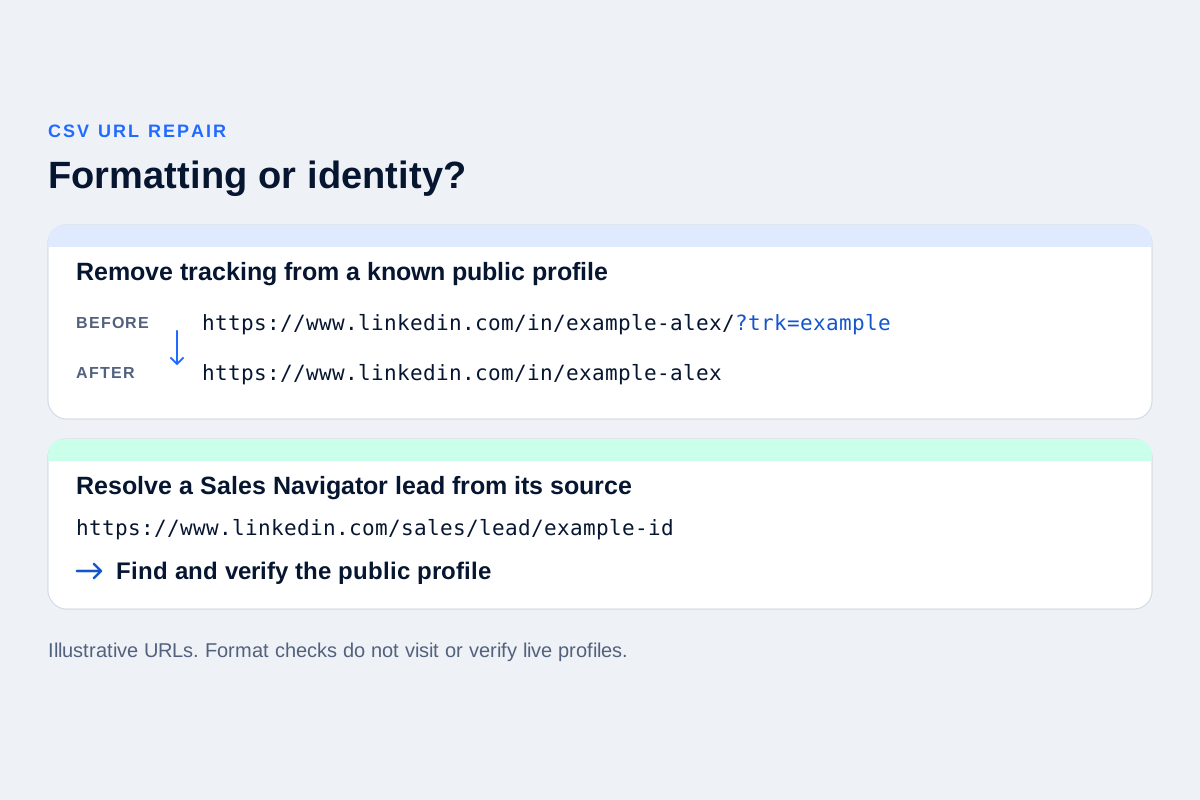
A prospect file can contain a column called “LinkedIn URL” and still fail an import. Some cells may point to companies, posts or Sales Navigator leads. Others contain a person's profile link with an extra space or an old address that now leads somewhere unexpected.
Start with the rows the importer rejected. Keep the original file, check which column was selected, then separate links you can clean from identities you still need to verify. Do not manufacture a public profile URL from a name or replace /sales/ with /in/ and assume the result identifies the same person.
The free LinkedIn CSV checker can inspect the format of those links in your browser. It does not visit LinkedIn, recover missing profiles or convert Sales Navigator identifiers. That distinction determines which fixes you can make in the file and which require returning to the source.
Check the selected column before repairing its values
Open a working copy and look at the header alongside a few complete rows. A spreadsheet may contain both a company URL and a person's URL, or a website column next to the intended profile column. Selecting the wrong one can make a valid file appear broken.
Also inspect the values themselves. A cell displaying “View profile” may not contain the URL you expected in the exported CSV. Broken quoting around commas, a wrong delimiter or an unquoted line break can shift the fields. If names and companies no longer align with their links, repair that structure before changing individual addresses.
Keep a source-row reference when reviewing a larger file. It lets you put a corrected URL back beside the right person instead of attaching it to whichever row happens to occupy the same position after sorting.
Import rules vary by destination. For example, Salesflow's own documentation requires public LinkedIn profile URLs and excludes Sales Navigator URLs. That explains a rejected link in that product; it does not establish every rule for another CRM. Read the actual error alongside your destination's requirements.
Decide whether the link needs cleanup or replacement
Use the following fictional examples to classify the problem. These are placeholder addresses, not researched profiles. Do not import them as records.
- A normal profile link with tracking:
https://www.linkedin.com/in/example-alex/?trk=example. The checker can remove the query and trailing slash while preserving the person-profile path. You still need evidence that Alex is the person the row describes. - A country-host version:
https://uk.linkedin.com/in/example-alex. The checker normalizes the host towww.linkedin.com. If this brings two rows under the same URL, review any conflicting information before keeping one. - A Sales Navigator lead link:
https://www.linkedin.com/sales/lead/example-id. This needs a verified public profile URL. Editing the path cannot establish the mapping. - A company page:
https://www.linkedin.com/company/example-company. Keep it as company context if useful, but find the person's profile separately. A company identifier cannot stand in for an employee. - A profile detail page:
https://www.linkedin.com/in/example-alex/details/experience/. Return to the person's main profile and copy its address. The checker expects a profile URL, rather than an experience subpage. - A malformed or shortened link: a cell containing a space inside the address, broken percent encoding or an
lnkd.inshort link needs source review. The checker does not expand short links or guess what a damaged address meant.
These are different repair decisions. Removing tracking from a known profile can preserve its identity; replacing an opaque identifier requires evidence about the person. Keep unresolved rows in a separate review file instead of forcing every row through validation.
Recover a public URL from the profile you can verify
For a prospect, return to the original record or LinkedIn profile you are entitled to view. Match the name with the company, role and other context available in your source. Open the person's main LinkedIn profile and copy its address from the browser. If the starting point is Sales Navigator, use an available route to the corresponding LinkedIn member profile; confirm the resulting page before recording its public URL.
If you cannot establish the match, leave that row unresolved. Two people can share a name and a plausible job title. A tidy /in/ address invented from those details would only hide the missing research.
If the row is for your own profile, LinkedIn documents the controls directly: on desktop, use Me, then View Profile, and find Public profile & URL. On mobile, its instructions point to your profile's Contact info. Copy the displayed URL rather than changing your public address just to satisfy an import. See LinkedIn's current public-URL instructions.
An old URL also deserves scrutiny. LinkedIn allows custom profile URLs to change, and previously used addresses can eventually become available to someone else. If an old row's link opens a profile with conflicting identity details, investigate before overwriting the row or merging it into an existing contact.
Run the repaired file through a local check
Save the working file as UTF-8 CSV with one header row. In the LinkedIn CSV checker, choose the file or paste its contents, select the correct delimiter, read the CSV, and choose the person's profile-URL column.
The checker recognizes public /in/ profile paths and supported legacy /pub/ paths. It can standardize certain scheme, host, tracking and trailing-slash variations. It leaves ambiguous syntax for review and keeps conflicting versions of a repeated profile separate from the rows proposed for import.
The checker's current comparison preserves the profile path's letter case. LinkedIn says the custom part of its public URL is case-insensitive, but a checker or destination may use a more conservative matching rule. Do not take two separate results as proof of two separate people. Inspect them if the surrounding evidence suggests a match.
A row that passes this check has an accepted URL format. The tool has not confirmed that the profile exists, that its owner still works at the named company, or that you should contact them. It also cannot see records already in your OutreachGenie workspace.
After reviewing the results, download the proposed rows and retain the separate review report. To change which records qualify, edit the source file and run the check again. When a repair reveals duplicates or conflicting histories, use the duplicate-lead guide before deciding which record survives. Changing a URL can expose a repeated person; it does not decide which notes or employment details are current.
Review the destination before confirming the import
Use a new OutreachGenie list that is not assigned to a campaign while reviewing the file. Map the public person-URL column deliberately and inspect the workspace preview, warnings and existing matches. The CSV import walkthrough covers those controls.
Check matched prospects' existing campaign memberships as well. Importing into a list linked to an active campaign can add prospects to that campaign. A cleaned file should not silently turn a data-repair task into an outreach action.
Keep the original URLs, corrected values and unresolved rows in your research record for as long as you need to explain the handoff. Before accepting the repaired batch, open a few resulting records and confirm that each profile, name and company still belong together. Hold any row whose identity remains uncertain.
Research used for this guide
Check your repaired LinkedIn CSV
Next step