
Can you export Sales Navigator leads to CSV or Excel?
Sales Navigator export options
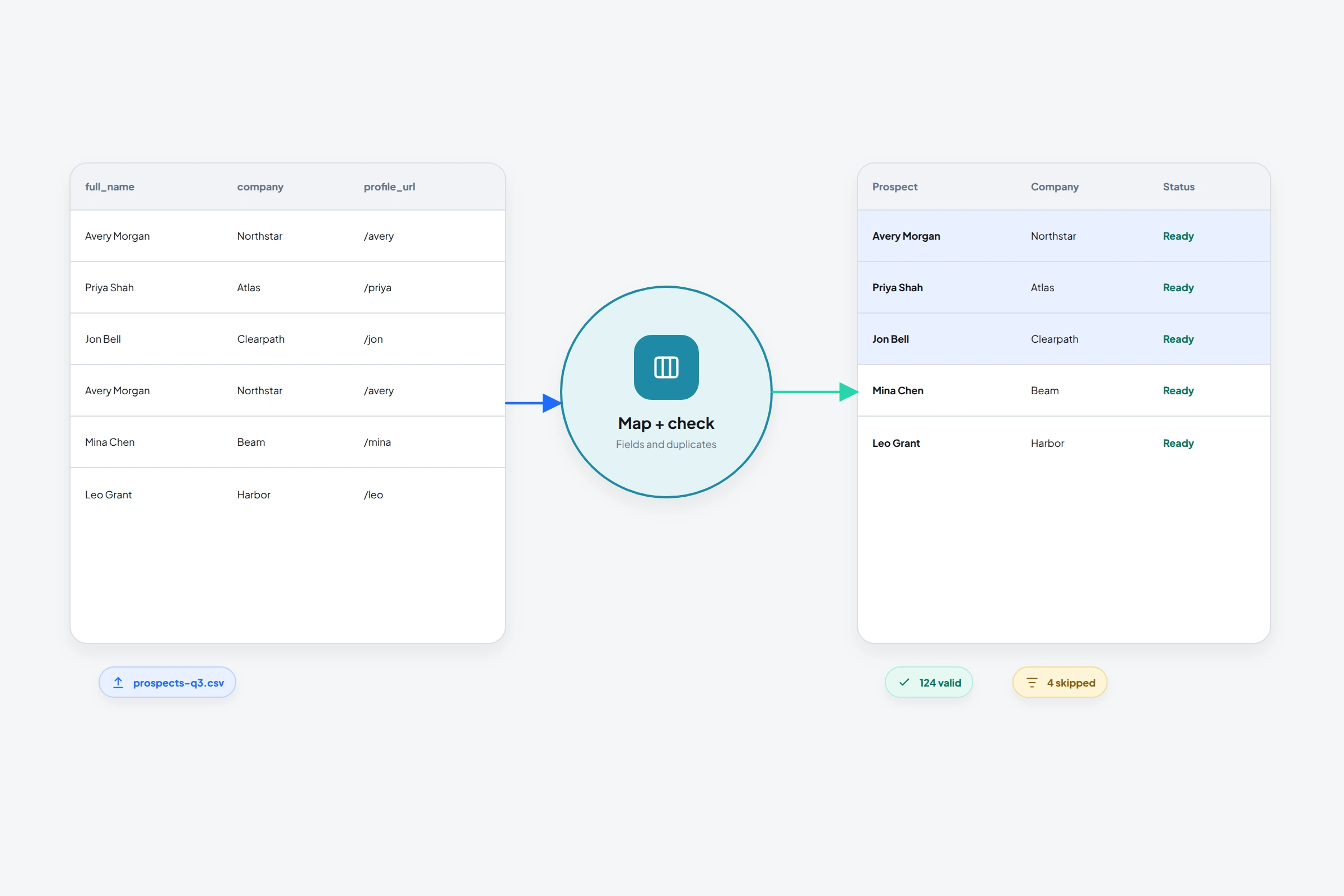
A client asks for the people you saved in Sales Navigator. A spreadsheet sounds like the obvious handoff, until you look for a download button and find advice about three different things: exporting leads, sharing a list and connecting a CRM.
Start with the recipient's next action. Someone reviewing your targeting needs different information from a seller updating an existing CRM record. Choosing the destination first can save you from buying an export tool that produces the wrong deliverable.
Can Sales Navigator export a lead list to CSV or Excel?
No. LinkedIn's current export help says Sales Navigator does not offer a native CSV or XLS export of lead or account information. Its alternatives involve CRM integrations on Advanced Plus. Upgrading does not add a general-purpose spreadsheet download button.
Several nearby features can look like the answer. Use this distinction before changing plans:
- Review the saved audience with colleagues. Custom list sharing on an eligible plan gives them access to the list within Sales Navigator.
- Put a lead record in your supported CRM. Use the integration action available for your CRM and permissions. The result is a CRM record or supported data connection.
- Report on your team's Sales Navigator use. An admin usage-report export produces a CSV of activity statistics.
- Deliver a file to another workspace or a client. Choose a source that permits the required handoff, then inspect and map the fields in the resulting snapshot.
A live list, a CRM record and a downloaded file have different access rules and different ways of staying current. A file's format alone tells you nothing about whether it contains the records, notes or permissions you need.
Share the saved list when the recipient works with you
For colleagues on the same Sales Navigator contract, native sharing may finish the job without a file. LinkedIn's lead-list sharing instructions make this available to Advanced and Advanced Plus users.
Open Leads, open the custom list, then use its sharing control. Find the colleague and choose Can view or Can edit according to the work they need to do. LinkedIn says this applies to lists you created, rather than system-generated recommendations.
The recipient restriction matters for agencies. A client's separate Sales Navigator subscription does not automatically put them on your contract. LinkedIn suggests sharing a search URL as an alternative for someone outside your company. That shares search criteria; do not describe it as transferring your saved list or its notes.
If internal collaboration is the recurring requirement, compare that workflow with the Core versus Advanced plan differences before buying seats solely to obtain a CSV.
Check the exact CRM action before paying for an upgrade
Advanced Plus is the tier to investigate for native CRM integrations. But “integrates with my CRM” is too broad a purchase test.
LinkedIn's current CRM Sync permissions table separates embedded profiles, synchronization, record creation, record updates and activity writeback. Availability varies by CRM and selected permissions. A profile visible inside the CRM does not establish that you can create a contact, write a note or download those fields.
Ask the administrator to demonstrate the action you need on one record:
- Does it create a lead or contact, or match a record already there?
- Which fields move, and which remain visible only in the embedded profile?
- Does the required note or activity reach the expected place?
- What happens when the person already exists or has changed companies?
There is a reason to be this specific. LinkedIn's separate lead-creation instructions describe Salesforce and Microsoft Dynamics 365 Sales, require Advanced Plus with CRM Sync enabled, and use Add to CRM followed by Add new lead. Other integrations can have different actions. Use the current documentation for your exact CRM rather than assuming every feature is shared.
If the final deliverable must still be a CSV, check the CRM's own export permissions and actual field availability. Establish that before promising the client a file containing every Sales Navigator field.
The Export CSV button in Usage Reporting is a different export
LinkedIn does have an Export CSV control for Sales Navigator usage reports. Advanced and Advanced Plus administrators reach it through Admin, then Usage Reporting.
That file reports how users use Sales Navigator. It is not a download of the people in a saved lead list. A screenshot of this control is therefore insufficient evidence that a tutorial can deliver your prospect spreadsheet.
When you really need a file, define its contents first
Consider an illustrative handoff: an agency has saved 80 potential buyers, and its client wants to review 20 before outreach. The client needs to identify each person, understand why they were selected and record a decision. An unreviewed file of all 80 names would leave much of that work undone.
Write down the required columns before selecting a data source. For this handoff they might include a person identifier or profile URL, name, current company, a factual qualification note and the date that information was checked. Keep the client's approval in its own field. Appearing in your saved audience does not establish approval to contact someone.
Then check whether the source and agreement allow the intended use and transfer. A vendor producing a CSV demonstrates technical capability, not permission to give its contents to a client. If the required file cannot be supplied on acceptable terms, change the handoff to something the parties can actually use, such as an agreed research brief or access to the existing system.
Your own first-degree LinkedIn network is another possible source, when that is genuinely the audience you need. The LinkedIn connections archive has a separate download process. It does not export everyone saved in Sales Navigator or everyone matching a search.
Finally, check the destination's import requirements. HubSpot's sample import files, for example, distinguish different objects and associations and use identifiers to connect records. A spreadsheet that opens correctly can still be unsuitable for its intended import.
What a third-party export claim does not establish
Search results include tools that advertise Sales Navigator CSV exports. Before relying on one, separate the vendor's claim from LinkedIn's rules. LinkedIn's automated-activity policy says third-party software and extensions that scrape or automate activity on its website are not allowed. Using a paid product or a small batch does not remove that policy or the possibility of an account restriction.
For any proposed handoff, inspect a sample for the questions that matter: which source produced each field, whether the timestamp is collection or verification time, whether notes survive, and how duplicates or missing identifiers are handled. A successfully downloaded row is not proof of current employment, a verified email address or a person's interest in your offer.
This guide does not recommend a workaround for LinkedIn's restrictions. If an approved native workflow meets the need, that is the first route to evaluate.
Where OutreachGenie fits after you have a permitted file
OutreachGenie's current search importer does not import Sales Navigator /sales URLs. It supports regular LinkedIn people-search pages. Do not purchase or set up the workspace expecting a Sales Navigator extractor or native CRM Sync connection.
If you already have a CSV you are permitted to use, the free LinkedIn CSV checker can help you review repeated profiles, missing public profile URLs and conflicting rows. It works in your browser without signup. It cannot turn a Sales Navigator lead URL into a verified public profile URL, supply missing data or authorize its use.
For an OutreachGenie import, use the person's public LinkedIn URL and review field mapping, warnings and existing matches in the workspace preview. Preserve source notes deliberately instead of assuming every column will land in the right field. The CSV import guide covers that next step.
Before handing over the list, open a few resulting records with the recipient. Confirm that the identifiers still lead to the right people, the qualification notes are visible and the next action is understood. If those checks fail, fix the handoff before anyone starts outreach.
Research used for this guide
- Export account and lead information from Sales Navigator | LinkedIn Help
- Share a custom lead list in Sales Navigator | LinkedIn Help
- Features based on CRM Sync permissions | LinkedIn Help
- Lead creation in CRM from Sales Navigator | LinkedIn Help
- Export a Sales Navigator usage report | LinkedIn Help
- Automated activity on LinkedIn | LinkedIn Help
- Sample import files | HubSpot
Check a CSV you are permitted to use
Next step