
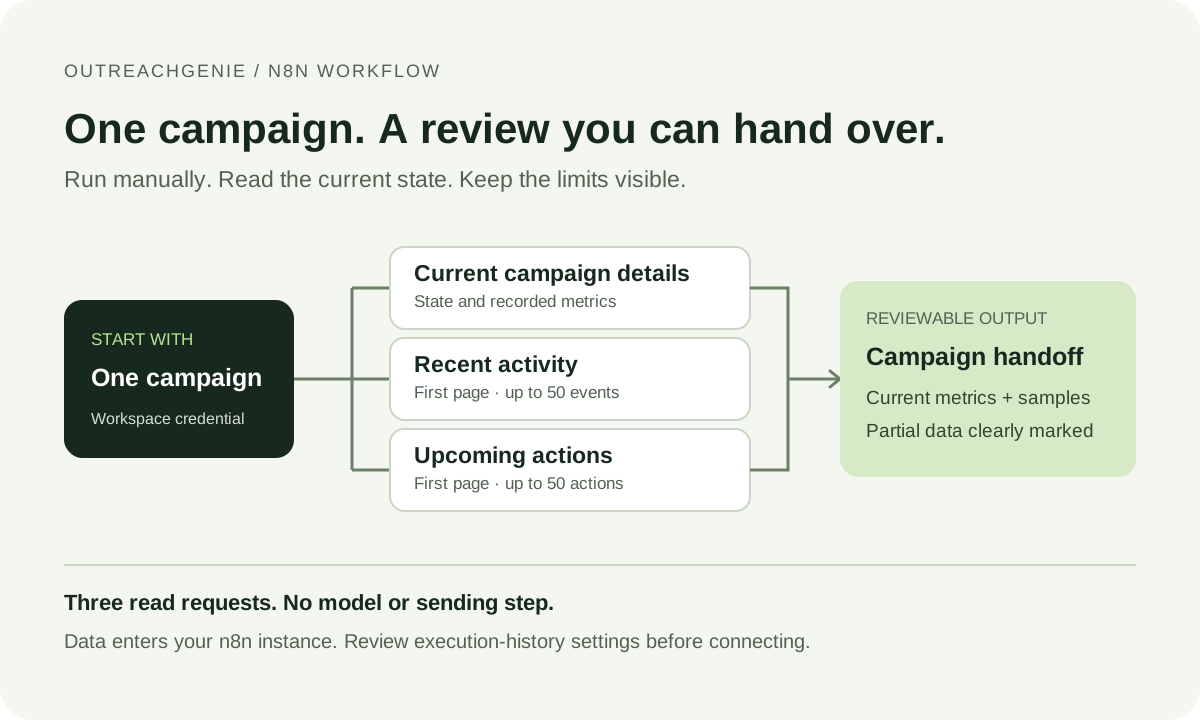
A colleague asks what is happening in a LinkedIn campaign. The campaign is active, its activity log contains failures, and some upcoming work is on hold. Copying the headline reply rate into a message leaves most of that question unanswered.
This downloadable n8n workflow reads one OutreachGenie campaign and produces a Markdown review report. It includes the campaign's current state and stored metrics, a sample of recorded activity, and a sample of upcoming work. You run it manually. It uses no language model and does not change the campaign, send messages or activate outreach.
Download the n8n campaign review workflow.
We tested import and execution with n8n 2.35.7 and its regular MCP Client node, version 1.1, using a local MCP server with fictional campaign data. Production workspace authentication has not been tested for this release. Before relying on a report, connect your own authorized workspace and compare the result with the campaign in OutreachGenie.
Choose a campaign and prepare access
You need an n8n instance, access to an OutreachGenie workspace, a workspace API key and the ID of one campaign in that workspace. The template is free to download. OutreachGenie's software is free; your n8n hosting or subscription is separate.
If you are starting from a new workspace, open OutreachGenie and prepare a campaign using the campaign setup guide. A draft is sufficient for checking access. You do not need to start outreach to generate a report, and a new draft may have no recorded activity.
Open the campaign you intend to review. Its address has this form:
https://app.outreachgenie.ai/campaigns/YOUR-CAMPAIGN-UUID
Copy the UUID after /campaigns/, excluding any query string or fragment. Use a campaign ID, rather than a prospect-list or flow ID. A correctly formatted UUID can still belong to the wrong workspace; the credential determines which workspace the request can access.
In OutreachGenie, open Settings → API keys. An owner or administrator can create a workspace API key. Keep the key in n8n's credential store. Do not paste it into a Code node, the downloadable JSON, a screenshot or a support message. The MCP setup page explains the workspace connection; the developer documentation describes the service.
The workflow's three selected methods are read-only. That describes what this workflow calls, not a guarantee that the API key can only read. Treat the credential as access to the workspace and revoke it when the integration no longer needs it.
Import the file and connect the three read nodes
In n8n, create or open a workflow and use the workflow menu's Import from File option to select the downloaded JSON. These are the standard n8n JSON import controls. The imported workflow contains no account credential.
Open Choose Campaign and replace its placeholder with your campaign's UUID. Keep the manual trigger while you check the setup.
The workflow uses the regular MCP Client node. n8n documents this as a way to call MCP tools as ordinary workflow steps; the separate MCP Client Tool node is for an AI agent. You do not need an agent or a model-provider key for this template. See the MCP Client reference.
Configure the first MCP Client node:
- Check that the MCP server URL is
https://api.outreachgenie.ai/mcpand the connection uses Streamable HTTP. - Select Bearer Auth and create a credential. Enter the workspace key in its Bearer Token field. n8n supplies the
Authorization: Bearerheader; do not paste a whole header into the token field. - Select that same credential in each of the other two MCP Client nodes. Saving one credential does not automatically attach it to every node.
The n8n credential reference describes the Bearer Token field. Leave the imported tool selection and parameter expressions in place:
get_campaignreads the selected campaign's current details and stored overview.get_campaign_activityreads page 1 of recorded activity, requesting up to 50 items.list_campaign_upcoming_actionsreads page 1 of upcoming work, also requesting up to 50 items.
The report is deliberately limited to those calls. If you replace a node with an update, control or activation tool, you have changed the workflow's behavior and must review the resulting permissions and effects separately.
Check where the returned data will be kept
The final report omits prospect names, profile URLs and message text. The raw responses still enter your n8n instance before the report is built. Those responses can contain prospect information, including activity messages, reasons and warnings. Removing a field in the last node does not remove it from earlier node output.
The downloadable workflow requests that n8n not save successful executions, failed executions, manual executions or execution progress. After importing, open Workflow menu → Settings and verify the effective settings for your instance. Your administrator's policies and n8n version can affect which controls you can change. The workflow settings reference explains those separate options.
Unsaved execution history does not mean the data never enters n8n. Consider who can view the current execution, your instance logs and any downloaded report. Campaign names and IDs can themselves reveal client information, even when person-level fields are omitted.
For a self-hosted instance, also review n8n's execution-data retention guidance. Pruning is a retention process, not immediate deletion. If you later share an edited workflow, inspect its export for credential names, headers, pinned data and real campaign values; n8n's export documentation warns that credential references can appear in workflow JSON.
Run once and inspect the output
Run the workflow manually. It validates the campaign UUID, performs the three reads, builds the summary and produces a Markdown file. Open Build Review to inspect the JSON summary. Then open Download Markdown and download the file from its data binary output.
Start by checking the campaign name and ID. Then compare its state and overview with the campaign page in OutreachGenie. The report records when collection started and finished because the three requests can observe slightly different moments in a running campaign.
If a request fails, resolve that error before using the output. An authentication failure, missing permission or malformed response should not be interpreted as an empty campaign. A successful read of a draft with no activity is a different result.
The report separates the campaign overview from the rows returned by the two paginated calls. Read their coverage labels before drawing conclusions:
- Campaign overview metrics describe the current campaign. The remaining-action count covers unfinished flow nodes. These are not automatically metrics for the last seven days.
- Activity counts describe the returned events. Several events can involve one person, so these counts are not unique prospects or meetings.
- Upcoming-state counts describe the returned pending or waiting tasks. They do not enumerate every later step in the flow or all work already running.
Each sampled section states how many items were returned, how many the response reports as available, and whether more remain. If more items exist, the report is incomplete for that section. Changing the page number replaces the sample; it does not combine pages into a complete report.
Read a sample without mistaking it for a weekly report
The following is a simplified fictional example of the report's interpretation. These numbers are invented to illustrate coverage, not measured campaign results or a benchmark:
Campaign: Fictional onboarding review
State: paused
Collection: 10:00:00 to 10:00:03 UTC

Stored reply rate: unavailable

Recorded activity: 50 returned / 128 available
More activity remains: yes
Returned outcomes: 41 completed, 6 waiting, 3 failed

Upcoming work: 12 returned / 12 available
More upcoming items remain: no
Returned schedule states: 12 on hold
You can say that the sampled activity includes three failed events and that the returned upcoming tasks are on hold. You cannot say the campaign has only three failures, that all 128 events happened this week, or that 41 people were contacted successfully. The older activity has not been included, the overview has a different scope, and an event is not a person.
An unavailable rate should remain unavailable. Converting it to zero would imply a measured result. Likewise, preserve the distinction between a recorded reply and a qualified conversation; this workflow does not inspect the commercial meaning of a reply.
Upcoming times are projections from the current campaign and task state. Working hours, waits, limits or a paused runtime can affect when an action becomes eligible. A projected time is not proof that a message will be sent then. The workflow reads this state without advancing or scheduling the task.
Fix a failed run before adding automation
If the MCP Client node is unavailable, check your n8n version and available nodes against the template's target version. Do not substitute an AI-agent tool node and assume the imported connections will behave the same way.
For an authentication or permission error, confirm that all three nodes use the intended credential, the key remains valid, and it belongs to the workspace containing the campaign. Opening the MCP URL in a browser is not an authenticated MCP test. Avoid posting node output or credentials in a public support thread.
For an invalid campaign ID, copy the UUID from the campaign page again. Do not paste the whole URL. If the UUID is accepted but the campaign cannot be accessed, check the workspace rather than replacing the failure with a blank report.
For missing older activity, inspect the reported total and more-results flag. This template reads only the first 50 activity items and first 50 upcoming items. A report over a defined period needs a separately validated collection process and explicit timestamp filtering; adding start_date or end_date to these calls does not establish that the backend applies them.
If the report is correct but the campaign needs attention, make that decision in OutreachGenie with the relevant context. The reply-stop guide explains one common boundary between recorded responses and further outreach. Keep the report as a review aid, and check current state again before acting on an older copy.
Research used for this guide
Open the workspace and try it with a small, reviewed list.
Try the workflow